Neighbor
Neighbor Overview
The Neighbor screen allows you to view a summary and manage the Switch’s neighboring devices. It uses Layer Link Discovery Protocol (LLDP) to discover all neighbor devices connected to the Switch including non-Zyxel devices. You can use this screen to perform tasks on the neighboring devices like login, power cycle (turn the power off and then back on again), and reset to factory default settings.
This screen shows the neighboring device first recognized on an Ethernet port of the Switch. Device information is displayed in gray when the neighboring device is offline.
What You Can Do
Use the Neighbor screen (Neighbor) to view a summary and manage the Switch’s neighbor devices.
Use the Neighbor Details screen (Neighbor Details) to view more detailed information on the Switch’s neighbor devices.
Neighbor
Click MONITOR > Neighbor > Neighbor to see the following screen.
MONITOR > Neighbor > Neighbor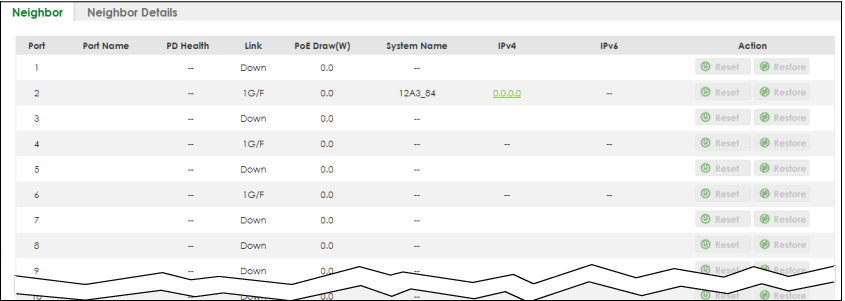
The following table describes the fields in the above screen.
label | description |
|---|---|
Port | This shows the port of the Switch, on which the neighboring device is discovered. |
Port Name | This shows the port description of the Switch. |
PD Health | For PoE models. This shows the status of auto PD recovery on this port. • Red: The Switch failed to get information from the PD connected to the port using LLDP, or the connected PD did not respond to the Switch’s ping requests. • Yellow: The Switch is restarting the connected PD by turning the power off and turning it on again. • Green: The Switch successfully discovered the connected PD using LLDP or ping. • –: Auto PD Recovery is not enabled on the Switch and the port, or the Switch does not supply power to the connected PD.  The status will NOT be updated instantaneously after enabling or disabling the Active switch in the Port > Auto PD Recovery screen. It will wait until the configured Resume Polling Interval (sec) has lapsed. The status will NOT be updated instantaneously after enabling or disabling the Active switch in the Port > Auto PD Recovery screen. It will wait until the configured Resume Polling Interval (sec) has lapsed. |
Link | This shows the speed (either 100M for 100 Mbps, 1G for 1 Gbps, or 2.5G for 2.5 Gbps) and the duplex (F for full duplex or H for half). This field displays Down if the port is not connected to any device. |
PoE Draw (W) | For PoE models. This shows the consumption that the neighboring device connected to this port draws from the Switch. This allows you to plan and use within the power budget of the Switch. |
System Name | This shows the system name of the neighbor device. |
IPv4 | This shows the IPv4 address of the neighbor device. The IPv4 address is a hyper link that you can click to log into and manage the neighbor device through its Web Configurator. |
IPv6 | This shows the IPv6 address of the neighbor device. The IPv6 address is a hyper link that you can click to log into and manage the neighbor device through its Web Configurator. |
Action | For PoE models. Click the Reset button to turn OFF the power of the neighbor device and turn it back ON again. The Switch must support power sourcing (PSE) or the network device is a powered device (PD).Click the Restore button to restore the neighboring device to its factory default settings. A warning message “Are you sure you want to load factory default?” appears prompting you to confirm the action. • The Switch must support power sourcing (PSE) or the network device is a powered device (PD). • If multiple neighbor devices use the same port, the Reset button is not available. • You can only reset Zyxel powered devices that support the ZON utility. |
Neighbor Details
Use this screen to view detailed information about the neighboring devices. Device information is displayed in gray when the neighboring device is currently offline.
Up to 10 neighboring device records per Ethernet port can be retained in this screen even when the devices are offline. When the maximum number of neighboring device records per Ethernet port is reached, new device records automatically overwrite existing offline device records, starting with the oldest existing offline device record first.
Click MONITOR > Neighbor > Neighbor Details to see the following screen.
MONITOR > Neighbor > Neighbor Details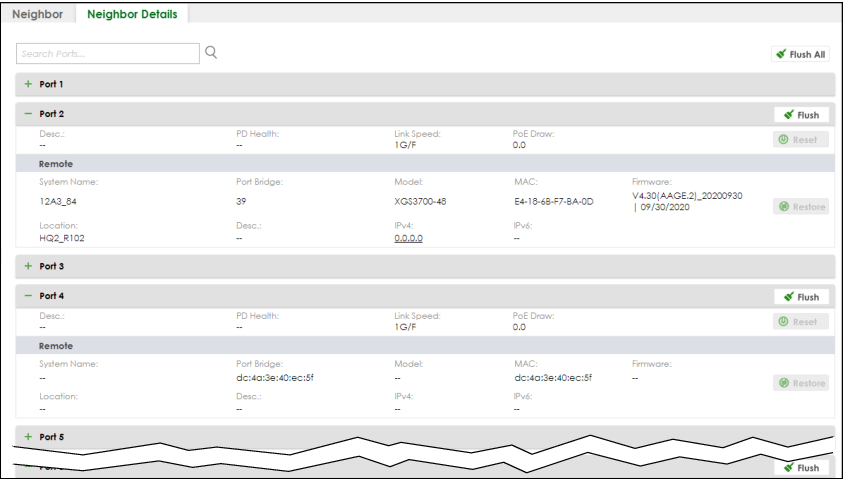
The following table describes the fields in the above screen.
label | description |
|---|---|
Search Ports... | Enter the port number to search and display the ports you specified. The result will display in the below list. You can enter multiple ports separated by comma (“,”) or hyphen (“-”) for a range. For example, enter “3-5” for ports 3, 4, and 5. Enter “3,5,7” for ports 3, 5, and 7. |
Port | This shows the port of the Switch, on which the neighboring device is discovered. |
Desc. | This shows the port description of the Switch. |
PD Health | For PoE models. This shows the status of auto PD recovery on this port. • Red: The Switch failed to get information from the PD connected to the port using LLDP, or the connected PD did not respond to the Switch’s ping requests. • Yellow: The Switch is restarting the connected PD by turning the power off and turning it on again. • Green: The Switch successfully discovered the connected PD using LLDP or ping. • –: Auto PD Recovery is not enabled on the Switch and the port, or the Switch does not supply power to the connected PD. |
Link Speed | This shows the speed (either 100M for 100 Mbps, 1G for 1 Gbps, or 2.5G for 2.5 Gbps) and the duplex (F for full duplex or H for half). This field displays Down if the port is not connected to any device. |
PoE Draw | For PoE models. This shows the consumption that the neighboring device connected to this port draws from the Switch. This allows you to plan and use within the power budget of the Switch. |
Reset | Click this button to turn OFF the power of the neighbor device and turn it back ON again. The Switch must support power sourcing (PSE) or the network device is a powered device (PD).If multiple neighbor devices use the same port, the Reset button is not available. |
Remote | |
System Name | This shows the system name of the neighbor device. |
Port Bridge | This shows the neighboring device’s MAC address or the port number connected to the Switch. |
Model | This shows the model name of the neighbor device. This field will show “–” for devices that do not support the ZON utility. |
MAC | This shows the MAC address of the neighbor device. |
Firmware | This shows the firmware version of the neighbor device. This field will show “–” for devices that do not support the ZON utility. |
Location | This shows the geographic location of the neighbor device. This field will show “–” for devices that do not support the ZON utility. |
Desc. | This shows the description of the neighbor device’s port which is connected to the Switch. |
IPv4 | This shows the IPv4 address of the neighbor device. The IPv4 address is a hyper link that you can click to log into and manage the neighbor device through its Web Configurator. |
IPv6 | This shows the IPv6 address of the neighbor device. The IPv6 address is a hyper link that you can click to log into and manage the neighbor device through its Web Configurator. |
Restore | Click this button to restore the neighbor device to its factory default settings. A warning message “Are you sure you want to load factory default?” appears prompting you to confirm the action. • The Switch must support power sourcing (PSE) or the network device is a powered device (PD). • You can only reset Zyxel powered devices that support the ZON utility. |
Flush | Click the Flush button on the port tab to remove information about neighbors learned on a specific ports. |
Flush All | Click the Flush All button to remove information about neighbors learned on all ports. |