ARP Setup
ARP Overview
Address Resolution Protocol (ARP) is a protocol for mapping an Internet Protocol address (IP address) to a physical machine address, also known as a Media Access Control or MAC address, on the local area network.
An IP (version 4) address is 32 bits long. In an Ethernet LAN, MAC addresses are 48 bits long. The ARP table maintains an association between each MAC address and its corresponding IP address.
What You Can Do
Use the ARP Learning screen (ARP Learning) to configure ARP learning mode on a per-port basis.
Use the Static ARP screen (Static ARP) to create static ARP entries that will display in the MONITOR > ARP Table screen and will not age out.
What You Need to Know
Read on for concepts on ARP that can help you configure the screen in this chapter.
How ARP Works
When an incoming packet destined for a host device on a local area network arrives at the Switch, the Switch looks in the ARP Table and if it finds the address, it sends it to the device.
If no entry is found for the IP address, ARP broadcasts the request to all the devices on the LAN. The Switch fills in its own MAC and IP address in the sender address fields, and puts the known IP address of the target in the target IP address field. In addition, the Switch puts all ones in the target MAC field (FF.FF.FF.FF.FF.FF is the Ethernet broadcast address). The replying device (which is either the IP address of the device being sought or the router that knows the way) replaces the broadcast address with the target's MAC address, swaps the sender and target pairs, and unicasts the answer directly back to the requesting machine. ARP updates the ARP Table for future reference and then sends the packet to the MAC address that replied.
ARP Learning Mode
The Switch supports three ARP learning modes: ARP-Reply, Gratuitous-ARP, and ARP-Request.
ARP-Reply
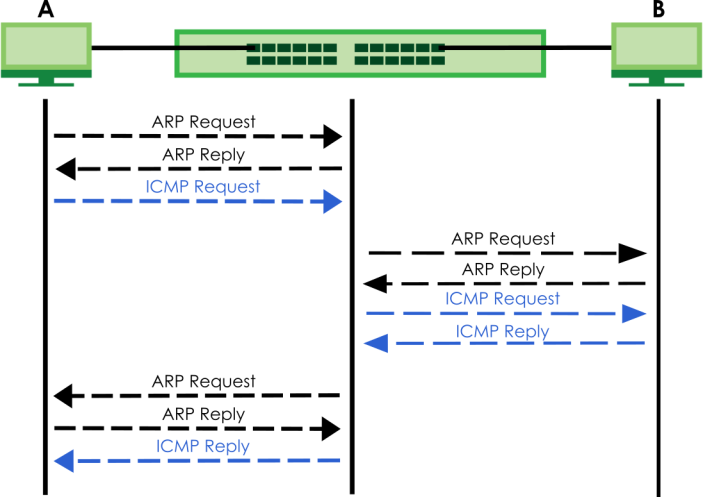
The Switch in ARP-Reply learning mode updates the ARP table only with the ARP replies to the ARP requests sent by the Switch. This can help prevent ARP spoofing.
In the following example, the Switch does not have IP address and MAC address mapping information for hosts A and B in its ARP table, and host A wants to ping host B. Host A sends an ARP request to the Switch and then sends an ICMP request after getting the ARP reply from the Switch. The Switch finds no matched entry for host B in the ARP table and broadcasts the ARP request to all the devices on the LAN. When the Switch receives the ARP reply from host B, it updates its ARP table and also forwards host A’s ICMP request to host B. After the Switch gets the ICMP reply from host B, it sends out an ARP request to get host A’s MAC address and updates the ARP table with host A’s ARP reply. The Switch then can forward host B’s ICMP reply to host A.
Gratuitous-ARP
A gratuitous ARP is an ARP request in which both the source and destination IP address fields are set to the IP address of the device that sends this request and the destination MAC address field is set to the broadcast address. There will be no reply to a gratuitous ARP request.
A device may send a gratuitous ARP packet to detect IP collisions. If a device restarts or its MAC address is changed, it can also use gratuitous ARP to inform other devices in the same network to update their ARP table with the new mapping information.
In Gratuitous-ARP learning mode, the Switch updates its ARP table with either an ARP reply or a gratuitous ARP request.
ARP-Request
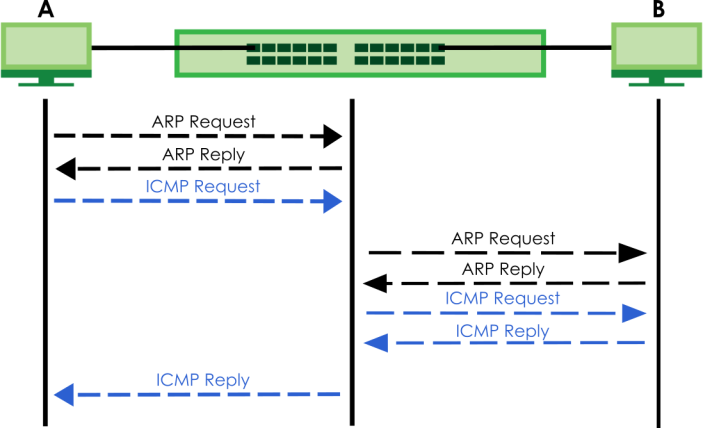
When the Switch is in ARP-Request learning mode, it updates the ARP table with both ARP replies, gratuitous ARP requests and ARP requests.
Therefore in the following example, the Switch can learn host A’s MAC address from the ARP request sent by host A. The Switch then forwards host B’s ICMP reply to host A right after getting host B’s MAC address and ICMP reply.
ARP Learning
Use this screen to configure each port’s ARP learning mode. Click NETWORKING > ARP Setup > ARP Learning > ARP Learning in the navigation panel to display the screen as shown next.
NETWORKING > ARP Setup > ARP Learning > ARP Learning (Standalone Mode)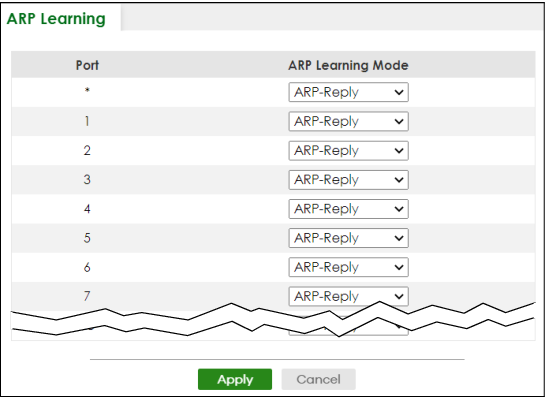
The following table describes the labels in this screen.
label | description |
|---|---|
Port | This field displays the port number. |
* | Settings in this row apply to all ports. Use this row only if you want to make some settings the same for all ports. Use this row first to set the common settings and then make adjustments on a port-by-port basis. Changes in this row are copied to all the ports as soon as you make them. |
ARP Learning Mode | Select the ARP learning mode the Switch uses on the port. Select ARP-Reply to have the Switch update the ARP table only with the ARP replies to the ARP requests sent by the Switch. Select Gratuitous-ARP to have the Switch update its ARP table with either an ARP reply or a gratuitous ARP request. Select ARP-Request to have the Switch update the ARP table with both ARP replies, gratuitous ARP requests and ARP requests. |
Apply | Click Apply to save your changes to the Switch’s run-time memory. The Switch loses these changes if it is turned off or loses power, so use the Save link on the top navigation panel to save your changes to the non-volatile memory when you are done configuring. |
Cancel | Click Cancel to begin configuring this screen afresh. |
Static ARP
Use this screen to view and configure static ARP entries that will display in the MONITOR > ARP Table > ARP Table screen and will not age out. Click NETWORKING > ARP Setup > Static ARP > Static ARP to display the screen as shown.
NETWORKING > ARP Setup > Static ARP > Static ARP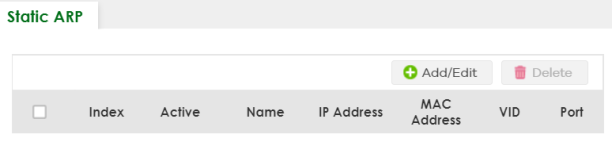
The following table describes the related labels in this screen.
LABEL | DESCRIPTION |
|---|---|
Index | This field displays the index number of an entry. |
Active | This field displays whether the entry is activated. |
Name | This field displays the descriptive name for this entry. This is for identification purposes only. |
IP Address | This is the IP address of a device connected to a Switch port with the corresponding MAC address below. |
MAC Address | This is the MAC address of the device with the corresponding IP address above. |
VID | This field displays the VLAN to which the device belongs. |
Port | This field displays the port to which the device connects. |
Select an entry’s checkbox to select a specific entry. Otherwise, select the checkbox in the table heading row to select all entries. | |
Add/Edit | Click Add/Edit to add a new entry or edit a selected one. |
Delete | Click Delete to remove the selected entries. |
Add/Edit Static ARP
Use this screen to add/edit static ARP entries. Click Add/Edit, or select an entry and click Add/Edit in the NETWORKING > ARP Setup > Static ARP > Static ARP to display this screen.
NETWORKING > ARP Setup > Static ARP > Static ARP > Add/Edit (Standalone Mode)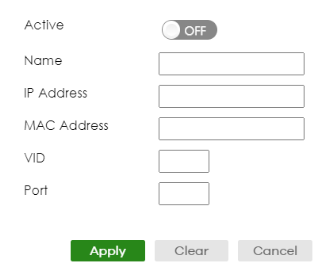
The following table describes the related labels in this screen.
LABEL | DESCRIPTION |
|---|---|
Active | Enable the switch button to activate your rule. You may temporarily deactivate a rule without deleting it by clearing this checkbox. |
Name | Enter a descriptive name (up to 32 printable ASCII characters except [ ? ], [ | ], [ ' ], [ " ] or [ , ]) for identification purposes. |
IP Address | Enter the IP address of a device connected to a Switch port with the corresponding MAC address below. |
MAC Address | Enter the MAC address of the device with the corresponding IP address above. |
VID | Enter the ID number of VLAN to which the device belongs. |
Port | Enter the number of port to which the device connects. |
Apply | Click Apply to save your changes to the Switch’s run-time memory. The Switch loses these changes if it is turned off or loses power, so use the Save link on the top navigation panel to save your changes to the non-volatile memory when you are done configuring. |
Clear | Click Clear to clear the fields to the factory defaults. |
Cancel | Click Cancel to not save the configuration you make and return to the last screen. |