OAM
OAM Overview
Link layer Ethernet OAM (Operations, Administration and Maintenance) as described in IEEE 802.3ah is a link monitoring protocol. It utilizes OAM Protocol Data Units or OAM PDUs to transmit link status information between directly connected Ethernet devices. Both devices must support IEEE 802.3ah. Because link layer Ethernet OAM operates at layer two of the OSI (Open Systems Interconnection Basic Reference) model, neither IP or SNMP are necessary to monitor or troubleshoot network connection problems.
The Switch supports the following IEEE 802.3ah features:
• Discovery – this identifies the devices on each end of the Ethernet link and their OAM configuration.
• Remote Loopback – this can initiate a loopback test between Ethernet devices.
What You Can Do
• Use the OAM Status screen (OAM Status) to view the configuration of ports on which Ethernet OAM is enabled.
OAM Status
Use this screen to view the configuration of ports on which Ethernet OAM is enabled. Click PORT > OAM > OAM Status in the navigation panel.
PORT > OAM > OAM Status (Standalone Mode)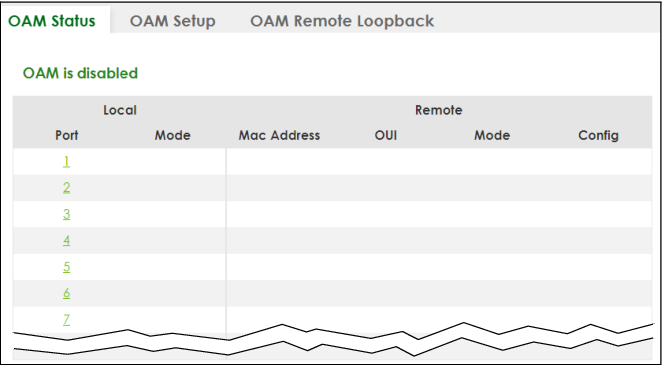
The following table describes the fields in the above screen.
label | description |
|---|---|
Local This section displays information about the ports on the Switch. | |
Port | This field displays the port number. |
Mode | This field displays the operational state of the port when OAM is enabled on the port. Active – Allows the port to issue and respond to Ethernet OAM commands. Passive – Allows the port to respond to Ethernet OAM commands. |
Remote This section displays information about the remote device. | |
Mac Address | This field displays the MAC address of the remote device. |
OUI | This field displays the OUI (first 3 bytes of the MAC address) of the remote device. |
Mode | This field displays the operational state of the port when OAM is enabled on the port. Active – Allows the port to issue and respond to Ethernet OAM commands. Passive – Allows the port to respond to Ethernet OAM commands. |
Config | This field displays the capabilities of the Switch and remote device. |
OAM Details
Use this screen to view OAM configuration details and operational status of a specific port. Click a number in the Port column in the PORT > OAM > OAM Status screen to display the screen as shown next.
PORT > OAM > OAM Status > OAM Details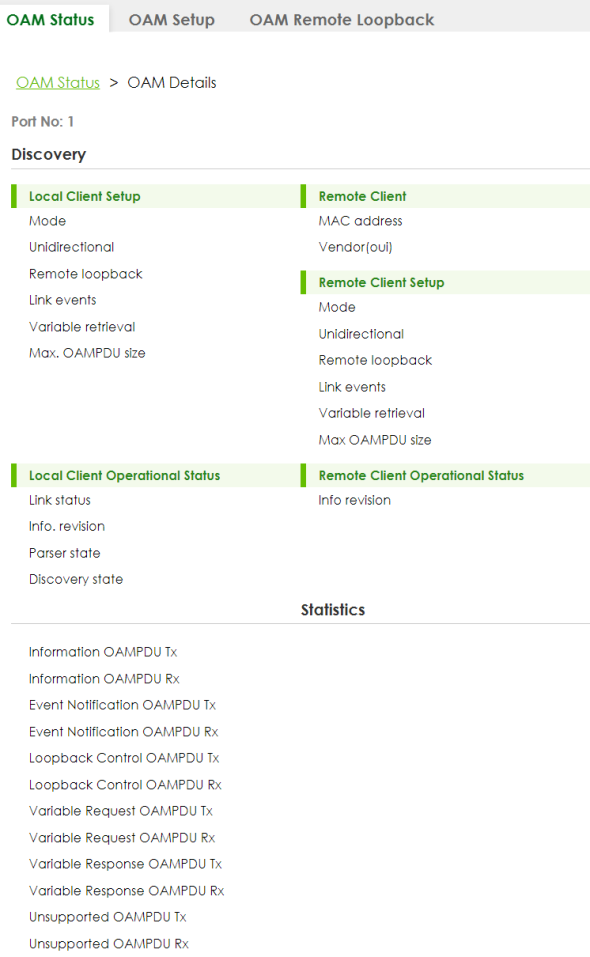
The following table describes the fields in the above screen.
label | description |
|---|---|
Port No | This field displays the port number. |
Discovery This section displays OAM configuration details and operational status of the port on the Switch and/or the remote device. | |
Local Client/Remote Client Setup | |
Mode | This field displays the OAM mode. The device in active mode (typically the service provider's device) controls the device in passive mode (typically the subscriber's device). Active: The port initiates OAM discovery; sends information PDUs; and may send event notification PDUs, variable request/response PDUs, or loopback control PDUs. Passive: The port waits for the remote device to initiate OAM discovery; sends information PDUs; may send event notification PDUs; and may respond to variable request PDUs or loopback control PDUs. The Switch might not support some types of PDUs, as indicated in the fields below. |
Unidirectional | This field indicates whether or not the port can send information PDUs to transmit fault information when the receive path is non-operational. |
Remote loopback | This field indicates whether or not the port can use loopback control PDUs to put the remote device into loopback mode. |
Link events | This field indicates whether or not the port can interpret link events, such as link fault and dying gasp. Link events are sent in event notification PDUs and indicate when the number of errors in a given interval (time, number of frames, number of symbols, or number of error frame seconds) exceeds a specified threshold. Organizations may create organization-specific link event TLVs as well. |
Variable retrieval | This field indicates whether or not the port can respond to requests for more information, such as requests for Ethernet counters and statistics, about link events. |
Max. OAMPDU size | This field displays the maximum size of PDU for receipt and delivery. |
Local Client/Remote Client Operational status | |
Link status | This field indicates that the link between the Switch port and a connected IEEE 802.3ah-enabled remote Ethernet device is up or down. |
Info. revision | This field displays the current version of local state and configuration. This two-octet value starts at zero and increments every time the local state or configuration changes. |
Parser state | This field indicates the current state of the parser. Forward: The port is forwarding packets normally. Loopback: The port is in loopback mode. Discard: The port is discarding non-OAM PDUs because it is trying to or has put the remote device into loopback mode. |
Discovery state | This field indicates the state in the OAM discovery process. OAM-enabled devices use this process to detect each other and to exchange information about their OAM configuration and capabilities. OAM discovery is a handshake protocol. Fault: One of the devices is transmitting OAM PDUs with link fault information, or the interface is not operational. Active Send Local: The port is in active mode and is trying to see if the remote device supports OAM. Passive Wait: The port is in passive mode and is waiting for the remote device to begin OAM discovery. Send Local Remote: This state occurs in the following circumstances. • The port has discovered the remote device but has not accepted or rejected the connection yet. • The port has discovered the remote device and rejected the connection. Send Local Remote OK: The port has discovered the remote device and has accepted the connection. In addition, the remote device has not accepted or rejected the connection yet, or the remote device has rejected the connected. Send Any: The port and the remote device have accepted the connection. This is the operating state for OAM links that are fully operational. |
Remote Client | |
MAC Address | This field displays the MAC address of the IEEE 802.3ah-enabled remote Ethernet device that is connected to the Switch. |
Vendor(oui) | This field displays the Organizationally Unique Identifiers (OUI) representing the vendor of the IEEE 802.3ah-enabled remote Ethernet device that is connected to the Switch. |
Statistics This section displays the number of OAM packets transferred on the port of the Switch. | |
Information OAMPDU Tx | This field displays the number of OAM PDUs sent on the port. |
Information OAMPDU Rx | This field displays the number of OAM PDUs received on the port. |
Event Notification OAMPDU Tx | This field displays the number of unique or duplicate OAM event notification PDUs sent on the port. |
Event Notification OAMPDU Rx | This field displays the number of unique or duplicate OAM event notification PDUs received on the port. |
Loopback Control OAMPDU Tx | This field displays the number of loopback control OAM PDUs sent on the port. |
Loopback Control OAMPDU Rx | This field displays the number of loopback control OAM PDUs received on the port. |
Variable Request OAMPDU Tx | This field displays the number of OAM PDUs sent to request MIB objects on the remote device. |
Variable Request OAMPDU Rx | This field displays the number of OAM PDUs received requesting MIB objects on the Switch. |
Variable Response OAMPDU Tx | This field displays the number of OAM PDUs sent by the Switch in response to requests. |
Variable Response OAMPDU Rx | This field displays the number of OAM PDUs sent by the remote device in response to requests. |
Unsupported OAMPDU Tx | This field displays the number of unsupported OAM PDUs sent on the port. |
Unsupported OAMPDU Rx | This field displays the number of unsupported OAM PDUs received on the port. |
OAM Setup
Use this screen to turn on Ethernet OAM on the Switch and ports and configure the related settings.
Click PORT > OAM > OAM Setup to display the configuration screen as shown.
PORT > OAM > OAM Setup (Standalone Mode)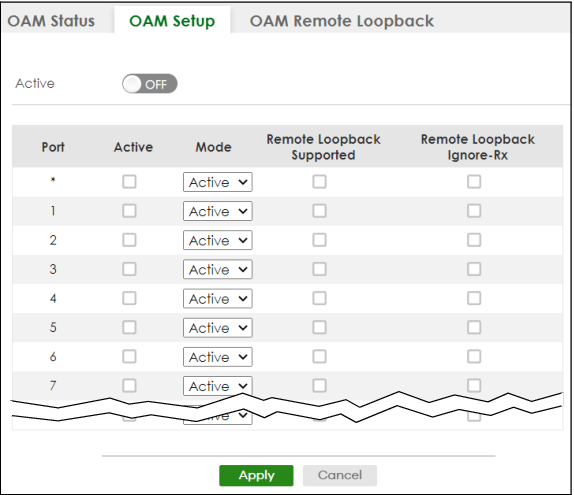
The following table describes the fields in the above screen.
label | description |
|---|---|
Active | Enable the switch button to enable Ethernet OAM on the Switch. |
Port | This field displays the port number. |
* | Settings in this row apply to all ports. Use this row only if you want to make some settings the same for all ports. Use this row first to set the common settings and then make adjustments on a port-by-port basis.  Changes in this row are copied to all the ports as soon as you make them. Changes in this row are copied to all the ports as soon as you make them. |
Active | Select this checkbox to enable Ethernet OAM on this port. Clear this checkbox to disable Ethernet OAM on the port. |
Mode | Specify the OAM mode on the port. Select Active to allow the port to issue and respond to Ethernet OAM commands. Select Passive to allow the port to respond to Ethernet OAM commands. |
Remote Loopback Supported | Select this checkbox to enable the remote loopback feature on the port. Otherwise, clear the checkbox to disable it. |
Remote Loopback Ignore-Rx | Select this checkbox to set the Switch to process loopback commands received on the port. Otherwise, clear the checkbox to have the Switch ignore loopback commands received on the port. |
Apply | Click Apply to save your changes to the Switch’s run-time memory. The Switch loses these changes if it is turned off or loses power, so use the Save link on the top navigation panel to save your changes to the non-volatile memory when you are done configuring. |
Cancel | Click Cancel to begin configuring this screen afresh. |
OAM Remote Loopback
Use this screen to perform a remote loopback test. Click PORT > OAM > OAM Remote Loopback to display the screen as shown.
PORT > OAM > OAM Remote Loopback (Standalone Mode)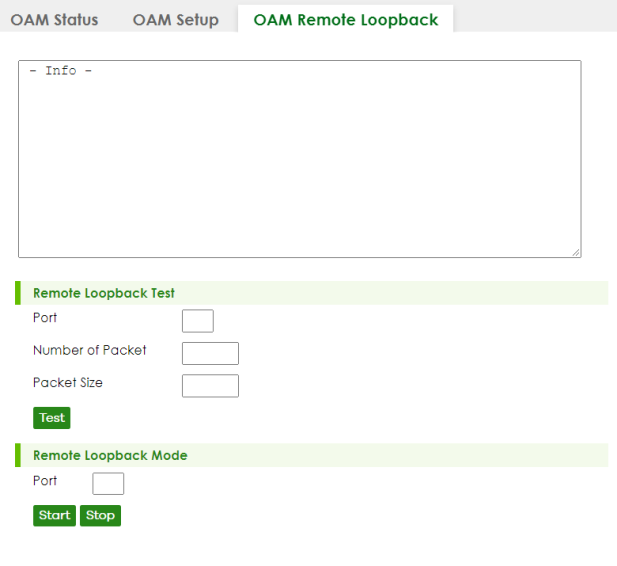
The following table describes the fields in the above screen.
label | description |
|---|---|
Remote Loopback Test | |
Port | Enter the number of the port from which the Switch performs a remote-loopback test. |
Number of Packet | Define the allowable packet number of the loopback test frames. |
Packet Size | Define the allowable packet size of the loopback test frames. |
Test | Click Test to begin the test. |
Remote Loopback Mode | |
Port | Enter the number of the port from which the Switch sends loopback control PDUs to initiate or terminate a remote-loopback test. |
Start | Click Start to initiate a remote-loopback test from the specified port by sending Enable Loopback Control PDUs to the remote device. |
Stop | Click Stop to terminate a remote-loopback test from the specified port by sending Disable Loopback Control PDUs to the remote device. |