Port Authentication
Port Authentication Overview
This chapter describes the IEEE 802.1x, MAC, Guest VLAN, and Compound authentication methods.
• IEEE 802.1x1 – An authentication server validates access to a port based on a user name and password provided by the user. A user that fails an authentication server can still access the port, but traffic from the user is forwarded to the guest VLAN port.
• MAC Authentication – An authentication server validates access to a port based on the MAC address and password of the client.
• Guest VLAN – In either mode, if authentication fails the Switch can still allow the client to access the network on a Guest VLAN.
• Compound Authentication – An authentication server validates access to a port based on combination of IEEE 802.1x and MAC Authentication. There are two modes:
• Loose: The client authenticates using either IEEE 802.1x authentication or MAC Authentication.
• Strict: The client authenticates using both IEEE 802.1x authentication and MAC Authentication.
 All types of authentication use the RADIUS (Remote Authentication Dial In User Service, RFC 2138, 2139) protocol to validate users. You must configure a RADIUS server before enabling port authentication.If you enable IEEE 802.1x authentication and MAC authentication on the same port, the Switch performs IEEE 802.1x authentication and MAC authentication. If a user fails to authenticate either through the IEEE 802.1x or MAC authentication method, then access to the port is denied.IEEE 802.1x is not supported by all user operating systems. For details on compatibility, see your operating system documentation. If your operating system does not support 802.1x, you must install 802.1x client software.
What You Can Do
• Use the Compound Authentication screen (Compound Authentication) to allow network access for clients that pass either IEEE 802.1x authentication OR MAC authentication, or pass both IEEE 802.1x authentication AND MAC authentication.
What You Need to Know
IEEE 802.1x Authentication
The following figure illustrates how a client connecting to a IEEE 802.1x authentication enabled port goes through a validation process. The Switch prompts the client for login information in the form of a user name and password after the client responds to its identity request. When the client provides the login credentials, the Switch sends an authentication request to a RADIUS server. The RADIUS server validates whether this client is allowed access to the port.
IEEE 802.1x Authentication Process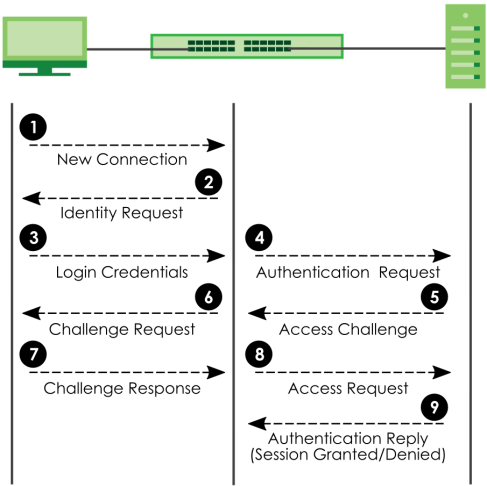
MAC Authentication
MAC authentication works in a very similar way to IEEE 802.1x authentication. The main difference is that the Switch does not prompt the client for login credentials. The login credentials are based on the source MAC address of the client connecting to a port on the Switch along with a password configured specifically for MAC authentication on the Switch.
MAC Authentication Process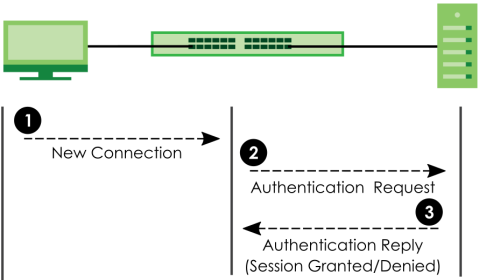
To enable port authentication, first activate the port authentication methods (both on the Switch and the ports), then configure the RADIUS server settings in the SECURITY> AAA > RADIUS Server Setup > RADIUS Server Setup screen.Activate IEEE 802.1x Security
Use this screen to activate IEEE 802.1x security. Click SECURITY > Port Authentication > 802.1x > 802.1x to display the configuration screen as shown.
SECURITY > Port Authentication > 802.1x > 802.1x (Standalone Mode)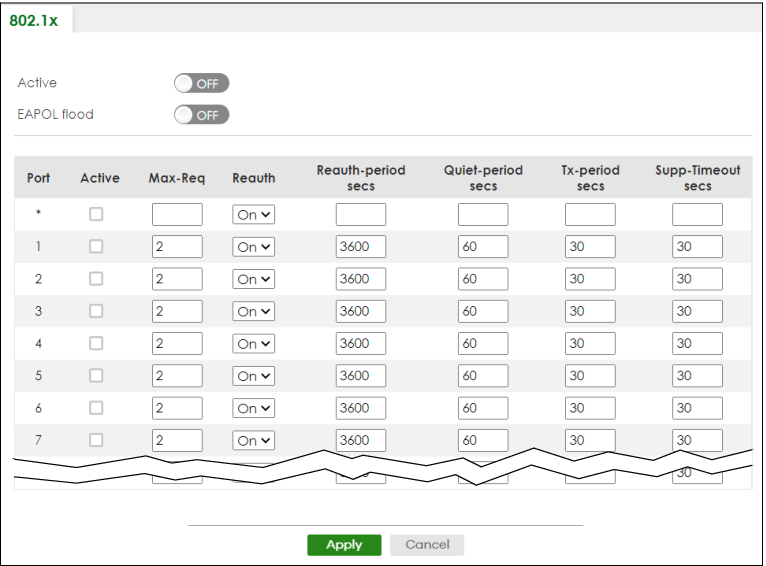
The following table describes the labels in this screen.
label | description |
|---|---|
Active | Enable the switch button to permit 802.1x authentication on the Switch. You must first enable 802.1x authentication on the Switch before configuring it on each port. |
EAPOL flood | Enable the switch button to flood EAPOL packets to all ports in the same VLAN. EAP over LAN (EAPOL) is a port authentication protocol used in IEEE 802.1x. It is used to encapsulate and transmit EAP packets between the supplicant (a client device that requests access to the network resources or services) and authenticator (the Switch) directly over the LAN. EAPOL flood will not take effect when 802.1x authentication is enabled. |
Port | This field displays the port number. * means all ports. |
* | Settings in this row apply to all ports. Use this row only if you want to make some settings the same for all ports. Use this row first to set the common settings and then make adjustments on a port-by-port basis. Changes in this row are copied to all the ports as soon as you make them. |
Active | Select this to permit 802.1x authentication on this port. You must first allow 802.1x authentication on the Switch before configuring it on each port. |
Max-Req | Specify the number of times the Switch tries to authenticate clients before sending unresponsive ports to the Guest VLAN. This is set to 2 by default. That is, the Switch attempts to authenticate a client twice. If the client does not respond to the first authentication request, the Switch tries again. If the client still does not respond to the second request, the Switch sends the client to the Guest VLAN. The client needs to send a new request to be authenticated by the Switch again. |
Reauth | Specify if a subscriber has to periodically re-enter his or her user name and password to stay connected to the port. |
Reauth-period secs | Specify the length of time required to pass before a client has to re-enter his or her user name and password to stay connected to the port. |
Quiet-period secs | Specify the number of seconds the port remains in the HELD state and rejects further authentication requests from the connected client after a failed authentication exchange. |
Tx-period secs | Specify the number of seconds the Switch waits for client’s response before re-sending an identity request to the client. |
Supp-Timeout secs | Specify the number of seconds the Switch waits for client’s response to a challenge request before sending another request. |
Apply | Click Apply to save your changes to the Switch’s run-time memory. The Switch loses these changes if it is turned off or loses power, so use the Save link on the top navigation panel to save your changes to the non-volatile memory when you are done configuring. |
Cancel | Click Cancel to begin configuring this screen afresh. |
Activate MAC Authentication
Use this screen to activate MAC authentication. Click SECURITY > Port Authentication > MAC Authentication > MAC Authentication to display the configuration screen as shown.
SECURITY > Port Authentication > MAC Authentication > MAC Authentication (Standalone Mode)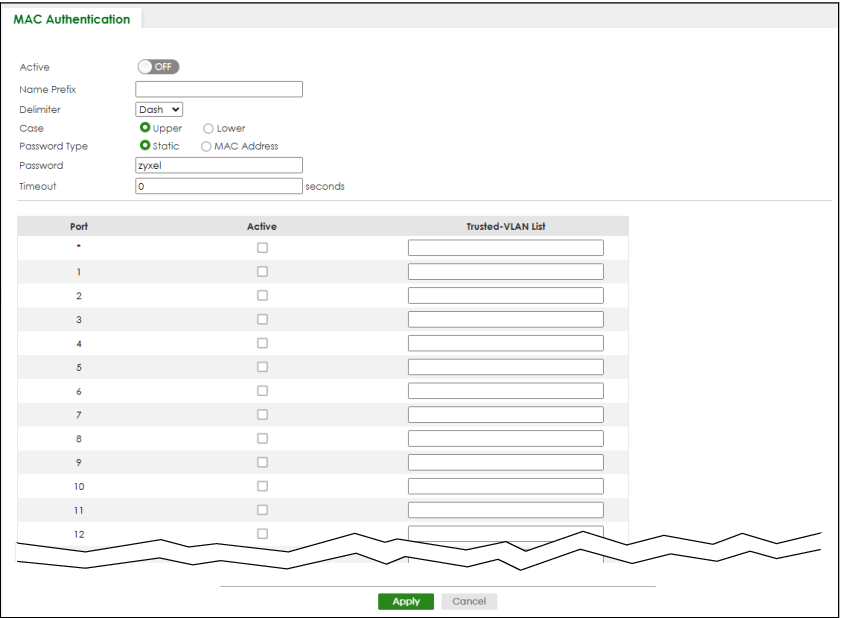
The following table describes the labels in this screen.
label | description |
|---|---|
Active | Enable the switch button to permit MAC authentication on the Switch. You must first enable MAC authentication on the Switch before configuring it on each port. |
Name Prefix | Type the prefix that is appended to all MAC addresses sent to the RADIUS server for authentication. You can enter up to 32 printable ASCII characters except [ ? ], [ | ], [ ' ], [ " ], [ , ]. If you leave this field blank, then only the MAC address of the client is forwarded to the RADIUS server. |
Delimiter | Select the delimiter the RADIUS server uses to separate the pairs in MAC addresses used as the account user name (and password). You can select Dash (–), Colon (:), or None to use no delimiters at all in the MAC address. |
Case | Select the case (Upper or Lower) the RADIUS server requires for letters in MAC addresses used as the account user name (and password). |
Password Type | Select Static to have the Switch send the password you specify below or MAC-Address to use the client MAC address as the password. |
Password | Type the password the Switch sends along with the MAC address of a client for authentication with the RADIUS server. You can enter up to 32 printable ASCII characters except [ ? ], [ | ], [ ' ], [ " ], or [ , ]. |
Timeout | Specify the amount of time (in seconds) before the Switch allows a client MAC address that fails authentication to try and authenticate again. Maximum time is 3000 seconds. When a client fails MAC authentication, its MAC address is learned by the MAC address table with a status of denied. The timeout period you specify here is the time the MAC address entry stays in the MAC address table until it is cleared. If you specify 0 for the timeout value, the Switch uses the Aging Time configured in the SYSTEM > Switch Setup > Switch Setup screen. If the Aging Time in the SYSTEM > Switch Setup > Switch Setup screen is set to a lower value, then it supersedes this setting. |
Port | This field displays a port number. * means all ports. |
* | Use this row to make the setting the same for all ports. Use this row first and then make adjustments on a port-by-port basis. Changes in this row are copied to all the ports as soon as you make them. |
Active | Select this checkbox to permit MAC authentication on this port. You must first allow MAC authentication on the Switch before configuring it on each port. |
Trusted-VLAN List | Enter the ID numbers of the trusted VLANs (separated by a comma). If a client’s VLAN ID is specified here, the client can access the port and the connected networks without MAC authentication. |
Apply | Click Apply to save your changes to the Switch’s run-time memory. The Switch loses these changes if it is turned off or loses power, so use the Save link on the top navigation panel to save your changes to the non-volatile memory when you are done configuring. |
Cancel | Click Cancel to begin configuring this screen afresh. |
Guest VLAN
When 802.1x or MAC Authentication is enabled on the Switch and its ports, clients that do not have the correct credentials are blocked from using the ports. You can configure your Switch to have one VLAN that acts as a guest VLAN. If you enable the guest VLAN (102 in the example) on a port (2 in the example), the user (A in the example) that is not IEEE 802.1x capable or fails to enter the correct user name and password can still access the port, but traffic from the user is forwarded to the guest VLAN. That is, unauthenticated users can have access to limited network resources in the same guest VLAN, such as the Internet. The access granted to the Guest VLAN depends on how the network administrator configures switches or routers with the guest network feature.
Guest VLAN Example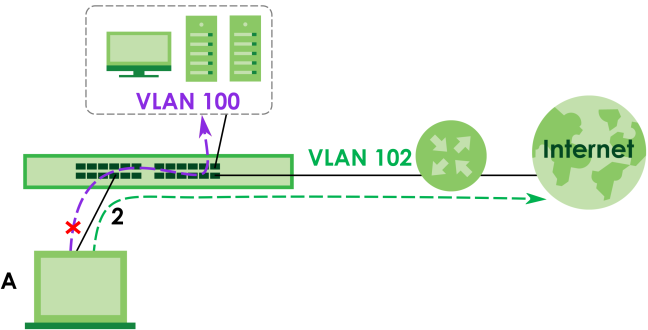
Use this screen to enable and assign a guest VLAN to a port. Click SECURITY > Port Authentication > Guest VLAN > Guest VLAN to display the configuration screen as shown.
SECURITY > Port Authentication > Guest VLAN > Guest VLAN (Standalone Mode)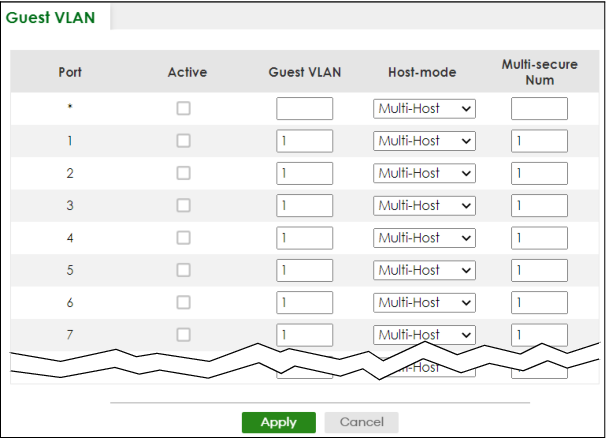
The following table describes the labels in this screen.
label | description |
|---|---|
Port | This field displays a port number. * means all ports. |
* | Settings in this row apply to all ports. Use this row only if you want to make some settings the same for all ports. Use this row first to set the common settings and then make adjustments on a port-by-port basis. Changes in this row are copied to all the ports as soon as you make them. |
Active | Select this checkbox to enable the guest VLAN feature on this port. Clients that fail authentication are placed in the guest VLAN and can receive limited services. |
Guest VLAN | A guest VLAN is a pre-configured VLAN on the Switch that allows non-authenticated users to access limited network resources through the Switch. You must also enable IEEE 802.1x authentication on the Switch and the associated ports. Enter the number that identifies the guest VLAN. Make sure this is a VLAN recognized in your network. |
Host-mode | Specify how the Switch authenticates users when more than one user connect to the port (using a hub). Select Multi-Host to authenticate only the first user that connects to this port. If the first user enters the correct credential, any other users are allowed to access the port without authentication. If the first user fails to enter the correct credential, they are all put in the guest VLAN. Once the first user who did authentication logs out or disconnects from the port, the rest of the users are blocked until a user does the authentication process again. Select Multi-Secure to authenticate each user that connects to this port. |
Multi-secure Num | If you set Host-mode to Multi-Secure, specify the maximum number of users (between 1 and 5) that the Switch will authenticate on this port. |
Apply | Click Apply to save your changes to the Switch’s run-time memory. The Switch loses these changes if it is turned off or loses power, so use the Save link on the top navigation panel to save your changes to the non-volatile memory when you are done configuring. |
Cancel | Click Cancel to begin configuring this screen afresh. |
Compound Authentication
Use this screen to allow network access for clients that:
• pass either IEEE 802.1x authentication OR MAC authentication, or
• pass both IEEE 802.1x authentication AND MAC authentication.
The authentication modes are:
• In IEEE 802.1x authentication, the Switch prompts the client for login information in the form of a user name and password. When the client provides the login credentials, the Switch sends an authentication request to a RADIUS server. The RADIUS server validates whether this client is allowed access to the port. Use the SECURITY > AAA > RADIUS Server Setup > RADIUS Server Setup screen to configure the RADIUS server.
• In MAC authentication, the login credentials are based on the source MAC address of the client connecting to a port on the Switch along with a password configured specifically for MAC authentication on the Switch.
Click SECURITY > Port Authentication > Compound Authentication Mode > Compound Authentication Mode to display the configuration screen as shown.
SECURITY > Port Authentication > Compound Authentication Mode > Compound Authentication Mode (Standalone Mode)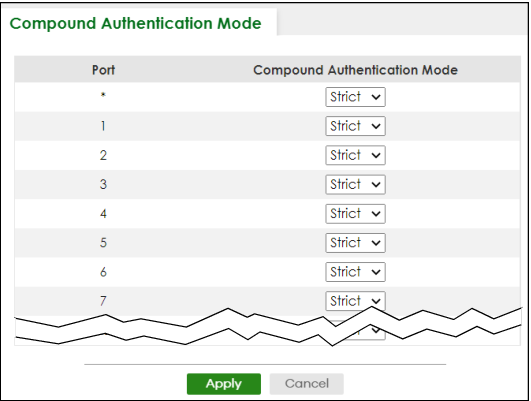
The following table describes the labels in this screen.
label | description |
|---|---|
Port | This field displays a port number. * means all ports. |
* | Settings in this row apply to all ports. Use this row only if you want to make some settings the same for all ports. Use this row first to set the common settings and then make adjustments on a port-by-port basis. Changes in this row are copied to all the ports as soon as you make them. |
Compound Authentication Mode | Specify how the Switch authenticates clients for network access. Select Strict to allow network access to clients only when clients passes IEEE 802.1x authentication AND MAC authentication at the same time. Select Loose to allow network access to clients when clients passes IEEE 802.1x authentication OR MAC authentication. |
Apply | Click Apply to save your changes to the Switch’s run-time memory. The Switch loses these changes if it is turned off or loses power, so use the Save link on the top navigation panel to save your changes to the non-volatile memory when you are done configuring. |
Cancel | Click Cancel to begin configuring this screen afresh. |
Technical Reference
This section provides technical background information on the topics discussed in this chapter.
IEEE 802.1x
The IEEE 802.1x is a standard for authentication as well as providing additional accounting and control features. It can be implemented both on wired and wireless networks. It is supported by Windows XP and a number of network devices. Some advantages of IEEE 802.1x are:
• User based identification
• Support for RADIUS (Remote Authentication Dial In User Service, RFC 2138, 2139) for centralized user profile and accounting management on a network RADIUS server.
• Support for EAP (Extensible Authentication Protocol, RFC 2486) that allows additional authentication methods to be deployed with no changes to the switch or the wired clients.
RADIUS
RADIUS is based on a client-server model that supports authentication, authorization and accounting. The RADIUS server handles the following tasks:
• Authentication
Determines the identity of the users.
• Authorization
Determines the network services available to authenticated users once they are connected to the network.
• Accounting
Keeps track of the actions that are perform on the switch, such as login events.
RADIUS is a simple package exchange in which your switch acts as a message relay between the wired client and the network RADIUS server.
Types of RADIUS Messages
The following types of RADIUS messages are exchanged between the switch and the RADIUS server for user authentication:
• Access-Request
Sent by a switch requesting authentication.
• Access-Reject
Sent by a RADIUS server rejecting access.
• Access-Accept
Sent by a RADIUS server allowing access.
• Access-Challenge
Sent by a RADIUS server requesting more information in order to allow access. The switch sends a proper response from the user and then sends another Access-Request message.
The following types of RADIUS messages are exchanged between the switch and the RADIUS server for user accounting:
• Accounting-Request
Sent by the switch requesting accounting.
• Accounting-Response
Sent by the RADIUS server to indicate that it has started or stopped accounting.
The switch and the RADIUS server use a shared secret key, which is a password, they both know to authenticate the communications between them, and ensure network security. A shared key is not sent over the network.
The switch forwards the RADIUS requests of a client to the RADIUS server. The login password information exchanged is sent over the network and encrypted to protect the network from unauthorized access.
EAP (Extensible Authentication Protocol) Authentication
This section discusses some popular authentication types: EAP-MD5, EAP-TLS, EAP-TTLS, PEAP and LEAP. Your wired LAN device may not support all authentication types.
EAP (Extensible Authentication Protocol) is an authentication protocol that runs on top of the IEEE 802.1x transport mechanism in order to support multiple types of user authentication. By using EAP to interact with an EAP-compatible RADIUS server, a switch helps a wired station and a RADIUS server perform authentication.
The type of authentication you use depends on the RADIUS server and an intermediary switch that supports IEEE 802.1x.
For EAP-TLS authentication type, you must first have a wired connection to the network and obtain the certificates from a certificate authority (CA). A certificate (also called digital IDs) can be used to authenticate users and a CA issues certificates and guarantees the identity of each certificate owner.
• EAP-MD5 (Message-Digest Algorithm 5)
MD5 authentication is the simplest one-way authentication method. The authentication server sends a challenge to the wired client. The wired client ‘proves’ that it knows the password by encrypting the password with the challenge and sends back the information. Password is not sent in plain text.
However, MD5 authentication has some weaknesses. Since the authentication server needs to get the plain text passwords, the passwords must be stored. Thus someone other than the authentication server may access the password file. In addition, it is possible to impersonate an authentication server as MD5 authentication method does not perform mutual authentication. Finally, MD5 authentication method does not support data encryption with dynamic session key. You must configure WEP encryption keys for data encryption.
• EAP-TLS (Transport Layer Security)
With EAP-TLS, digital certifications are needed by both the server and the wired clients for mutual authentication. The server presents a certificate to the client. After validating the identity of the server, the client sends a different certificate to the server. The exchange of certificates is done in the open before a secured tunnel is created. This makes user identity vulnerable to passive attacks. A digital certificate is an electronic ID card that authenticates the sender’s identity. However, to implement EAPTLS, you need a Certificate Authority (CA) to handle certificates, which imposes a management overhead.
• EAP-TTLS (Tunneled Transport Layer Service)
EAP-TTLS is an extension of the EAP-TLS authentication that uses certificates for only the server-side authentications to establish a secure connection. Client authentication is then done by sending user name and password through the secure connection, thus client identity is protected. For client authentication, EAP-TTLS supports EAP methods and legacy authentication methods such as PAP, CHAP, MS-CHAP and MS-CHAP v2.
• PEAP (Protected EAP)
Like EAP-TTLS, server-side certificate authentication is used to establish a secure connection, then use simple user name and password methods through the secured connection to authenticate the clients, thus hiding client identity. However, PEAP only supports EAP methods, such as EAP-MD5, EAP-MSCHAPv2 and EAP-GTC (EAP-Generic Token Card), for client authentication. EAP-GTC is implemented only by Cisco.
• LEAP
LEAP (Lightweight Extensible Authentication Protocol) is a Cisco implementation of IEEE 802.1x.
EAPOL (EAP over LAN)
EAPOL is a port authentication protocol used in IEEE 802.1x. It encapsulates and sends EAP packets from the LAN. EAPOL exchanges the following messages between a wired client and switch.
• EAPOL-Start
A wired client will send this message to a switch to let it know the wired client is ready.
• EAPOL-Key
The switch will send an encryption key to the wired client. It will be allowed access to the network when both of the switch and wired client have the correct encryption keys.
• EAP-Packet
Both of the wired client and the switch will send this message to complete the authentication process.
• EAPOL-Logoff
This message will be sent when the wired client wants to be disconnected from the network.
• EAPOL-Encapsulated-ASF-Alert
This message is sent If the authentication process is not completed yet, and alerts needs to be forwarded.