Differentiated Services
DiffServ Overview
This chapter shows you how to configure Differentiated Services (DiffServ) on the Switch.
Quality of Service (QoS) is used to prioritize source-to-destination traffic flows. All packets in the flow are given the same priority. You can use CoS (class of service) to give different priorities to different packet types.
DiffServ is a class of service (CoS) model that marks packets so that they receive specific per-hop treatment at DiffServ-compliant network devices along the route based on the application types and traffic flow. Packets are marked with DiffServ Code Points (DSCPs) indicating the level of service desired. This allows the intermediary DiffServ-compliant network devices to handle the packets differently depending on the code points without the need to negotiate paths or remember state information for every flow. In addition, applications do not have to request a particular service or give advanced notice of where the traffic is going.
What You Can Do
• Use the Diffserv screen (DiffServ Overview) to activate DiffServ to apply marking rules or IEEE 802.1p priority mapping on the Switch.
What You Need to Know
Read on for concepts on Differentiated Services that can help you configure the screens in this chapter.
DSCP and Per-Hop Behavior
DiffServ defines a new DS (Differentiated Services) field to replace the Type of Service (ToS) field in the IP header. The DS field contains a 6-bit DSCP field which can define up to 64 service levels and the remaining 2 bits are defined as currently unused (CU). The following figure illustrates the DS field.
DiffServ: Differentiated Service Field
DSCP (6 bits) | CU (2 bits) |
DSCP is backward compatible with the three precedence bits in the ToS octet so that non-DiffServ compliant, ToS-enabled network device will not conflict with the DSCP mapping.
The DSCP value determines the PHB (Per-Hop Behavior), that each packet gets as it is forwarded across the DiffServ network. Based on the marking rule different kinds of traffic can be marked for different priorities of forwarding. Resources can then be allocated according to the DSCP values and the configured policies.
DiffServ Network Example
The following figure depicts a DiffServ network consisting of a group of directly connected DiffServ-compliant network devices. The boundary node (A in DiffServ Network) in a DiffServ network classifies (marks with a DSCP value) the incoming packets into different traffic flows (Platinum, Gold, Silver, Bronze) based on the configured marking rules. A network administrator can then apply various traffic policies to the traffic flows. An example traffic policy, is to give higher drop precedence to one traffic flow over others. In our example, packets in the Bronze traffic flow are more likely to be dropped when congestion occurs than the packets in the Platinum traffic flow as they move across the DiffServ network.
DiffServ Network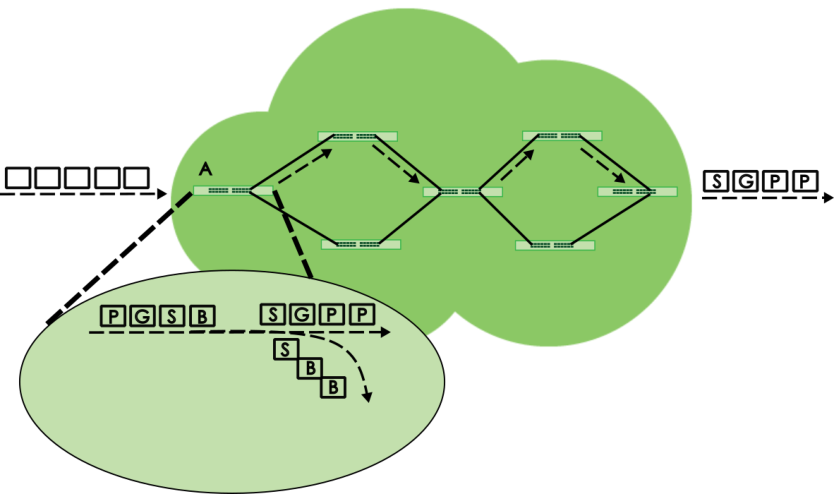
Activate DiffServ
Activate DiffServ to apply marking rules or IEEE 802.1p priority mapping on the selected ports.
Click SWITCHING > QoS > Diffserv to display the screen as shown.
SWITCHING > QoS > Diffserv (Standalone Mode)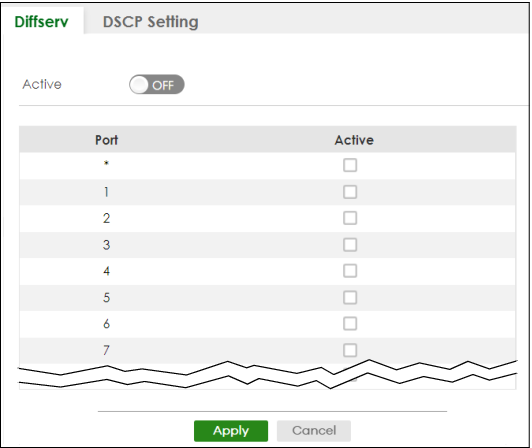
The following table describes the labels in this screen.
label | description |
|---|---|
Active | Enable the switch button to enable Diffserv on the Switch. |
Port | This field displays the index number of a port on the Switch. |
* | Settings in this row apply to all ports. Use this row only if you want to make some settings the same for all ports. Use this row first to set the common settings and then make adjustments on a port-by-port basis. Changes in this row are copied to all the ports as soon as you make them. |
Active | Select Active to enable Diffserv on the port. |
Apply | Click Apply to save your changes to the Switch’s run-time memory. The Switch loses these changes if it is turned off or loses power, so use the Save link on the top navigation panel to save your changes to the non-volatile memory when you are done configuring. |
Cancel | Click Cancel to begin configuring this screen afresh. |
DSCP-to-IEEE 802.1p Priority Settings
You can configure the DSCP to IEEE 802.1p mapping to allow the Switch to prioritize all traffic based on the incoming DSCP value according to the DiffServ to IEEE 802.1p mapping table.
The following table shows the default DSCP-to-IEEE802.1p mapping.
DSCP VALUE | 0 – 7 | 8 – 15 | 16 – 23 | 24 – 31 | 32 – 39 | 40 – 47 | 48 – 55 | 56 – 63 |
IEEE 802.1p | 0 | 1 | 2 | 3 | 4 | 5 | 6 | 7 |
Configure DSCP Settings
To change the DSCP-IEEE 802.1p mapping click SWITCHING > QoS > Diffserv > DSCP Setting to display the screen as shown next.
SWITCHING > QoS > Diffserv > DSCP Setting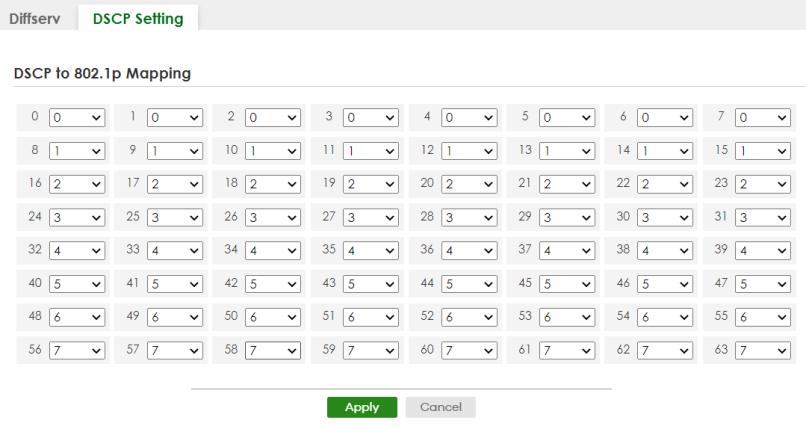
The following table describes the labels in this screen.
label | description |
|---|---|
0 … 63 | This is the DSCP classification identification number. To set the IEEE 802.1p priority mapping, select the priority level from the drop-down list box. |
Apply | Click Apply to save your changes to the Switch’s run-time memory. The Switch loses these changes if it is turned off or loses power, so use the Save link on the top navigation panel to save your changes to the non-volatile memory when you are done configuring. |
Cancel | Click Cancel to begin configuring this screen afresh. |