Monitor
Use the Monitor menus to check the site features logs and containment list of the Nebula Devices for the selected site. Please click the following links to go to the respective Nebula Devices Monitor menus.
• Access points (Monitor)
• Switches (Monitor)
• Security router (Monitor)
• Mobile router (Live Tools)
• Firewall (Monitor)
• Security gateway (Monitor)
Containment List
This screen shows a list of clients that are currently blocked in the site by the CDR security service. You can use this screen to release blocked clients. Click Site-wide > Monitor > Containment list to access this screen.
Site-wide > Monitor > Containment list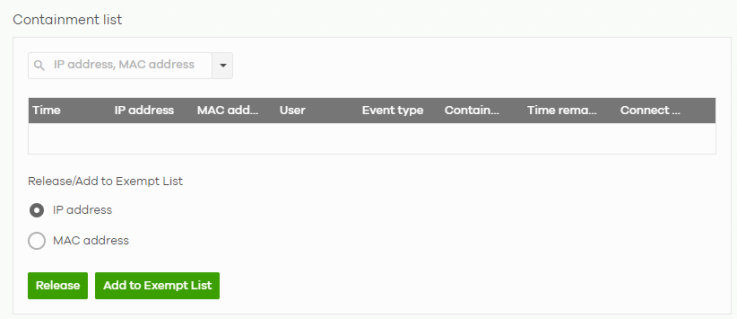
The following table describes the labels in this screen.
Label | Description |
|---|---|
Search | Enter a MAC or IP address to filter the list of clients. |
Time | This field displays the date and time CDR contained this client. |
IP address | This field displays the IPv4 address of the client contained by CDR. |
MAC address | This field displays the MAC address of the client contained by CDR. |
User | This field displays the user name of a client contained by CDR who has been authenticated for Internet access. The field is blank if user authentication is not required. |
Event type | This field displays details on the category of signature that triggered CDR: Web Filtering, Anti-Malware or IPS (IDP). |
Containment | This field displays if the client is blocked, quarantined or just triggers an alert. |
Time Remaining (mins.) | This field displays the amount of time left until this client is released by CDR. |
Connect to | This field displays the description of the Access Point or the interface of the Nebula Device that the contained client is connected to. |
Release/Add to Exempt List | |
Release | Select a client and then click this to release this client device from CDR containment. |
Add to Exempt List | Select a client, select an IPv4 address or MAC address, and then click OK to release this client device from CDR containment. This client device’s IP or MAC address is exempt from future CDR checking. |
Vouchers
A voucher is a unique printable code that allows a user to authenticate with a WiFi network for a limited period of time. A user connects to the WiFi network’s SSID and then enters the code in a captive portal. After a successful login, the expiry time of the voucher starts counting down.
Vouchers are useful in situations where you want to give individual users time-limited WiFi access. For example: A customer can purchase a voucher for 2 hours of Internet access in a hotel or coffee shop.
Using Vouchers
1 Go to Site-wide > Configure > WiFi SSID, and create a dedicated SSID for voucher-based WiFi access. For example, “Hotel_Guest_Network”.
For details on configuring SSIDs, see SSID Settings.
For details on configuring SSIDs, see SSID Settings.
2 Go to Site-wide > Configure > WiFi SSID, select the SSID, and then under Sign-in method select Voucher.
3 Go to Site-wide > Monitor > Vouchers > Settings to configure how the vouchers will look when printed.
For details, see Voucher Settings Screen.
For details, see Voucher Settings Screen.
4 Go to Site-wide > Monitor > Vouchers, and then click Create to create one or more vouchers.
Vouchers Screen
This screen allows you to create and manage vouchers for WiFi network authentication.
Click Site-wide > Monitor > Vouchers to access this screen.
Site-wide > Monitor > Vouchers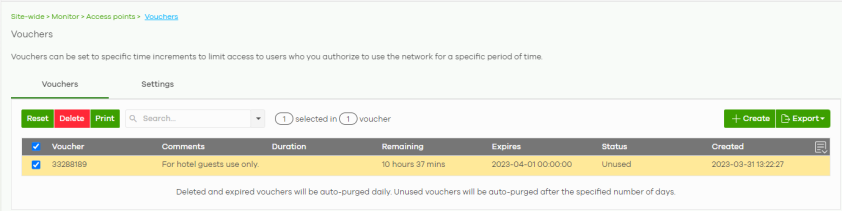
The following table describes the labels in this screen.
Label | Description |
|---|---|
Reset | Select one or more vouchers and then click this button to reset the vouchers back to their original states. Each voucher’s status is set to Unused and time remaining is reset to the time configured in Duration. |
Delete | Select one or more vouchers and then click this button to delete the vouchers. |
Print | Select one or more vouchers and then click this button to print the vouchers. |
Search | Use this field to search for vouchers, by voucher code, duration, and/or status. |
Create | Click this button to create one or more vouchers. For details, see Create Vouchers Screen. |
Export | Click this button to export the voucher table and all information in it to a CSV or XML file. |
Voucher | This displays the voucher’s unique authentication code. |
Comments | This displays information about the voucher. |
Duration | This displays how long the voucher is valid from when it is activated, in hours. |
Remaining | This displays how much time is left before the voucher expires. NCC only starts counting this time after the voucher has been activated. |
Expire in | This displays the date and time that the voucher will expire. |
Status | This displays the current status of the voucher: Unused: The voucher has not yet been used for authentication. Active: A user has used the voucher for authentication. NCC has started counting down the duration. Expire: The voucher has reached the end of its duration period and can no longer be used. Delete: The voucher is unused and has reached the time set under Purge after (days).  NCC automatically deletes vouchers with the status Expire or Delete after 24 hours. You can see a history of these automatic deletions in the NCC event log. NCC automatically deletes vouchers with the status Expire or Delete after 24 hours. You can see a history of these automatic deletions in the NCC event log. |
Created | This displays the date and time that the voucher was created. |
Create Vouchers Screen
Use this screen to create one or more new vouchers.
Site-wide > Monitor > Vouchers > Create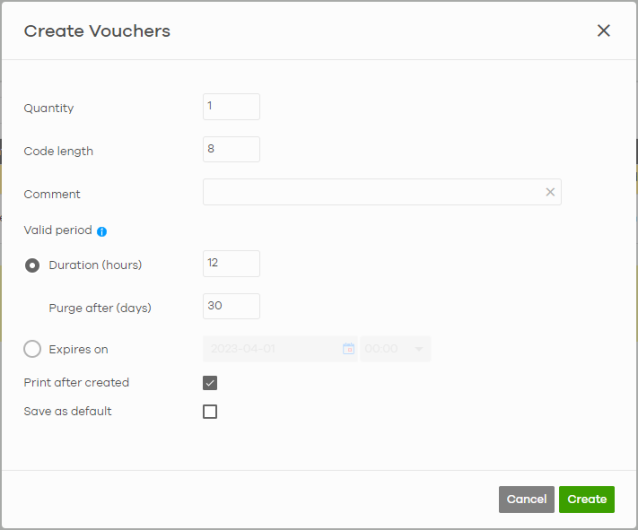
The following table describes the labels in this screen.
Label | Description |
|---|---|
Quantity | Sets the number of vouchers you want to create. The valid range for this setting is 1 to 999. |
Code length | Sets the length of the unique code on each voucher. The valid range for this setting is 6 to 10. |
Comment | Enter information about the voucher that might be useful for other administrators. |
Valid period | There are two ways to set your voucher’s validity. |
Duration (hours) | Sets how long the voucher is valid after it has been activated, in hours. The valid range for this setting is any whole number from 1 to 8760. |
Purge after (days) | Sets how long a non-activated voucher is valid for, in days. The valid range for this setting is 1 to 180. |
Expires on | Sets the date and time for the expiration of this voucher. |
Print after created | Select this to print the vouchers immediately after clicking Create. Before printing a voucher, select which SSID name to appear on the voucher when you have two or more SSIDs enabled on your site. |
Save as default | Click this to make the settings on this page the default settings for new vouchers. |
Dynamic Personal Pre-Shared Keys (DPPSKs) also allow you to give individual users a printable password and time-limited WiFi access. Voucher Settings Screen
Use this screen to change the voucher settings for the Nebula Device. Click Site-wide > Monitor > Voucher > Settings to access this screen.
Site-wide > Monitor > Voucher > Settings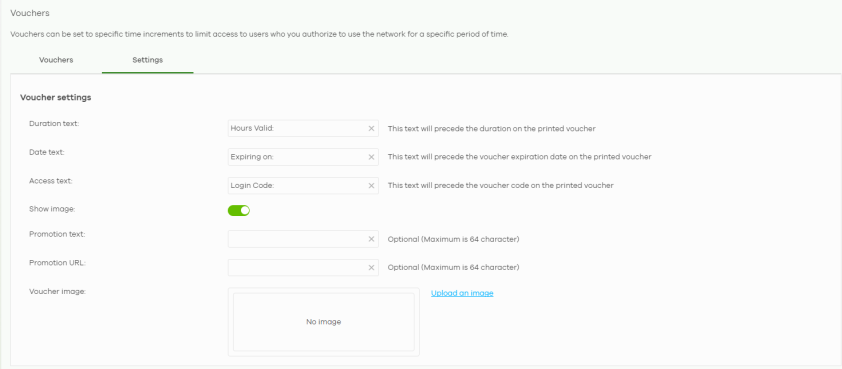
The following table describes the labels in this screen.
Label | Description |
|---|---|
Voucher settings | Use these settings to configure how WiFi network authentication vouchers for this site look when printed. 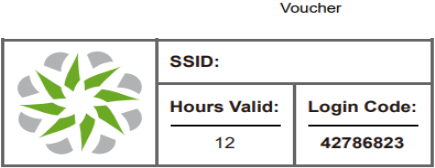 For more information on vouchers, see Vouchers. |
Duration text | Sets the text that precedes the duration on the voucher. The text must consist of 1 to 16 characters. |
Date text | Sets the text that precedes the expiration date on the voucher. The text must consist of 1 to 16 characters. |
Access text | Sets the text that precedes the voucher code on the voucher. The text must consist of 1 to 16 characters. |
Show image | Sets whether to display an image at the top-left of the voucher. This image is optional. |
Promotion text | Sets the promotional text on the voucher. This text is optional. The text must consist of 1 to 64 characters. |
Promotion URL | Sets the promotional URL on the voucher. This URL is optional. The URL is displayed as a QR code on the voucher. |
Voucher image | This shows the uploaded image that will be displayed at the top-left of the voucher. |
Upload an image | Click this button to upload an image from your local computer. The Choose File button appears. Click this button to locate the PNG (preferred for its transparency) / JPEG/GIF image file. The maximum image file size is 200 KB. |
Replace this image | Click this button to change the uploaded image. |
Remove this image | Click this button to delete the uploaded image. |
Site Features Logs
This screen displays events from the Security Appliance within the selected site, such as CDR service events, alerts, and firmware management.
Click Site-wide > Monitor > Site features logs to access this screen.
Site-wide > Monitor > Site features logs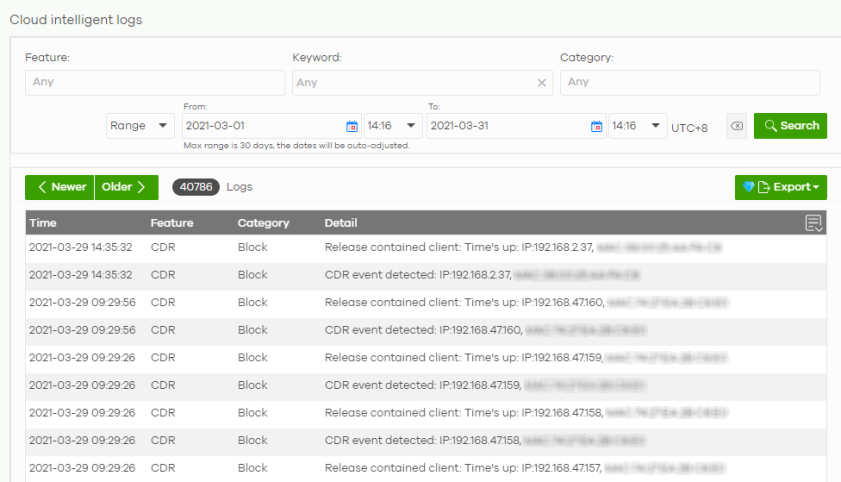
The following table describes the labels in this screen.
Label | Description |
|---|---|
Feature | Select the features that you want to view logs for. |
Keyword | Enter a keyword to filter the list of log entries. |
Category | Select the type of log messages you want to view. The available categories will depend on the features you have selected under Feature. |
Range/Before | Select filtering options, set a date, and then click Search to filter log entries by date. Range: Display log entries from the first specified date to the second specified date. Before: Display log entries from the beginning of the log to the selected date. |
Reset filters  | Click this to return the search criteria to the previously saved time setting. |
Search | Click this to update the list of logs based on the search criteria. |
Newer/Older | Click to sort the log messages by most recent or oldest. |
N Logs | This shows the number of log messages (N) in the list. |
Export | Click this button to download the log list as a CSV or XML file to your computer. |
Time | This shows the date and time when the log was recorded. It uses the local time set for the site at Site-wide > Configure > Site settings. |
Feature | Select the feature that created the log message. |
Category | This shows the type of log message, for example “Block”. The available categories will depend on the feature. |
Detail | This shows the details of the event. Click the Nebula Device name link for an Auto configuration recovery alert to go to Site-wide > Devices > Switches: Switch Details screen for more information. |
 | Click this icon to display a greater or lesser number of configuration fields. |