Broadband
Broadband Overview
This chapter discusses the Zyxel Device’s Broadband screens. Use these screens to configure your Zyxel Device for Internet access.
A WAN (Wide Area Network) connection is an outside connection to another network or the Internet. It connects your private networks, such as a LAN (Local Area Network) and other networks, so that a computer in one location can communicate with computers in other locations.
LAN and WAN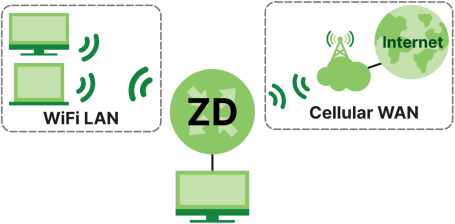
What You Can Do in this Chapter
• Use the Broadband screen to view a WAN interface. You can also configure the WAN settings on the Zyxel Device for Internet access (Broadband).
• Use the Ethernet WAN screen to convert LAN port number four as a WAN port or restore the Ethernet WAN port to a LAN port (WAN Backup).
• Use the Cellular Dual SIM screen to configure your dual SIM cards settings and cellular backup (Cellular Dual SIM).
• Use the Cellular Band screen to view or edit a cellular WAN interface. You can also configure the WAN settings on the Zyxel Device for Internet access (Cellular Band Configuration).
• Use the Cellular PLMN screen to display available Public Land Mobile Networks (Cellular PLMN Configuration).
• Use the Cellular IP Passthrough screen to configure a cellular WAN connection (Cellular IP Passthrough).
• Use the Cellular Lock screens to configure the base station you choose to connect to (Cellular Lock Overview).
• Use the Cellular SMS screen to send and receive SMS messages from the Zyxel Device (Cellular SMS).
Layer-2 Interface | Internet Connection | |||
|---|---|---|---|---|
Connection | DSL Link Type | Mode | encapsulation | Connection Settings |
Ethernet | N/A | Routing | IPoE | WAN IPv4/IPv6 IP address, NAT, DNS server and routing feature. |
What You Need to Know
The following terms and concepts may help as you read this chapter.
WAN IP Address
The WAN IP address is an IP address for the Zyxel Device, which makes it accessible from an outside network. It is used by the Zyxel Device to communicate with other devices in other networks. The ISP dynamically assigns it each time the Zyxel Device tries to access the Internet.
APN
An Access Point Name (APN) is the name of a gateway between a cellular network and another network, such as the Internet. The Zyxel Device requires an APN to connect to a cellular network. Different APNs may provide different services, such as Internet access or MMS (Multi-Media Messaging Service), and different charging methods.
464XLAT
Enable 464XLAT to send IPv4 traffic through the Zyxel Device when the Zyxel Device has an IPv6 WAN address.
464XLAT sends traffic from an IPv4 private network to another IPv4 network across an IPv6-only network. The Zyxel Device acts as a Customer-side Translator (CLAT). The CLAT adds an IPv6 prefix to the outgoing IPv4 packets, encapsulating IPv4 addresses as IPv6 addresses. When the packets go through the IPv6-only network, a Provider-side Translator (PLAT) removes the IPv6 prefixes so as the IPv4 addresses can reach the target IPv4 network.
464XLAT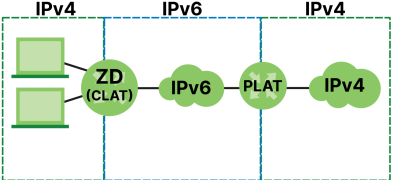
Before You Begin
You may need to know your Internet access settings such as APN, WAN IP address and SIM card’s PIN code if the INTERNET light on your Zyxel Device is off. Get this information from your service provider.
Broadband
Use this screen to change your Zyxel Device’s Internet access settings. The summary table shows you the configured WAN services (connections) on the Zyxel Device. Use information provided by your ISP to configure WAN settings.
Click Network Setting > Broadband to access this screen.
Network Setting > Broadband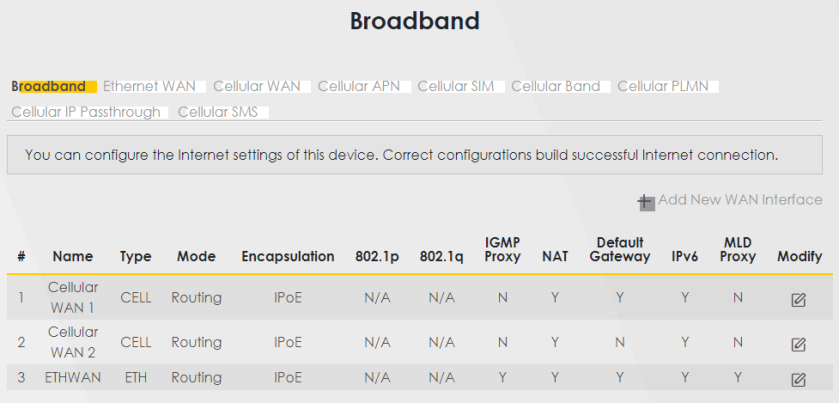
The following table describes the labels in this screen.
Label | Description |
|---|---|
# | This is the index number of the entry. |
Name | This is the service name of the connection. |
Type | This shows whether it is a cellular or Ethernet connection. |
Mode | This shows the connection is in routing mode. |
Encapsulation | This is the method of encapsulation used by this connection. |
802.1p | This indicates the 802.1p priority level assigned to traffic sent through this connection. This displays N/A when there is no priority level assigned. |
802.1q | This indicates the VLAN ID number assigned to traffic sent through this connection. This displays N/A when there is no VLAN ID number assigned. |
IGMP Proxy | This shows whether the Zyxel Device act as an IGMP proxy on this connection. |
NAT | This shows whether NAT is activated or not for this connection. |
Default Gateway | This shows whether the Zyxel Device use the WAN interface of this connection as the default gateway. |
IPv6 | This shows whether IPv6 is activated or not for this connection. IPv6 is not available when the connection uses the bridging service. |
MLD Proxy | This shows whether Multicast Listener Discovery (MLD) is activated or not for this connection. MLD is not available when the connection uses the bridging service. |
Modify | Click the Modify icon to configure the WAN connection. Click the Delete icon to remove the WAN connection. |
Add or Edit Internet Connection
Click the Edit or Modify icon next to a WAN interface to open the following screen. Use this screen to configure a WAN connection.
Network Setting > Broadband > Add or Edit New WAN Interface (Ethernet WAN)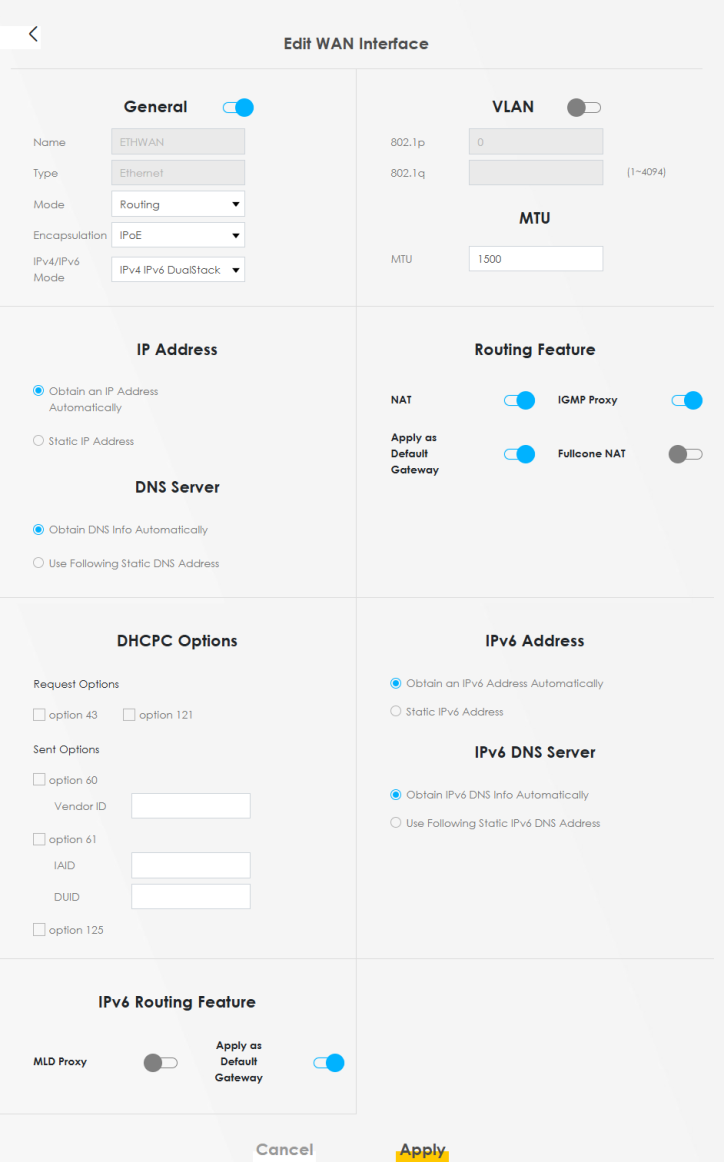
Network Setting > Broadband > Add or Edit New WAN Interface (Cellular WAN)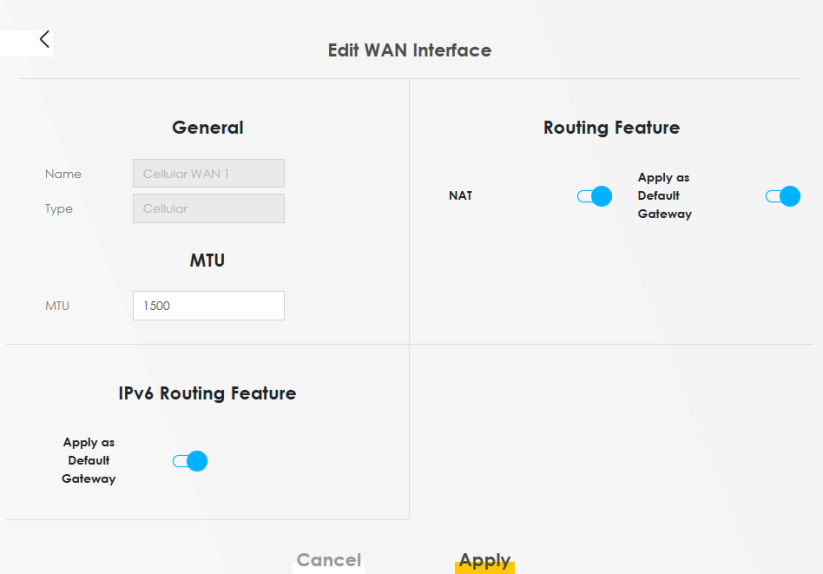
The following table describes the labels in this screen.
LABEL | Description |
|---|---|
General | Click this switch to enable or disable the interface. When the switch goes to the right  , the function is enabled. Otherwise, it is not. , the function is enabled. Otherwise, it is not. |
Name | This is the service name of the connection. |
Type | This shows the type of the connection the Zyxel Device is currently associated with. |
Mode | This shows the connection is in Routing or Bridge mode. If the Zyxel Device is in routing mode, your ISP gives you one IP address only and you want multiple computers to share an Internet account. |
Encapsulation | This is the method of encapsulation used by this connection. |
IPv4/IPv6 Mode | This shows IPv4 IPv6 DualStack. IPv4 IPv6 DualStack allows the Zyxel Device to run IPv4 and IPv6 at the same time. |
VLAN | Click this switch to enable or disable VLAN on this WAN interface. When the switch goes to the right  , the function is enabled. Otherwise, it is not. , the function is enabled. Otherwise, it is not. |
802.1p | IEEE 802.1p defines up to 8 separate traffic types by inserting a tag into a MAC-layer frame that contains bits to define class of service. Select the IEEE 802.1p priority level (from 0 to 7) to add to traffic through this connection. The greater the number, the higher the priority level. |
802.1q | Type the VLAN ID number (from 1 to 4094) for traffic through this connection. |
MTU | |
MTU | Enter the MTU (Maximum Transfer Unit) size for this traffic. |
IP Address | |
Obtain an IP Address Automatically | A static IP address is a fixed IP that your ISP gives you. A dynamic IP address is not fixed; the ISP assigns you a different one each time you connect to the Internet. Select this if you have a dynamic IP address. |
Static IP Address | Select this option If the ISP assigned a fixed IP address. |
IP Address | Enter the static IP address provided by your ISP. |
Subnet Mask | Enter the subnet mask provided by your ISP. |
Gateway IP Address | Enter the gateway IP address provided by your ISP. |
DNS Server | Select Obtain DNS Info Automatically if you want the Zyxel Device to use the DNS server addresses assigned by your ISP. Select Use Following Static DNS Address if you want the Zyxel Device to use the DNS server addresses you configure manually. |
Primary DNS Server | Enter the first DNS server address assigned by the ISP. |
Secondary DNS Server | Enter the second DNS server address assigned by the ISP. |
Routing Feature | |
NAT | Click this switch to activate or deactivate NAT on this connection. When the switch goes to the right  , the function is enabled. , the function is enabled. |
IGMP Proxy | Internet Group Multicast Protocol (IGMP) is a network-layer protocol used to establish membership in a Multicast group – it is not used to carry user data. Click this switch to have the Zyxel Device act as an IGMP proxy on this connection. When the switch goes to the right  , the function is enabled. , the function is enabled.This allows the Zyxel Device to get subscribing information and maintain a joined member list for each multicast group. It can reduce multicast traffic significantly. |
Apply as Default Gateway | Click this switch to have the Zyxel Device use the WAN interface of this connection as the system default gateway. When the switch goes to the right  , the function is enabled. , the function is enabled. |
Fullcone NAT | Click this switch to enable or disable fullcone NAT on this connection. When the switch goes to the right  , the function is enabled. , the function is enabled.This field is available only when you activate NAT. In fullcone NAT, the Zyxel Device maps all outgoing packets from an internal IP address and port to a single IP address and port on the external network. The Zyxel Device also maps packets coming to that external IP address and port to the internal IP address and port. |
DHCPC Options | |
Request Options | Select Option 43 to have the Zyxel Device get vendor specific information from DHCP packets sent from the DHCP server. Select Option 120 to have the Zyxel Device get an IP address or a fully-qualified domain name of a SIP server from DHCP packets sent from the DHCP server. Select Option 121 to have the Zyxel Device get static route information from DHCP packets sent from the DHCP server. |
Sent Options | |
option 60 | Select this and enter the device identity you want the Zyxel Device to add in the DHCP discovery packets that go to the DHCP server. |
Vendor ID | Enter the Vendor Class Identifier, such as the type of the hardware or firmware. |
option 61 | Select this and enter any string that identifies the device. |
IAID | Enter the Identity Association Identifier (IAID) of the device, for example, the WAN connection index number. |
DUID | Enter the hardware type, a time value and the MAC address of the device. |
option 125 | Select this to have the Zyxel Device automatically generate and add vendor specific parameters in the DHCP discovery packets that go to the DHCP server. |
IPv6 Address | |
Obtain an IPv6 Address Automatically | Select Obtain an IPv6 Address Automatically if you want to have the Zyxel Device use the IPv6 prefix from the connected router’s Router Advertisement (RA) to generate an IPv6 address. |
Static IPv6 Address | Select Static IPv6 Address if you have a fixed IPv6 address assigned by your ISP. When you select this, the following fields appear. |
IPv6 Address | Enter an IPv6 IP address that your ISP gave to you for this WAN interface. |
Prefix Length | Enter the address prefix length to specify how many most significant bits in an IPv6 address compose the network address. |
IPv6 Default Gateway | Enter the IP address of the next-hop gateway. The gateway is a router or switch on the same segment as your Zyxel Device's interfaces. The gateway helps forward packets to their destinations. |
IPv6 DNS Server | |
Obtain IPv6 DNS Info Automatically | Select Obtain IPv6 DNS Info Automatically to have the Zyxel Device get the IPv6 DNS server addresses from the ISP automatically. |
Use Following Static IPv6 DNS Address | Select Use Following Static IPv6 DNS Address to have the Zyxel Device use the IPv6 DNS server addresses you configure manually. |
Primary DNS Server | Enter the first IPv6 DNS server address assigned by the ISP. |
Secondary DNS Server | Enter the second IPv6 DNS server address assigned by the ISP. |
IPv6 Routing Feature | |
MLD Proxy | Select this check box or option to have the Zyxel Device act as an MLD proxy on this connection. This allows the Zyxel Device to get subscription information and maintain a joined member list for each multicast group. It can reduce multicast traffic significantly. |
Apply as Default Gateway | Select this option to have the Zyxel Device use the WAN interface of this connection as the system default gateway. |
464XLAT | Enable this to have the Zyxel Device translate outgoing IPv4 packets to IPv6 packets. Use this function if you want to use IPv4 devices and services when your ISP provides an IPv6-only mobile network. See What You Need to Know for more information about 464XLAT. |
Auto Prefix64 | Enable this to have the Zyxel Device automatically add the IPv6 prefix assigned by your ISP to the outgoing IPv4 packets. Disable this and configure the Static IPv6 Prefix field if you want to manually assign an IPv6 prefix. |
Static IPv6 Prefix | Enter an IPv6 prefix that the Zyxel Device adds to the outgoing IPv4 packets. |
Cancel | Click Cancel to exit this screen without saving. |
Apply | Click Apply to save your changes. |
WAN Backup
Use this screen to configure your Zyxel Device’s Internet settings if the wired connection is down. You can use an alternative network, and assign an IP address to verify the accessibility of the Internet and the time interval allowed between each connection check.
Click Network Setting > Broadband > WAN Backup to display the following screen.
 This feature is only available if Ethernet WAN > State is enabled.
Network Setting > Broadband > Ethernet WAN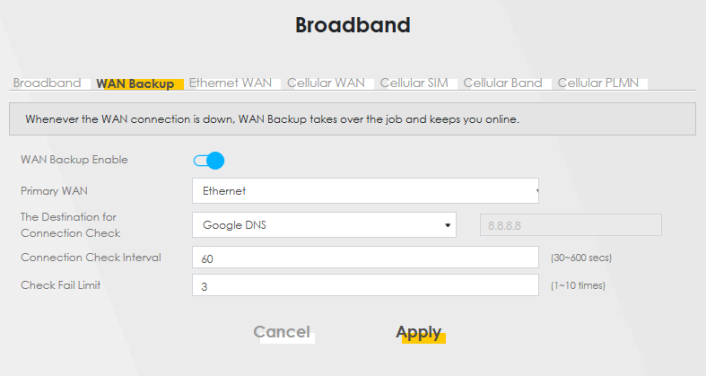
The following table describes the fields in this screen.
Label | Description |
|---|---|
WAN Backup Enable | Select Enable to have the Zyxel Device use the cellular connection as your WAN or a backup when the wired WAN connection fails. |
Primary WAN | This field displays the connection the Zyxel Device would use first when the wired WAN connection fails. You can choose Ethernet or Cellular as the primary WAN connection for your Zyxel Device. |
The Destination for Connection Check | Configure this field to test your Zyxel Device's WAN accessibility. Enter the IP address of a reliable nearby computer (for example, your ISP's DNS server address). If you activate either traffic redirect or dial backup, you must configure at least one IP address here. When using a WAN backup connection, the Zyxel Device periodically pings the addresses configured here and uses the other WAN backup connection (if configured) if there is no response. |
Connection Check Interval | When the Zyxel Device is using a lower priority connection (usually a WAN backup connection), it periodically checks to whether or not it can use a higher priority connection. Enter the number of seconds (30 recommended) for the Zyxel Device to wait between checks. Allow more time if your destination IP address handles lots of traffic. |
Check Fail Limit | Enter the number of times that your Zyxel Device will ping the IP addresses configured in the Destination for Connection Check field without getting a response before switching to a WAN backup connection (or a different WAN backup connection). |
Cancel | Click Cancel to exit this screen without saving. |
Apply | Click Apply to save your changes. |
Ethernet WAN
Use this screen to have a LAN port act as an Ethernet WAN port. When the switch goes to the right, the LAN port acts as an Ethernet WAN port. Otherwise, the LAN port remains as a LAN port. Click Apply to save your changes back to the Zyxel Device. See Feature Differences to see if your Zyxel Device supports Ethernet WAN.
The Ethernet WAN has priority over the cellular WAN. When both WAN interfaces are available, the Zyxel Device uses the Ethernet WAN connection. If the Ethernet WAN interface is down, the Zyxel Device will automatically switch to use the cellular WAN. Click Network Setting > Broadband > Ethernet WAN to display the following screen.
Network Setting > Broadband > Ethernet WAN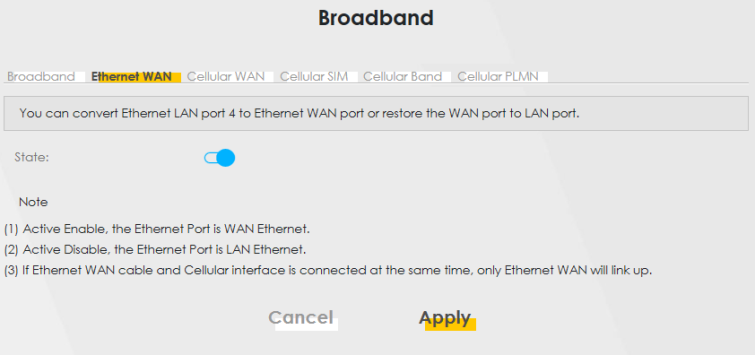
Cellular WAN
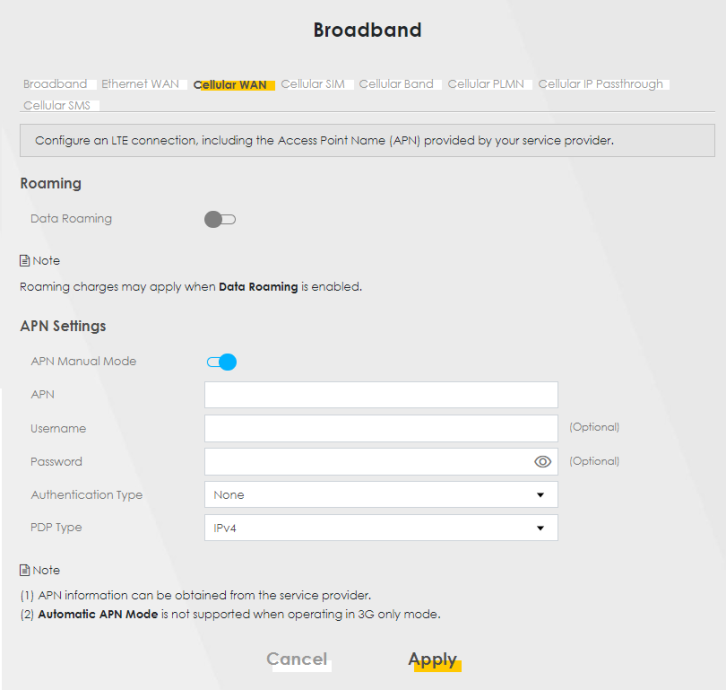
Click Network Setting > Broadband > Cellular WAN to display the following screen. Use this screen to enable data roaming and network monitoring when the Zyxel Device cannot ping a base station.
Roaming charges may apply when Data Roaming is enabled.Network Setting > Broadband > Cellular WAN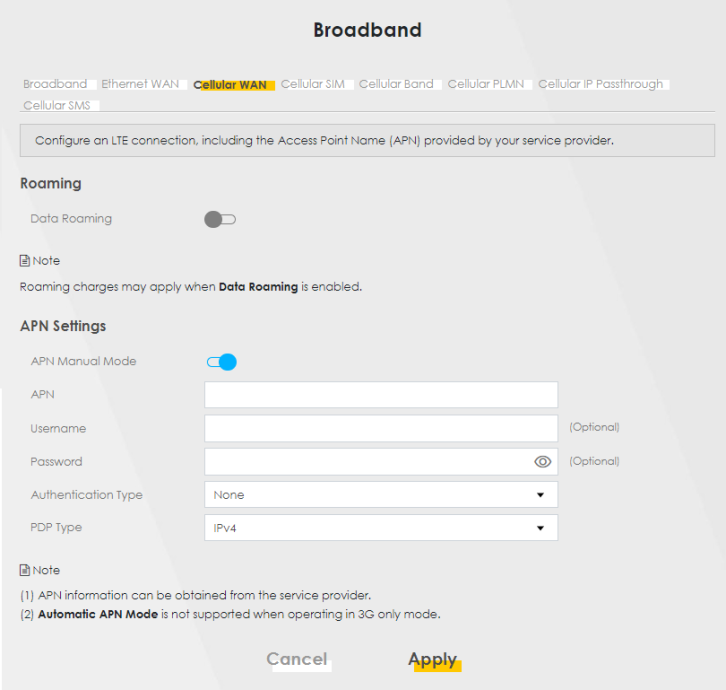
The following table describes the fields in this screen.
Label | Description |
|---|---|
Data Roaming | Click this to enable (  ) data roaming on the Zyxel Device. ) data roaming on the Zyxel Device.With cellular roaming, a SIM card works in areas which are not covered by the SIM’s service provider. Enable roaming to keep the Zyxel Device connected to the Internet when you are traveling outside the geographical coverage area of the network to which you are registered, such as a different country. Roaming charges may apply when Data Roaming is enabled. |
Network Monitoring Feature | |
Network Monitoring | Use this field to allow Zyxel Device to try reconnecting to the base station if the cellular connection is lost. After the third try, the Zyxel Device will reboot to try to reconnect with the base station. The LED will blink red to indicate that it is rebooting. This feature only works if there is a previous cellular connection between the Zyxel Device and the base station. |
Proxy ARP Feature | |
Proxy ARP | Enable this to set your Zyxel Device as a server to handle ARP queries from different subnets. The Zyxel Device will offer Zyxel Device’s own MAC address as an reply. |
FQ_Codel Setting | |
FQ_Codel | Select this field to enable FQ_Codel on the Zyxel Device. Clear this field if your network does not have much real-time traffic. Use Fair Queuing with Controlled Delay (FQ_Codel) to reduce delays in traffic that could affect real-time communications, such as video conferencing, live streaming, and voice over Internet phone calls. FQ_Codel limits traffic throughput, by dropping traffic so as to reduce buffer queuing that causes delays. It does not prioritize traffic by type. |
APN Manual Mode | Disable this to have the Zyxel Device configure the APN (Access Point Name) of a cellular network automatically. Otherwise, Click this to enable (  ) and enter the APN manually in the field below. ) and enter the APN manually in the field below. |
APN | This field allows you to display the Access Point Name (APN) in the profile. Enter the Access Point Name (APN) provided by your service provider. Connections with different APNs may provide different services (such as Internet access or MMS (Multi-Media Messaging Service)) and charging method. You can enter up to 64 printable ASCII characters. Spaces are allowed. |
Username | Enter the user name. You can enter up to 64 printable ASCII characters. Spaces are allowed. |
Password | Enter the password associated with the user name above. You can enter up to 64 printable ASCII characters. Spaces are allowed. |
Authentication Type | Select the type of authentication method peers use to connect to the Zyxel Device in cellular connections. In Password Authentication Protocol (PAP) peers identify themselves with a user name and password. In Challenge Handshake Authentication Protocol (CHAP) additionally to user name and password the Zyxel Device sends regular challenges to make sure an intruder has not replaced a peer. Otherwise select PAP/CHAP or None. |
PDP Type | Select IPv4 if you want the Zyxel Device to run IPv4 (Internet Protocol version 4 addressing system) only. Select IPv4/IPv6 if you want the Zyxel Device to run both IPv4 and IPv6 (Internet Protocol version 4 and 6 addressing system) at the same time. |
Apply | Click this to save your changes. |
Cancel | Click this to exit this screen without saving. |
Cellular APN
Click Network Setting > Broadband > Cellular APN to display the following screen. Use this screen to manage the APNs that Zyxel Device is connected to.
This feature is only available on certain models.Network Setting > Broadband > Cellular APN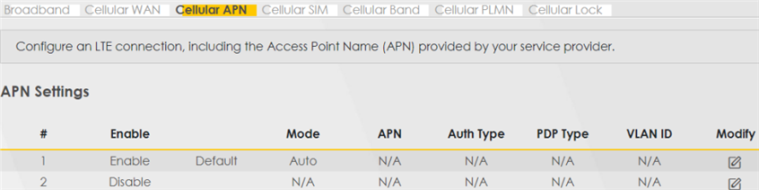
The following table describes the labels in this screen.
LABEL | DESCRIPTION |
|---|---|
APN Settings | |
# | This is the number of an individual APN. |
Enable | This field indicates whether the APN is enabled or disabled. |
Mode | This shows Auto when the Zyxel Device configures the APN (Access Point Name) of a cellular network automatically. This shows Manual when the APN is entered manually. |
APN | This shows the Access Point Name (APN). |
Auth Type | This shows PAP (Password Authentication Protocol) when peers identify themselves with a user name and password. This shows CHAP (Challenge Handshake Authentication Protocol) when additionally to a user name and password, the Zyxel Device sends regular challenges to make sure an intruder has not replaced a peer. This shows PAP/CHAP when either type of authentication can be used. This shows None when no authentication is used. |
PDP Type | This shows IPv4 when the Zyxel Device runs IPv4 (Internet Protocol version 4 addressing system) only. This shows IPv4/IPv6 when the Zyxel Device runs IPv4 and IPv6 (Internet Protocol version 4 and 6 addressing system) at the same time. |
VLAN ID | This shows the VLAN ID for the APN. |
Modify | Click the Edit icon to change the APN settings. |
Edit Cellular APN1/APN2
On the Cellular APN screen, click the Edit icon next to an APN to configure its settings.
The IP Passthrough fields are not available for models that support the Network Setting > Broadband > Cellular IP Passthrough screen.APN information can be obtained from your cellular service provider.Automatic mode is not supported in all cellular modes.Network Setting > Broadband > Cellular APN > Edit APN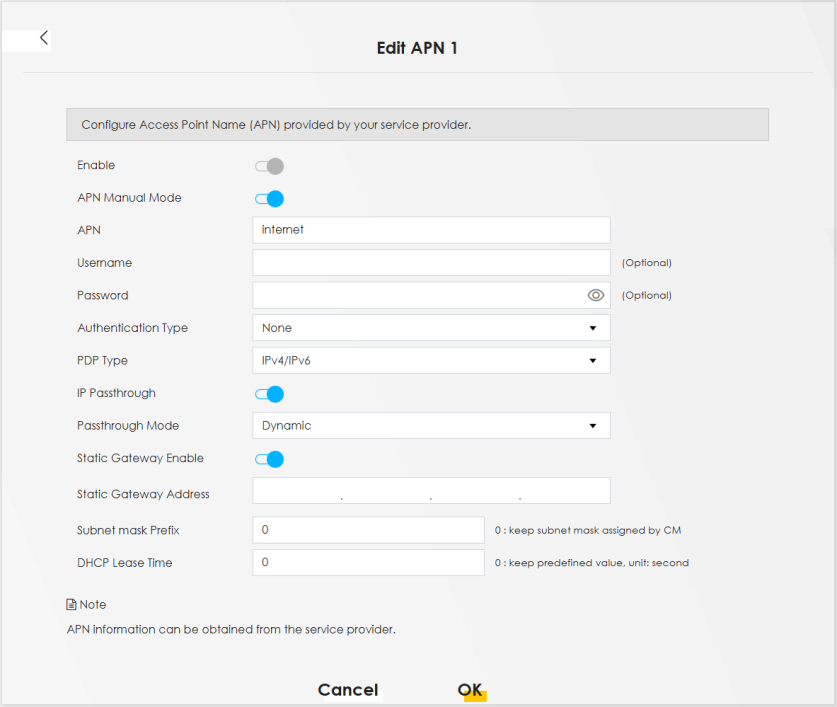
The following table describes the fields in this screen.
LABEL | DESCRIPTION |
|---|---|
Enable | Click this to enable (  ) the APN on the Zyxel Device ) the APN on the Zyxel Device |
APN Manual Mode | Disable this to have the Zyxel Device configure the APN (Access Point Name) of a cellular network automatically. Otherwise, Click this to enable (  ) and enter the APN manually in the field below. ) and enter the APN manually in the field below. |
APN | This field allows you to display the Access Point Name (APN) in the profile. Enter the Access Point Name (APN) provided by your service provider. Connections with different APNs may provide different services (such as Internet access or MMS (Multi-Media Messaging Service)) and charging method. You can enter up to 64 printable ASCII characters. Spaces are allowed. |
Username | Enter the user name. You can enter up to 64 printable ASCII characters. Spaces are allowed. |
Password | Enter the password associated with the user name above. You can enter up to 64 printable ASCII characters. Spaces are allowed. |
Authentication Type | Select the type of authentication method peers use to connect to the Zyxel Device in cellular connections. In Password Authentication Protocol (PAP) peers identify themselves with a user name and password. In Challenge Handshake Authentication Protocol (CHAP) additionally to user name and password the Zyxel Device sends regular challenges to make sure an intruder has not replaced a peer. Otherwise select PAP/CHAP or None. |
PDP Type | Select IPv4 if you want the Zyxel Device to run IPv4 (Internet Protocol version 4 addressing system) only. Select IPv4/IPv6 if you want the Zyxel Device to run both IPv4 and IPv6 (Internet Protocol version 4 and 6 addressing system) at the same time. |
IP Passthrough | Select IPv4 if your want the Zyxel Device to run IPv4 (Internet Protocol version 4 addressing system) only. Select IPv6 if you want the Zyxel Device to run IPv6 (Internet Protocol version 6 addressing system) only. Select IPv4/IPv6 if you want the Zyxel Device to run both IPv4 and IPv6 (Internet Protocol version 4 and 6 addressing system) at the same time. |
Static Gateway Enable | Disable this to use static gateway. Otherwise, click this to enable ( ) to use the IP Passthough mode and enter the below fields. This field will show upon enabling IP Passthrough in the previous field. |
Static Gateway Address | This field is only available when you enable IP Passthrough. Enter the IP address of the gateway to route traffic from the Zyxel Device local network to external networks. The Zyxel Device will use this IP address you configured. |
Subnet Mask Prefix | Enter the subnet mask prefix of your gateway. A subnet mask prefix is another form to present a subnet mask. Convert a subnet mask address into binary. Count the “1”s in the subnet mask. “/” + the number of “1”s would be the subnet mask prefix. For example, the prefix of the subnet mask 255.255.255.0 is “/24”. This field will show upon enabling IP Passthrough in the previous field. |
DHCP Lease Time | This field allows you to set the DHCP lease time. DHCP server leases an address to a new device for a period of time, called the DHCP lease time. This field will show upon enabling IP Passthrough in the previous field. |
OK | Click OK to save your changes. |
Cancel | Click Cancel to return to the previous screen without saving. |
Using Separate APNs for Data and Management Traffic
Multiple APN Access allows a cellular device to open data sessions with two or more APNs, and then send data through the APNs simultaneously. If your cellular service provider supports Multiple APN Access, the Zyxel Device can use this feature to segregate cellular traffic.
Follow the steps below to configure the Zyxel Device to use separate APNs for data and management traffic.
1 At Network Setting > Broadband > Cellular WAN, ensure that the Zyxel Device is connected to two data-enabled APNs. If your cellular service provider supports this feature, the Zyxel Device will connect to two APNs automatically.
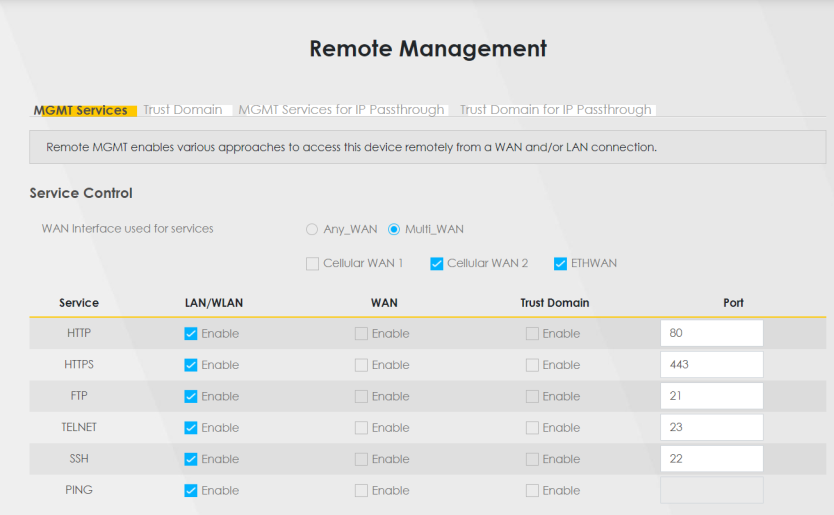
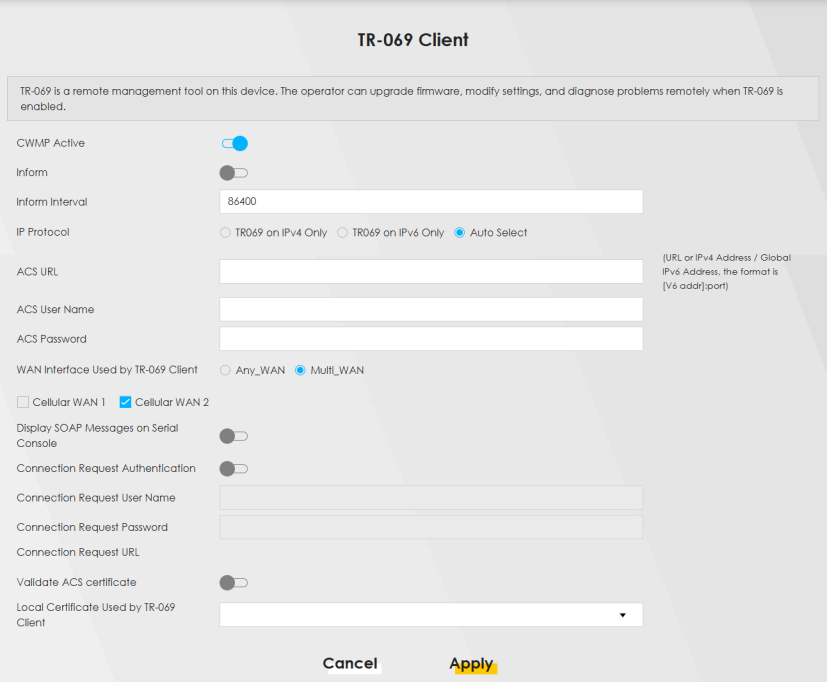
2 Go to Maintenance > Remote Management > MGMT Services. Set WAN Interface used for services to Multi_WAN, and then select Cellular WAN 2.
3 Go to Maintenance > TR-069 Client. Set WAN Interface used by TR-069 Client to Multi_WAN, and then select Cellular WAN 2.
Cellular SIM Configuration
Use this screen to enter a PIN for your SIM card, in order to prevent others from using it.
Entering the wrong PIN code 3 consecutive times locks the SIM card, after which you need a PUK (Personal Unlocking Key) from the service provider to unlock it.
Click Network Setting > Broadband > Cellular SIM. The following screen opens.
Network Setting > Broadband > Cellular SIM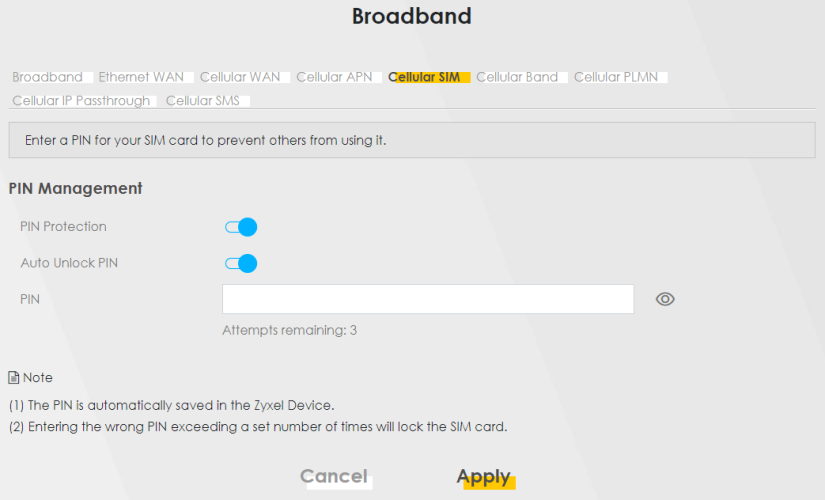
The PIN is automatically saved in the Zyxel Device.Entering the wrong PIN exceeding a set number of times will lock the SIM card.
The following table describes the fields in this screen.
Label | Description |
|---|---|
PIN Management | |
PIN Protection | A PIN (Personal Identification Number) code is a key to a SIM card. Without the PIN code, you cannot use the SIM card. Click to enable (  ) if the service provider requires you to enter a PIN to use the SIM card. ) if the service provider requires you to enter a PIN to use the SIM card.Click to disable if the service provider lets you use the SIM without inputting a PIN. |
Auto Unlock PIN | If PIN Protection is enabled, the SIM card requires a PIN code to unlock the PIN lock. Slide the switch to the right to have the Zyxel Device automatically unlock the PIN lock. Otherwise, slide the switch to the left. You will need to manually enter the PIN every time you reboot the Zyxel Device or reinsert the SIM card to use the SIM card. |
PIN Modification | |
more... | Click the icon(  ) to show fore fields in this section. Click the icon ( ) to show fore fields in this section. Click the icon ( ) to hide them.PIN Modification and its following fields will show upon enabling PIN Protection in the previous field. ) to hide them.PIN Modification and its following fields will show upon enabling PIN Protection in the previous field. |
New PIN | Enter a four-digital code to set as the new PIN code. This field will show upon clicking the icon ( ). ). |
PIN | If you enabled PIN verification, enter the 4-digit PIN code (0000 for example) provided by your ISP. If you enter the PIN code incorrectly too many times, the ISP may block your SIM card and not let you use the account to access the Internet. |
Attempts Remaining | This is how many more times you can try to enter the PIN code before the ISP blocks your SIM card. If your ISP locks your SIM card, you will need to request a PUK code from them to unlock it. |
Apply | Click Apply to save your changes. |
Cancel | Click Cancel to return to the previous screen without saving. |
Cellular Dual SIM
Some Zyxel Devices support dual SIM card slots for cellular backup (failover) to ensure Internet connectivity. To see if your Zyxel Device supports Cellular Dual SIM, see Feature Differences. Use this screen to set the main SIM card slot and configure cellular backup with dual SIM cards.
To enable cellular backup on the Zyxel Device, select Auto in the Preferred SIM Slot field and enable Switch when Detach.
Click Network Setting > Broadband > Cellular Dual SIM. The following screen opens.
Network Setting > Broadband > Cellular Dual SIM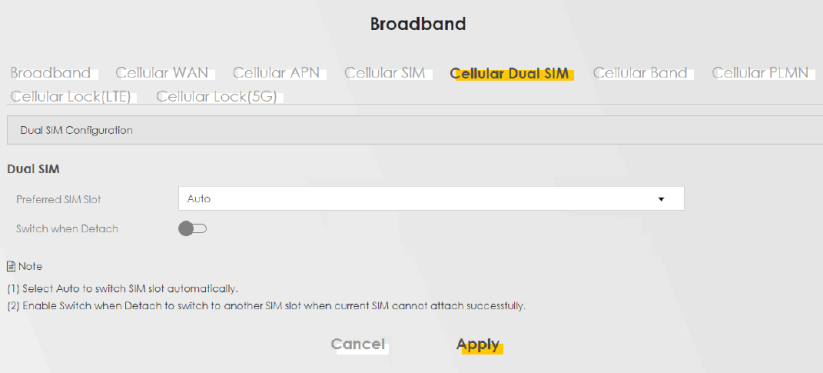
The following table describes the fields in this screen.
Label | Description |
|---|---|
Dual SIM | |
Preferred SIM Slot | To have the Zyxel Device automatically detect and choose the SIM card slot that has a SIM card inserted, select Auto. If both cards are inserted, the primary Internet connection uses SIM 1, and the cellular backup connection is SIM 2. To have the Zyxel Device only use the SIM card in slot 1, select SIM 1. There is no cellular backup. If the SIM card is in slot 2, then the Zyxel Device won't have Internet access. To have the Zyxel Device only use the SIM card in slot 2, select SIM 2. There is no cellular backup. If the SIM card is in slot 1, then the Zyxel Device won't have Internet access. If you change from SIM 1, SIM 2 to Auto, the Zyxel Device will choose the SIM card slot you previously selected if it has an inserted SIM card. |
Switch and Detach | To enable cellular backup on the Zyxel Device, enable the switch (to the right). |
Cancel | Click Cancel to return to the previous screen without saving. |
Apply | Click Apply to save your changes. |
Cellular Band Configuration
Either select Auto to have the Zyxel Device connect to an available network using the default settings on the SIM card or select the type of the network (NR5G, 4G, 3G) to which you want the Zyxel Device to connect.
Click Network Setting > Broadband > Cellular Band. The following screen opens.
Network Setting > Broadband > Cellular Band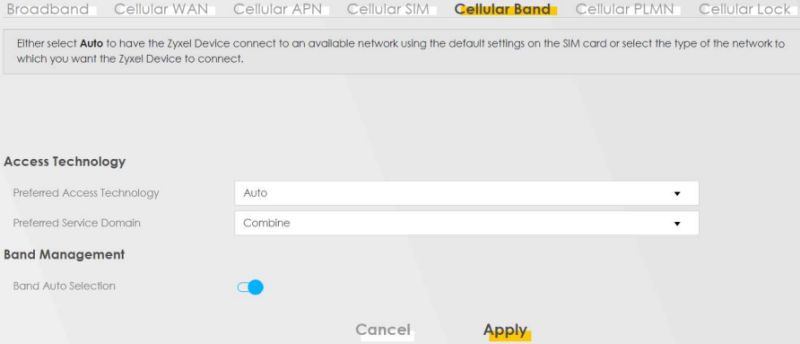
The following table describes the fields in this screen.
Label | Description |
|---|---|
Access Technology | |
Preferred Access Technology | Select the cellular mode your Zyxel Device supports to which you want the Zyxel Device to connect, and then click Apply to save your settings. Otherwise, select Auto Switch to have the Zyxel Device connect to an available network using the default settings on the SIM card. If the currently registered mobile network is not available or the mobile network’s signal strength is too low, the Zyxel Device switches to another available mobile network. |
Preferred Service Domain | Choose the service domain you want to use in the mobile network. The CS (Circuit Switching) domain handles voice calls. The PS (Packet Switching) domain handles data sessions. Choose Combine to use both PS and CS domain. Choose PS only to use only the PS domain. |
Band Management | |
Band Auto Selection | Click to enable (  ) automatic frequency band selection for the Zyxel Device’s cellular WAN connection as provided by the cellular service provider. ) automatic frequency band selection for the Zyxel Device’s cellular WAN connection as provided by the cellular service provider. |
Apply | Click this to save your changes. |
Cancel | Click this to exit this screen without saving. |
Cellular PLMN Configuration
Each service provider has its own unique Public Land Mobile Network (PLMN) number. Either select PLMN Auto Selection to have the Zyxel Device connect to the service provider using the default settings on the SIM card, or manually view available PLMNs and select your service provider.
Click Network Setting > Broadband > Cellular PLMN. The screen appears as shown next.
Network Setting > Broadband > Cellular PLMN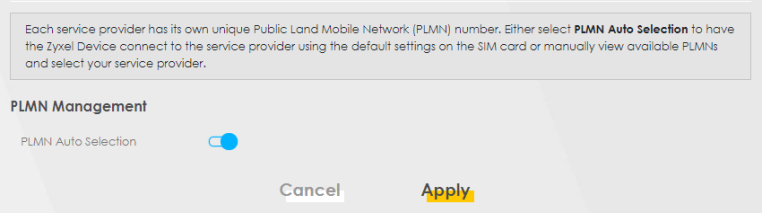
The following table describes the labels in this screen.
label | description |
|---|---|
PLMN Management | |
PLMN Auto Selection | Click to enable (  ) and have the Zyxel Device automatically connect to the first available mobile network. ) and have the Zyxel Device automatically connect to the first available mobile network.Select disabled to display the network list and manually select a preferred network. |
Apply | Click Apply to save your changes back to the Zyxel Device. |
Cancel | Click Cancel to exit this screen without saving. |
After selecting to disable the following warning appears. Click OK to continue.
Network Setting > Broadband > Cellular PLMN > Manual Scan Warning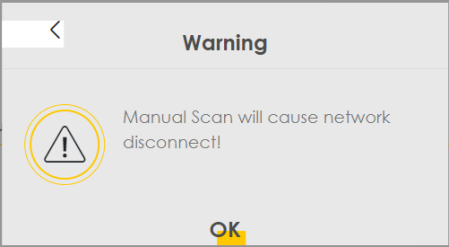
Click Scan to check for available PLMNs in the area surrounding the Zyxel Device, and then display them in the network list. Select from the network list and click Apply.
Network Setting > Broadband > Cellular PLMN > PLMN Management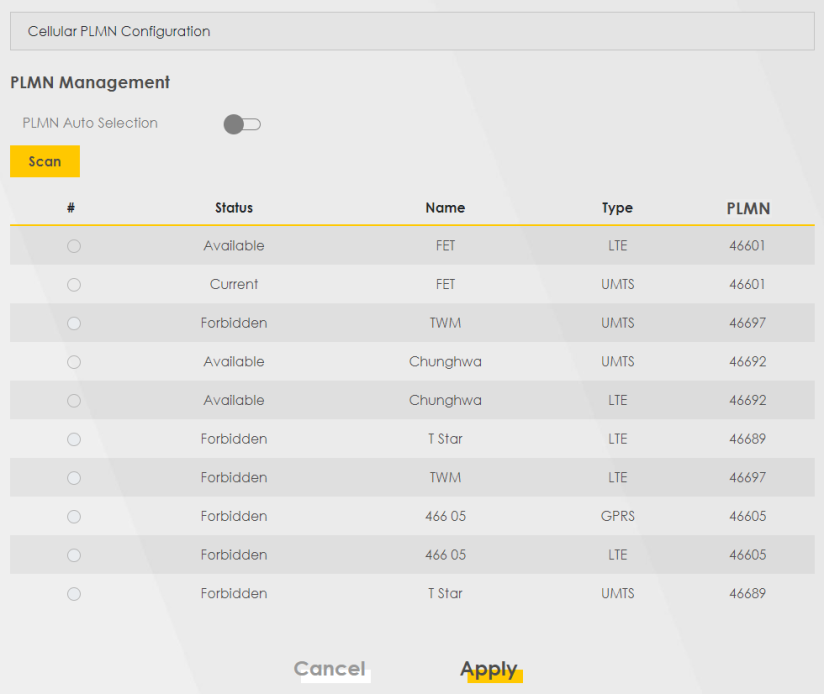
The following table describes the labels in this screen.
label | description |
|---|---|
# | Click the radio button so the Zyxel Device connects to this ISP. |
Status | This shows Current to show the ISP the Zyxel Device is currently connected to. This shows Forbidden to indicate the Zyxel Device cannot connect to this ISP. This shows Available to indicate an available ISP your Zyxel Device can connect to. |
Name | This shows the ISP name. |
Type | This shows the type of network the ISP provides. |
PLMN | This shows the PLMN number. |
Apply | Click Apply to save your changes back to the Zyxel Device. |
Cancel | Click Cancel to exit this screen without saving. |
Cellular IP Passthrough
Enable IP Passthrough to allow Internet traffic to go to a LAN computer behind the Zyxel Device without going through NAT.
Click Network Setting > Broadband > Cellular IP Passthrough to display the following screen.
This screen is not available when the fourth LAN port acts as an Ethernet WAN port.This screen is not available for models that support the IP Passthrough settings in the Network Setting > Broadband > Cellular APN > Edit screen.This screen is not available if Ethernet WAN is enabled at Network Setting > Broadband > Ethernet WAN > State.Network Setting > Broadband > Cellular IP Passthrough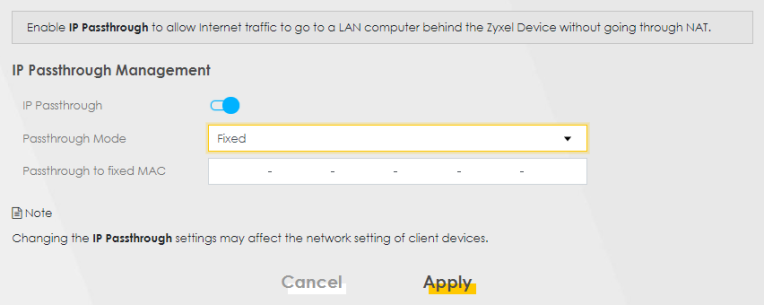
Changing the IP Passthrough settings may affect the network setting of client devices. After selecting to enable the following warning appears. Click OK to continue.Network Setting > Broadband > Cellular IP Passthrough > Enable Warning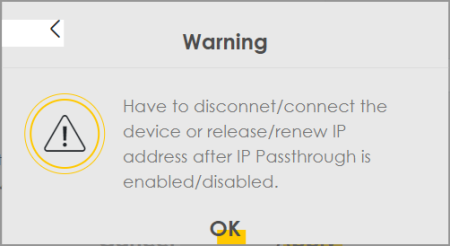
The following table describes the fields in this screen.
Label | Description |
|---|---|
IP Passthrough Management | |
IP Passthrough | IP Passthrough allows a LAN computer on the local network of the Zyxel Device to have access to web services using the public IP address. When IP Passthrough is configured, all traffic is forwarded to the LAN computer and will not go through NAT. |
Passthrough Mode | Select Dynamic to allow traffic to be forwarded to the first LAN computer on the local network of the Zyxel Device. Select Fixed to allow traffic to be forwarded to a specific computer (for example, Client A) by entering its MAC address. This field will show after enabling IP Passthrough in the previous field. |
Passthrough to fixed MAC | Enter the MAC address of a LAN computer on the local network of the Zyxel Device upon selecting Fixed in the previous field. This field will show after selecting Fixed in the previous field. |
Apply | Click this to save your changes. |
Cancel | Click this to exit this screen without saving. |
Cellular Lock Overview
Cellular Lock (PCI Lock) locks the Zyxel Device to the base station that it is currently connected to. This is useful if the Zyxel Device is within range of multiple base stations, and you would prefer the Zyxel Device to connect to one base station over the others.
For Zyxel Devices using 4G LTE connections, identify the base station to lock to by Physical Cell ID.
For Zyxel Devices using 5G NR connections, identify the base station to lock to by Physical Cell ID and the frequency band.
To see the currently connected base station’s Physical Cell ID and RFCN, go to Connection Status > Cellular Info and check the Service Information section.
Cellular Lock (LTE)
Use this screen to configure cellular lock on Zyxel Devices that use 4G LTE connections.
To lock a base station identified by its Physical Cell ID, go to Network Setting > Broadband > Cellular Lock (LTE).
Network Setting > Broadband > Cellular Lock (LTE)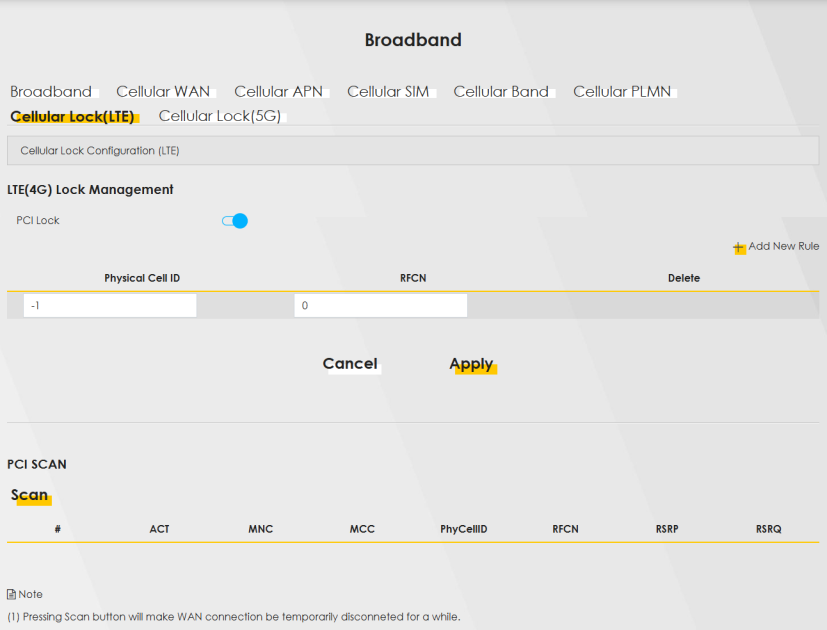
The following table describes the fields in this screen.
LABEL | DESCRIPTION |
|---|---|
LTE(4G) Lock Management | |
PCI Lock | Click the switch button (to the right) to enable PCI (Physical Cell Identifier) Lock on base stations when the Zyxel Device has 4G LTE connections. Physical Cell ID (PCI) is an identifier for a cell, namely a cellular base station. PCI and Radio Frequency Channel Number (RFCN) are combined to specify the base station. |
Add New Rule | Click to add a new cellular lock rule. |
Physical Cell ID | Enter the PCI number (0 – 504) of the base station to which you want the Zyxel Device to connect. |
RFCN | Enter the RFCN (Radio Frequency Channel Number) for the LTE frequency of the specified PCI (1 – 65535). |
Delete | Click the Delete icon to remove an entry. |
Cancel | Click this to return to previous settings without saving. |
Apply | Click this to save and apply your changes. |
Cellular Lock (5G)
Use this screen to configure cellular lock on Zyxel Devices that use 5G NR connections.
To lock a base station identified by its Physical Cell ID and band, go to Network Setting > Broadband > Cellular Lock (5G).
Enabling/Disabling Cellular Lock will make the WAN connection to be temporarily disconnected. 5G (NR) Cellular Lock only works when the Zyxel Device is using the NR5G-SA mode. Make sure the Preferred Access Technology on the Network Setting > Broadband > Cellular Band screen is set to NR5G-SA or NR5G-SA/NR5G-NSA/SG (Auto Switch).Network Setting > Broadband > Cellular Lock (5G)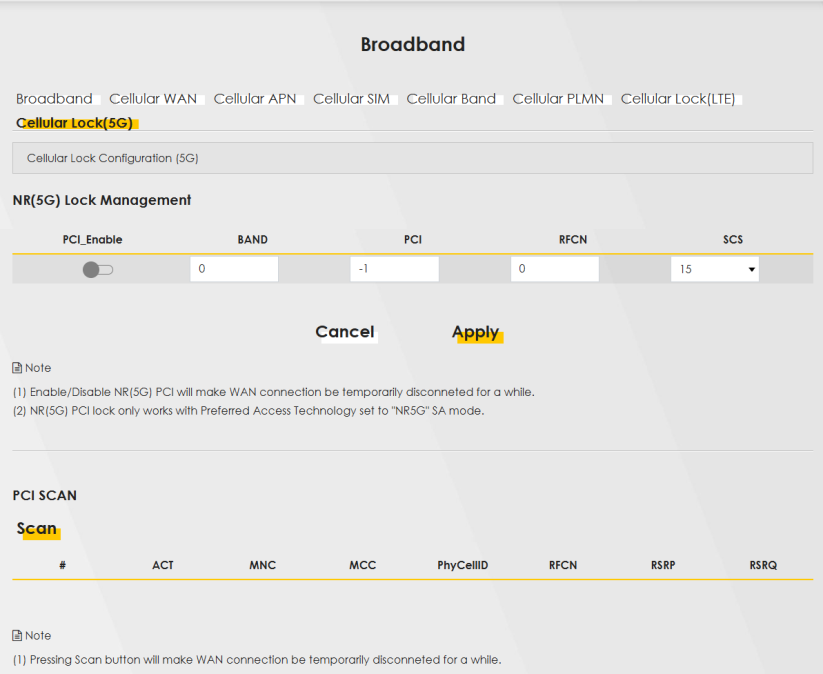
The following table describes the fields in this screen.
LABEL | DESCRIPTION |
|---|---|
NR(5G) Lock Management | |
PCI_Enable | Click the switch button (to the right) to enable PCI (Physical Cell Identifier) Lock on a base station when the Zyxel Device has a 5G NR connection. |
Band | Enter the band number to which you choose to connect. Make sure to select the same band in the Network Setting > Broadband > Cellular Band screen so as the Zyxel Device can connect to that band. |
PCI | Use this to enter the PCI number of the base station you want the Zyxel Device to connect to (0 – 504). |
RFCN | Enter the RFCN (Radio Frequency Channel Number) for the 5G NR frequency of the specified PCI (1 – 65535). |
SCS | Select the Subcarrier Spacing (SCS) from the drop-down list. Subcarriers are small signal carriers that divide a frequency channel, which is the main carrier wave. Subcarrier spacing is the space between each subcarrier. At the time of writing, SCS ranges from 15-120 KHz.You should select the same SCS that is used by the ISP. |
Cancel | Click this to exit this screen without saving. |
Apply | Click this to save your changes. |
Cellular SMS
Use this screen to send and receive SMS messages using the SIM card installed in the Zyxel Device.
Click Network Setting > Broadband > Cellular SMS. The following screen displays.
Network Setting > Broadband > Cellular SMS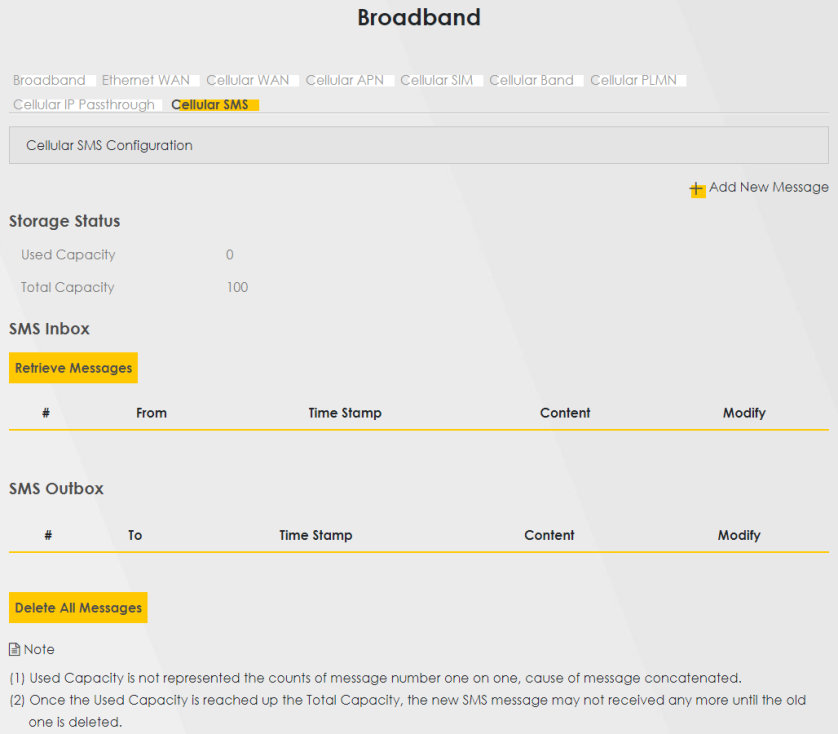
The following table describes the fields in this screen.
LABEL | DESCRIPTION |
|---|---|
Add New Message | Click this button to open the Send New Message screen and send an SMS message from the Zyxel Device. |
Storage Status | |
Used Capacity | This displays the used storage capacity of the Zyxel Device to receive SMS messages. The Zyxel Device will stop receiving SMS messages when Used Capacity is the same as Total Capacity. To continue receiving SMS messages, delete old message(s) by clicking the delete icon in Modify, or click Delete All Messages. |
Total Capacity | This displays 100. This is the maximum capacity to receive SMS messages on the Zyxel Device. |
SMS Inbox | |
SMS Inbox Enable | Click this to enable or disable the SMS Inbox. When enabled, the Zyxel Device can receive and display SMS messages. |
# | This displays the index number of the received message. |
From | This displays the phone number that sent the message. |
Time Stamp | This displays the time and date that the Zyxel Device received the message. |
Content | This displays the content of the message. |
Modify | This allows you to delete the message. |
Send New Message Screen
Use this screen to send an SMS message from the Zyxel Device. Go to Network Setting > Broadband > Cellular SMS and click Add New Message to view this screen.
Network Setting > Broadband > Cellular SMS > Send New Message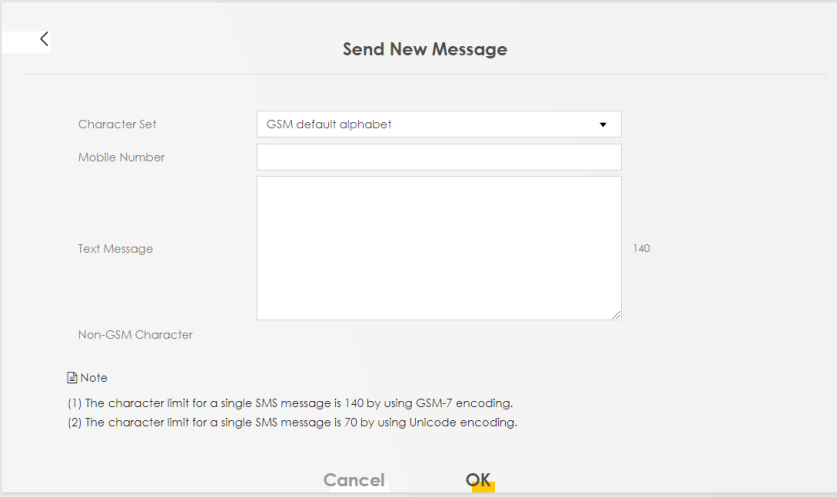
The following table describes the fields in this screen.
LABEL | DESCRIPTION |
|---|---|
Character Set | Select whether you want to send the SMS message using GSM-7 encoding or unicode. • GSM default alphabet: Use standard ASCII numbers, letters, and special characters. The maximum length of the message is 140 characters. • Unicode alphabet: Use any non-English Unicode characters. The maximum length of the message is 70 characters. |
Mobile Number | Specify the cellphone number that you want to send the message to. |
Text Message | Specify the content of the message. |
OK | Click this button to send the message. |
Cancel | Click this button to close the window without sending the message. |