Home Networking
Home Networking Overview
A Local Area Network (LAN) is a shared communication system to which many computers are attached. A LAN is usually located in one immediate area such as a building or floor of a building.
The LAN screens can help you configure a LAN DHCP server and manage IP addresses.
Local Area Network of the Zyxel Device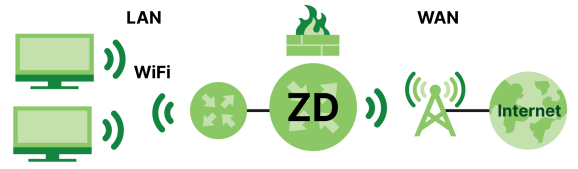
What You Can Do in this Chapter
• Use the Static DHCP screen to assign IP addresses on the LAN to specific individual computers based on their MAC addresses (Static DHCP).
What You Need To Know
The following terms and concepts may help as you read this chapter.
About LAN
IP Address
Similar to the way houses on a street share a common street name, so too do computers on a LAN share one common network number. This is known as an Internet Protocol address.
Subnet Mask
The subnet mask specifies the network number portion of an IP address. Your Zyxel Device will compute the subnet mask automatically based on the IP address that you entered. You do not need to change the subnet mask computed by the Zyxel Device unless you are instructed to do otherwise.
DHCP
DHCP (Dynamic Host Configuration Protocol) allows clients to obtain TCP/IP configuration at start-up from a server. This Zyxel Device has a built-in DHCP server capability that assigns IP addresses and DNS servers to systems that support DHCP client capability.
DNS
DNS (Domain Name System) maps a domain name to its corresponding IP address and vice versa. The DNS server is extremely important because without it, you must know the IP address of a computer before you can access it. The DNS server addresses you enter when you set up DHCP are passed to the client machines along with the assigned IP address and subnet mask.
RADVD (Router Advertisement Daemon)
When an IPv6 host sends a Router Solicitation (RS) request to discover the available routers, RADVD with Router Advertisement (RA) messages in response to the request. It specifies the minimum and maximum intervals of RA broadcasts. RA messages containing the address prefix. IPv6 hosts can be generated with the IPv6 prefix an IPv6 address.
About UPnP
How do I know if I am using UPnP?
UPnP hardware is identified as an icon in the Network Connections folder (Windows 7). Each UPnP compatible device installed on your network will appear as a separate icon. Selecting the icon of a UPnP device will allow you to access the information and properties of that device.
NAT Traversal
UPnP NAT traversal automates the process of allowing an application to operate through NAT. UPnP network devices can automatically configure network addressing, announce their presence in the network to other UPnP devices and enable exchange of simple product and service descriptions. NAT traversal allows the following:
• Dynamic port mapping
• Learning public IP addresses
• Assigning lease times to mappings
Windows Messenger is an example of an application that supports NAT traversal and UPnP.
Cautions with UPnP
The automated nature of NAT traversal applications in establishing their own services and opening firewall ports may present network security issues. Network information and configuration may also be obtained and modified by users in some network environments.
When a UPnP device joins a network, it announces its presence with a Multicast message. For security reasons, the Zyxel Device allows Multicast messages on the LAN only.
All UPnP-enabled devices may communicate freely with each other without additional configuration. Disable UPnP if this is not your intention.
UPnP and Zyxel
Zyxel has achieved UPnP certification from the Universal Plug and Play Forum UPnP™ Implementers Corp. (UIC).
See Turn on UPnP in Windows 10 Example for examples on installing and using UPnP.
Before You Begin
Find out the MAC addresses of your network devices if you intend to add them to the DHCP Client List screen.
LAN Setup
A LAN IP address is the IP address of a networking device in the LAN. You can use the Zyxel Device's LAN IP address to access its Web Configurator from the LAN. The DHCP server settings define the rules on assigning IP addresses to LAN clients on your network.
Use this screen to set the Local Area Network IP address and subnet mask of your Zyxel Device. Configure DHCP settings to have the Zyxel Device or a DHCP server assign IP addresses to devices. Click Network Setting > Home Networking to open the LAN Setup screen.
Follow these steps to configure your LAN settings.
1 Select the Interface Group you want to set up the LAN. To configure an interface group, go to Network Setting > Interface Grouping. See Interface Grouping for more details about interface group.
2 Enter an IP address into the IP Address field. The IP address must be in dotted decimal notation. This will become the IP address of your Zyxel Device.
3 Enter the IP subnet mask into the IP Subnet Mask field. Unless instructed otherwise it is best to leave this alone, the configurator will automatically compute a subnet mask based upon the IP address you entered.
4 Click Apply to save your settings.
Network Setting > Home Networking > LAN Setup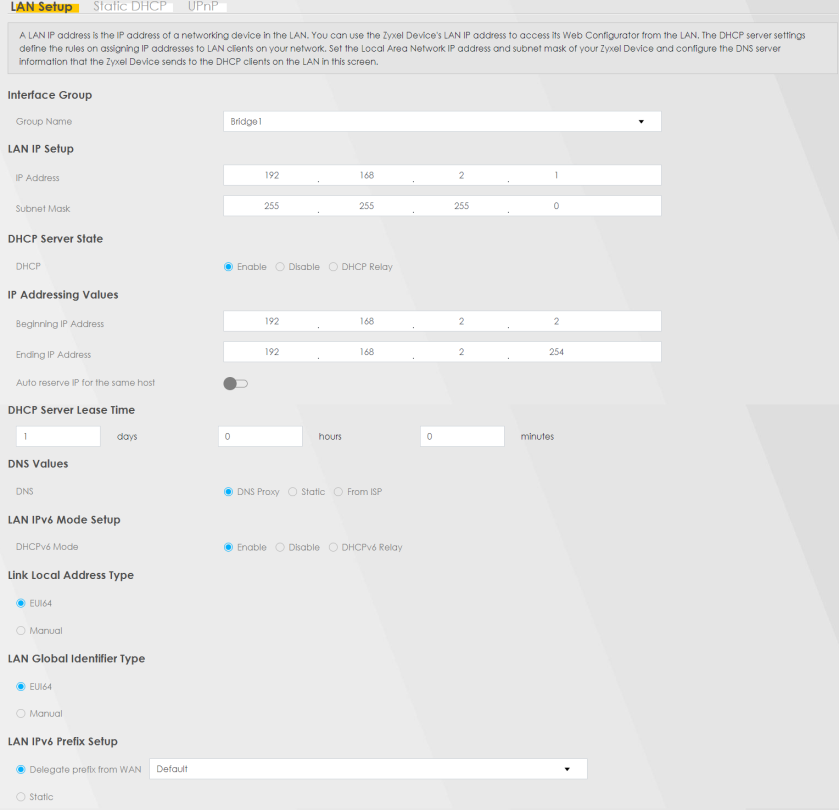
Network Setting > Home Networking > LAN Setup (continued)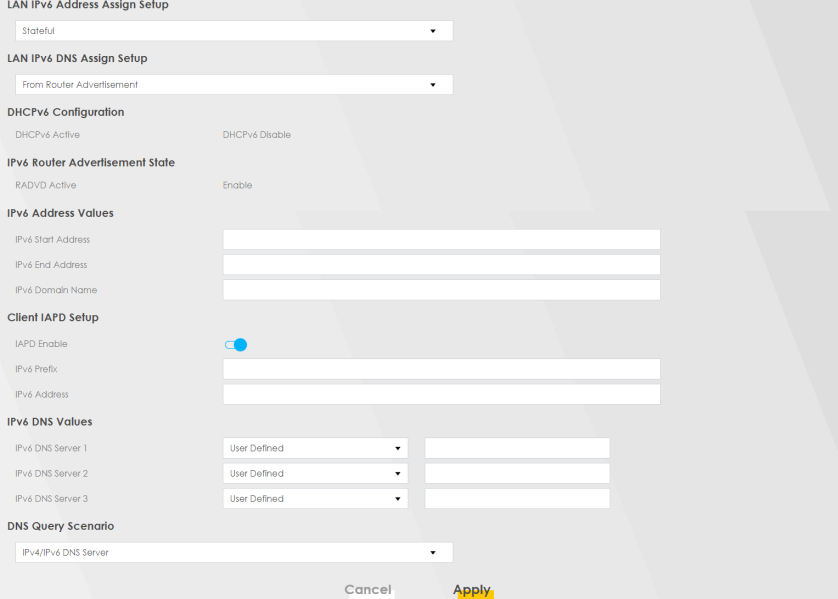
The following table describes the fields in this screen.
Label | Description |
|---|---|
LAN IP Setup | |
IP Address | Enter the LAN IP address you want to assign to your in dotted decimal notation, for example, (factory default). |
Subnet Mask | Enter the subnet mask of your network in dotted decimal notation, for example 255.255.255.0 (factory default). Your Zyxel Device automatically computes the subnet mask based on the IP address you enter, so do not change this field unless you are instructed to do so. |
DHCP Server State | |
DHCP | Select Enable to have your Zyxel Device assign IP addresses, an IP default gateway and DNS servers to LAN computers and other devices that are DHCP clients. If you select Disable, you need to manually configure the IP addresses of the computers and other devices on your LAN. If you select DHCP Relay, the Zyxel Device acts as a surrogate DHCP server and relays DHCP requests and responses between the remote server and the clients. |
DHCP Relay Server Address | This field is only available when you select DHCP Relay in the DHCP field. |
IP Address | Enter the IPv4 IP address of the actual remote DHCP server in this field. |
IP Addressing Values | The IP Addressing Values fields appear only when you select Enable in the DHCP field. |
Beginning IP Address | This field specifies the first of the contiguous addresses in the IP address pool. |
Ending IP Address | This field specifies the last of the contiguous addresses in the IP address pool. |
Auto reserve IP for the same host | Enable this if you want to reserve the IP address for the same host. |
DHCP Server Lease Time | This is the period of time DHCP-assigned addresses is used. DHCP automatically assigns IP addresses to clients when they log in. DHCP centralizes IP address management on central computers that run the DHCP server program. DHCP leases addresses, for a period of time, which means that past addresses are “recycled” and made available for future reassignment to other systems. This field is only available when you select Enable in the DHCP field. |
Days/Hours/Minutes | DHCP server leases an address to a new client device for a period of time, called the DHCP lease time. When the lease expires, the DHCP server might assign the IP address to a different client device. |
DNS Values | This field appears only when you select Enable in the DHCP field. |
DNS | The Zyxel Device supports DNS proxy by default. The Zyxel Device sends out its own LAN IP address to the DHCP clients as the first DNS server address. DHCP clients use this first DNS server to send domain-name queries to the Zyxel Device. The Zyxel Device sends a response directly if it has a record of the domain-name to IP address mapping. If it does not, the Zyxel Device queries an outside DNS server and relays the response to the DHCP client. Select DNS Proxy to have the DHCP clients use the Zyxel Device’s own LAN IP address. The Zyxel Device works as a DNS relay. Select Static if you have the IP address of a DNS server. Enter the DNS server's IP address in the field to the right. Select From ISP if your ISP dynamically assigns DNS server information (and the Zyxel Device's WAN IP address). |
Active | Click this switch  to enable or disable IPv6 address assignment from the Zyxel Device to LAN clients. LAN clients refer to extenders and other devices on the LAN. to enable or disable IPv6 address assignment from the Zyxel Device to LAN clients. LAN clients refer to extenders and other devices on the LAN. |
IPv6 Address Values | |
IPv6 Start Address | This field specifies the first of the contiguous addresses in the IPv6 address pool. |
IPv6 End Address | This field specifies the last of the contiguous addresses in the IPv6 address pool. |
IPv6 Domain Name | The field specifies the domain name of the IPv6 address. |
Static DHCP
When any of the LAN clients in your network want an assigned fixed IP address, add a static lease for each LAN client. Knowing the LAN client’s MAC addresses is necessary. This table allows you to assign IP addresses on the LAN to individual computers based on their MAC addresses.
Every Ethernet device has a unique MAC (Media Access Control) address. The MAC address is assigned at the factory and consists of six pairs of hexadecimal characters, for example, 00:A0:C5:00:00:02.
Before You Begin
Find out the MAC addresses of your network devices if you intend to add them to the Static DHCP screen.
Use this screen to change your Zyxel Device’s static DHCP settings. Click Network Setting > Home Networking > Static DHCP to open the following screen.
Network Setting > Home Networking > Static DHCP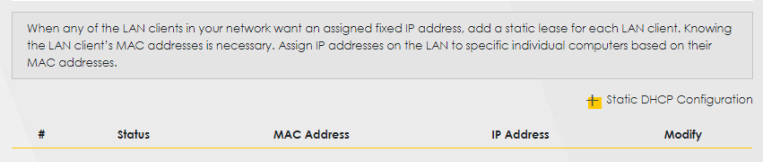
The following table describes the labels in this screen.
Label | Description |
|---|---|
Static DHCP Configuration | Click this to configure a static DHCP entry. |
# | This is the index number of the entry. |
Status | This field displays whether the client is connected to the Zyxel Device. |
MAC Address | The MAC (Media Access Control) or Ethernet address on a LAN (Local Area Network) is unique to your computer (six pairs of hexadecimal notation). A network interface card such as an Ethernet adapter has a hardwired address that is assigned at the factory. This address follows an industry standard that ensures no other adapter has a similar address. |
IP Address | This field displays the IP address relative to the # field listed above. |
Modify | Click the Edit icon to configure the connection. Click the Delete icon to remove the connection. |
If you click Static DHCP Configuration in the Static DHCP screen, the following screen displays. Using a static DHCP means a LAN client will always have the same IP address assigned to it by the DHCP server. Assign a fixed IP address to a client device by selecting the interface group of this client device and its IP address type and selecting the device/computer from a list or manually entering its MAC address and assigned IP address.
Network Setting > Home Networking > Static DHCP: Static DHCP Configuration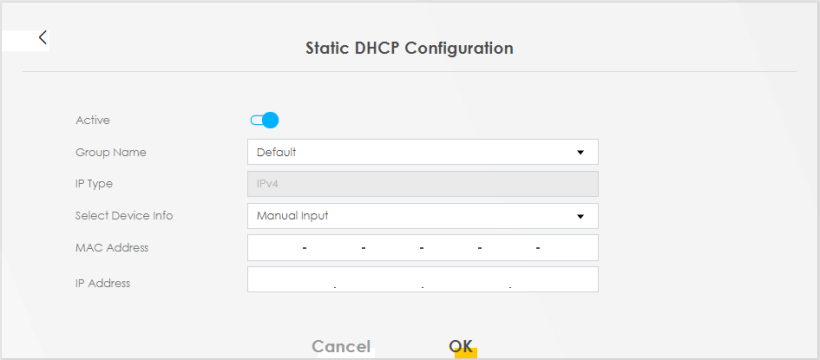
The following table describes the labels in this screen.
Label | Description |
|---|---|
Active | Select Enable to activate static DHCP in your Zyxel Device. |
Group Name | Select the interface group for which you want to configure the static DHCP settings. |
IP Type | The IP Type is normally IPv4 (non-configurable). |
Select Device Info | Select between Manual Input which allows you to enter the next two fields (MAC Address and IP Address); or select an existing LAN device to show its MAC address and IP address. |
MAC Address | Enter the MAC address of a computer on your LAN if you select Manual Input in the previous field. |
IP Address | Enter the IP address that you want to assign to the computer on your LAN with the MAC address that you will also specify if you select Manual Input in the previous field. |
OK | Click OK to save your changes. |
Cancel | Click Cancel to exit this screen without saving. |
UPnP
Universal Plug and Play (UPnP) is an open networking standard that uses TCP/IP for simple peer-to-peer network connectivity between networking devices or software applications which have UPnP enabled. A UPnP device can dynamically join a network, obtain an IP address, advertise its services, and learn about other devices on the network. A device can also leave a network automatically when it is no longer in use.
See Turn on UPnP in Windows 10 Example for more information on UPnP.
 To use UPnP NAT-T, enable NAT in the Network Setting > Broadband > Edit or Add New WAN Interface screen.
Use the following screen to configure the UPnP settings on your Zyxel Device. Click Network Setting > Home Networking > UPnP to display the screen shown next.
Network Setting > Home Networking > UPnP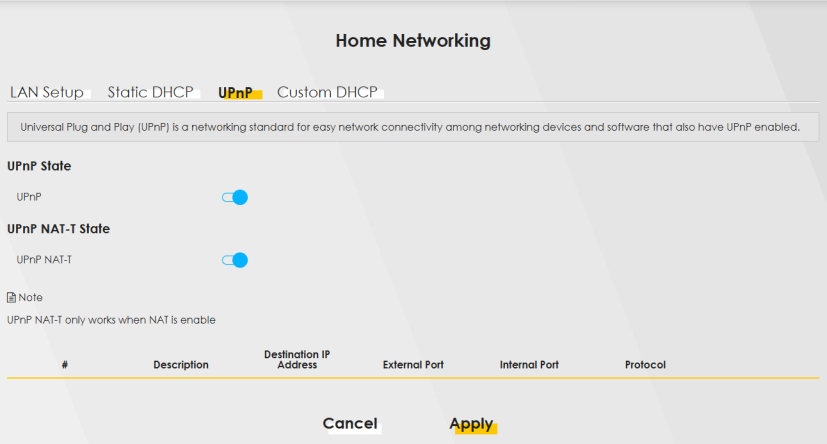
The following table describes the labels in this screen.
Label | Description |
|---|---|
UPnP State | |
UPnP | Select Enable to activate UPnP. Be aware that anyone could use a UPnP application to open the Web Configurator's login screen without entering the Zyxel Device's IP address (although you must still enter the password to access the Web Configurator). |
UPnP NAT-T State | |
UPnP NAT-T | Select Enable to activate UPnP with NAT enabled. UPnP NAT traversal automates the process of allowing an application to operate through NAT. UPnP network devices can automatically configure network addressing, announce their presence in the network to other UPnP devices and enable exchange of simple product and service descriptions. |
# | This field displays the index number of the entry. |
Description | This field displays the description of the UPnP NAT-T connection. |
Destination IP Address | This field displays the IP address of the other connected UPnP-enabled device. |
External Port | This field displays the external port number that identifies the service. |
Internal Port | This field displays the internal port number that identifies the service. |
Protocol | This field displays the protocol of the NAT mapping rule. Choices are TCP or UDP. |
Apply | Click Apply to save your changes. |
Cancel | Click Cancel to restore your previously saved settings. |
Custom DHCP
DHCP options are additional configurations that DHCP clients can receive from a DHCP server. You can configure the Zyxel Device, as a DHCP server, to send the parameters you configured as DHCP options to your DHCP clients. For example, DHCP option 6 can tell the DHCP client which DNS (Domain Name Server) to use for name resolution along with its IP configuration.
Use the following screen to configure custom DHCP option on your Zyxel Device. Click Network Setting > Home Networking > Custom DHCP to display the screen shown next.
Network Setting > Home Networking > Custom DHCP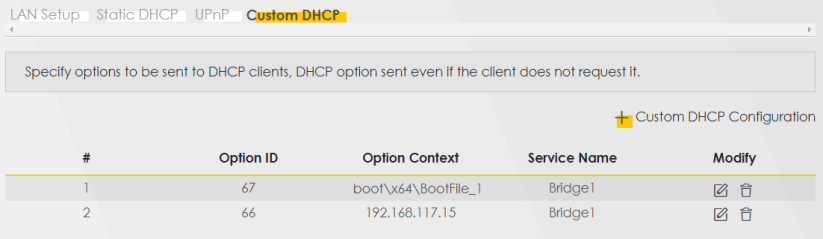
The following table describes the labels in this screen.
Label | Description |
|---|---|
Custom DHCP Configuration | Click this to add a DHCP option you want to sent to your DHCP clients. |
# | This field displays the index number of the entry. |
Option ID | This field displays the DHCP option ID. |
Option Context | This field displays the content of the DHCP option. |
Service Name | This field displays the interface group that the DHCP option is sent on. |
Modify | Click the Modify icon to edit an existing entry. Click the Delete icon to remove an existing entry. |
Custom DHCP Configuration
Use this screen to add a DHCP option, as defined in the RFC protocols, and set its content.
Click Custom DHCP Configuration on the Network Setting > Home Networking > Custom DHCP screen to display the following screen.
Network Setting > Home Networking > Custom DHCP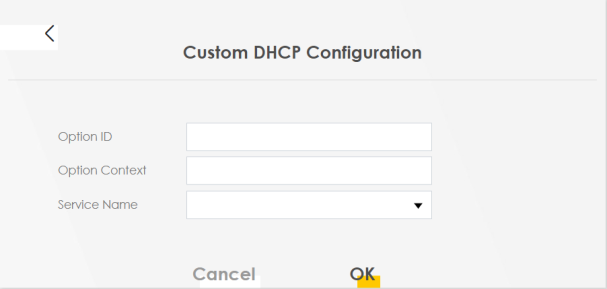
The following table describes the labels in this screen.
Label | Description |
|---|---|
Option ID | Enter the option ID for the additional configuration that DHCP clients can receive from a DHCP server. For example, enter ‘6’ for DNS server configuration. |
Option Context | Enter additional configuration details. For example, for DHCP option 6, enter the DNS server IP address. You can enter up to 257 printable characters except [ " ], [ ` ], [ ' ], [ < ], [ > ], [ ^ ], [ $ ], [ | ], [ & ], or [ ; ]. |
Service Name | Select an interface group from the drop-down list. The Zyxel Device will add this DHCP option to DHCP packets sent on the selected service interface group. You can configure interface groups in the Network Setting > Interface Grouping screen. |
Cancel | Click Cancel to not save your settings and return to the previous screen. |
OK | Click OK to save your changes and return to the previous screen. |
Technical Reference
This section provides some technical background information about the topics covered in this chapter.
LANs, WANs and the Zyxel Device
The actual physical connection determines whether the Zyxel Device ports are LAN or WAN ports. There are two separate IP networks, one inside the LAN network and the other outside the WAN network as shown next.
DHCP Setup
DHCP (Dynamic Host Configuration Protocol, RFC 2131 and RFC 2132) allows individual clients to obtain TCP/IP configuration at start-up from a server. You can configure the Zyxel Device as a DHCP server or disable it. When configured as a server, the Zyxel Device provides the TCP/IP configuration for the clients. If you turn DHCP service off, you must have another DHCP server on your LAN, or else the computer must be manually configured.
IP Pool Setup
The Zyxel Device is pre-configured with a pool of IP addresses for the DHCP clients (DHCP Pool). See the product specifications in the appendices. Do not assign static IP addresses from the DHCP pool to your LAN computers.
DNS Server Addresses
DNS (Domain Name System) maps a domain name to its corresponding IP address and vice versa. The DNS server is extremely important because without it, you must know the IP address of a computer before you can access it. The DNS server addresses you enter when you set up DHCP are passed to the client machines along with the assigned IP address and subnet mask.
There are two ways that an ISP disseminates the DNS server addresses.
• The ISP tells you the DNS server addresses, usually in the form of an information sheet, when you sign up. If your ISP gives you DNS server addresses, enter them in the DNS Server fields in the DHCP Setup screen.
• Some ISPs choose to disseminate the DNS server addresses using the DNS server extensions of IPCP (IP Control Protocol) after the connection is up. If your ISP did not give you explicit DNS servers, chances are the DNS servers are conveyed through IPCP negotiation. The Zyxel Device supports the IPCP DNS server extensions through the DNS proxy feature.
Please note that DNS proxy works only when the ISP uses the IPCP DNS server extensions. It does not mean you can leave the DNS servers out of the DHCP setup under all circumstances. If your ISP gives you explicit DNS servers, make sure that you enter their IP addresses in the DHCP Setup screen.
LAN TCP/IP
The Zyxel Device has built-in DHCP server capability that assigns IP addresses and DNS servers to systems that support DHCP client capability.
IP Address and Subnet Mask
Similar to the way houses on a street share a common street name, so too do computers on a LAN share one common network number.
Where you obtain your network number depends on your particular situation. If the ISP or your network administrator assigns you a block of registered IP addresses, follow their instructions in selecting the IP addresses and the subnet mask.
If the ISP did not explicitly give you an IP network number, then most likely you have a single user account and the ISP will assign you a dynamic IP address when the connection is established. If this is the case, it is recommended that you select a network number from 192.168.0.0 to 192.168.255.0 and you must enable the Network Address Translation (NAT) feature of the Zyxel Device. The Internet Assigned Number Authority (IANA) reserved this block of addresses specifically for private use; please do not use any other number unless you are told otherwise. Let's say you select 192.168.1.0 as the network number; which covers 254 individual addresses, from 192.168.1.1 to 192.168.1.254 (zero and 255 are reserved). In other words, the first three numbers specify the network number while the last number identifies an individual computer on that network.
Once you have decided on the network number, pick an IP address that is easy to remember, for instance, 192.168.1.1, for your Zyxel Device, but make sure that no other device on your network is using that IP address.
The subnet mask specifies the network number portion of an IP address. Your Zyxel Device will compute the subnet mask automatically based on the IP address that you entered. You do not need to change the subnet mask computed by the Zyxel Device unless you are instructed to do otherwise.
Private IP Addresses
Every machine on the Internet must have a unique address. If your networks are isolated from the Internet, for example, only between your two branch offices, you can assign any IP addresses to the hosts without problems. However, the Internet Assigned Numbers Authority (IANA) has reserved the following three blocks of IP addresses specifically for private networks:
• 10.0.0.0 — 10.255.255.255
• 172.16.0.0 — 172.31.255.255
• 192.168.0.0 — 192.168.255.255
You can obtain your IP address from the IANA, from an ISP or it can be assigned from a private network. If you belong to a small organization and your Internet access is through an ISP, the ISP can provide you with the Internet addresses for your local networks. On the other hand, if you are part of a much larger organization, you should consult your network administrator for the appropriate IP addresses.
Regardless of your particular situation, do not create an arbitrary IP address; always follow the guidelines above. For more information on address assignment, please refer to RFC 1597, “Address Allocation for Private Internets” and RFC 1466, “Guidelines for Management of IP Address Space”.Turn on UPnP in Windows 10 Example
This section shows you how to use the UPnP feature in Windows 10. UPnP server is installed in Windows 10. Activate UPnP on the Zyxel Device by clicking Network Setting > Home Networking > UPnP.
Make sure the computer is connected to the LAN port of the Zyxel Device. Turn on your computer and the Zyxel Device.
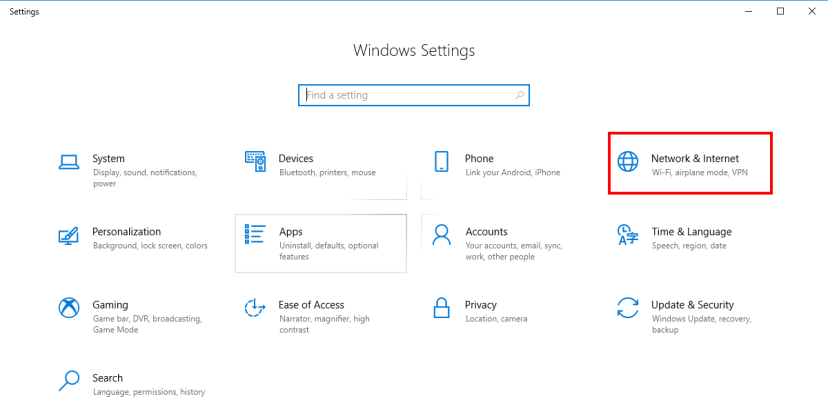
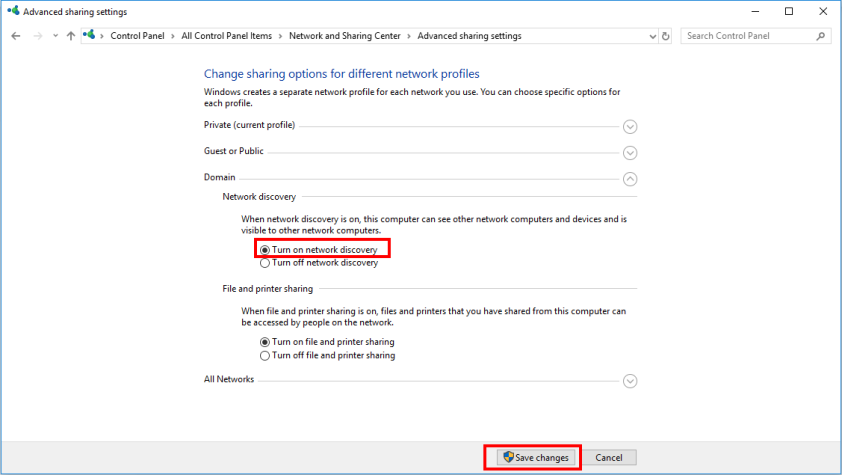
1 Click the start icon, Settings and then Network & Internet.
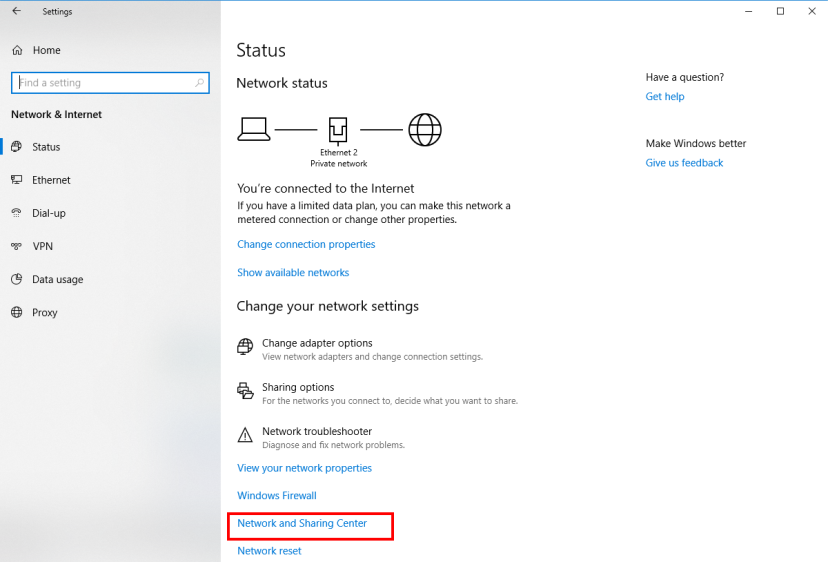
2 Click Network and Sharing Center.
3 Click Change advanced sharing settings.
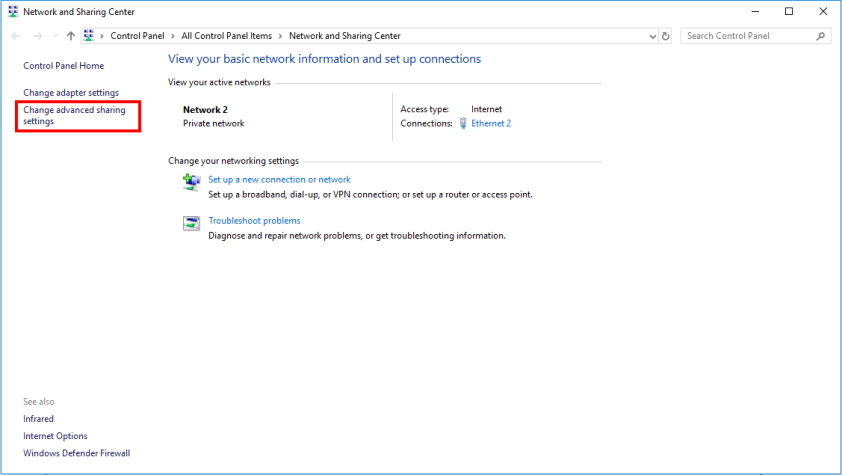
4 Under Domain, select Turn on network discovery and click Save Changes. Network discovery allows your computer to find other computers and devices on the network and other computers on the network to find your computer. This makes it easier to share files and printers.
Auto-discover Your UPnP-enabled Network Device
Before you follow these steps, make sure you already have UPnP activated on the Zyxel Device and in your computer.
Make sure your computer is connected to the LAN port of the Zyxel Device.
1 Open File Explorer and click Network.
2 Right-click the Zyxel Device icon and select Properties.
Network Connections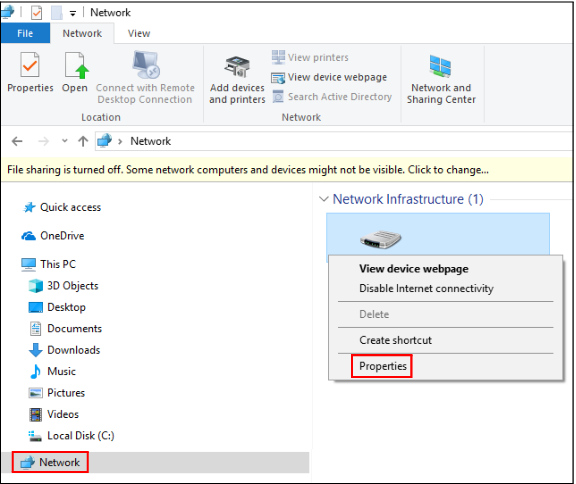
3 In the Internet Connection Properties window, click Settings to see port mappings.
Internet Connection Properties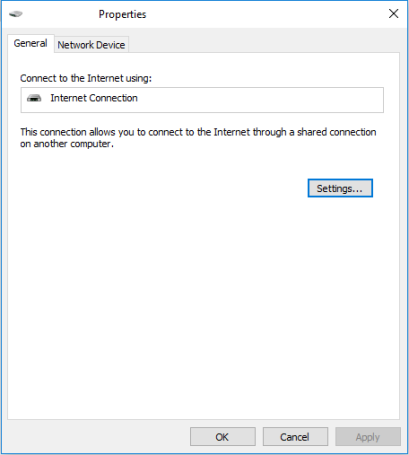
4 You may edit or delete the port mappings or click Add to manually add port mappings.
Internet Connection Properties: Advanced Settings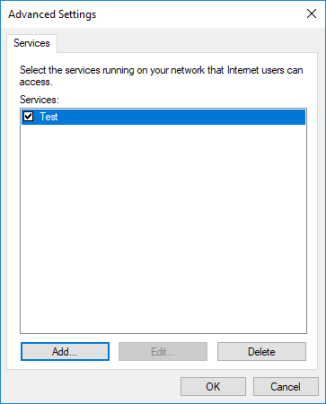
Internet Connection Properties: Advanced Settings: Add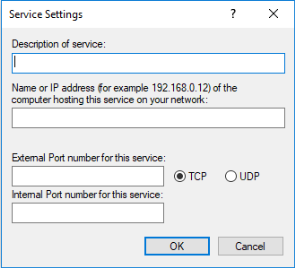
When the UPnP-enabled device is disconnected from your computer, all port mappings will be deleted automatically.5 Click OK. Check the network icon on the system tray to see your Internet connection status.
System Tray Icon
6 To see more details about your current Internet connection status, right click the network icon in the system tray and click Open Network & Internet settings. Click Network and Sharing Center and click the Connections.
Internet Connection Status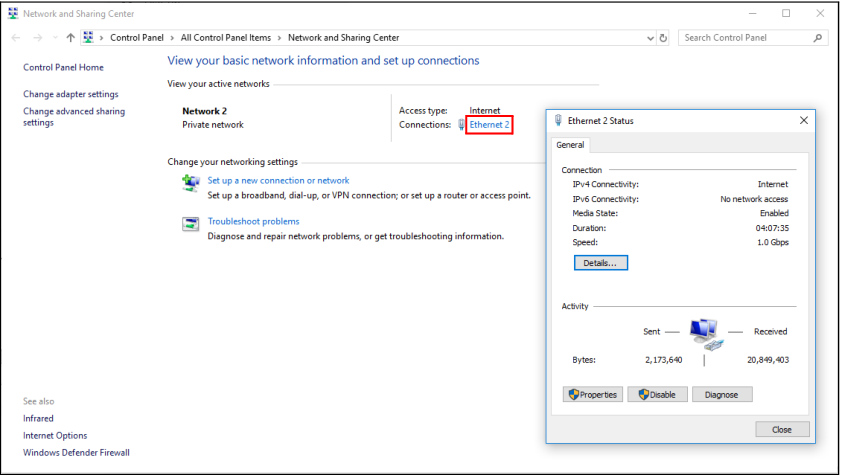
Web Configurator Access with UPnP in Windows 10
Follow the steps below to access the Web Configurator.
1 Open File Explorer.
2 Click Network.
Network Connections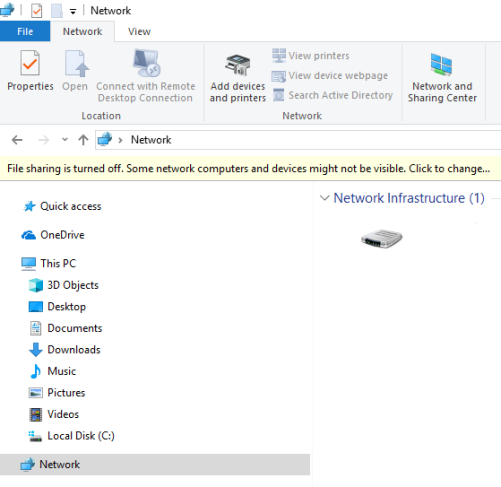
3 An icon with the description for each UPnP-enabled device displays under Network Infrastructure.
4 Right-click the icon for your Zyxel Device and select View device webpage. The Web Configurator login screen displays.
Network Connections: Network Infrastructure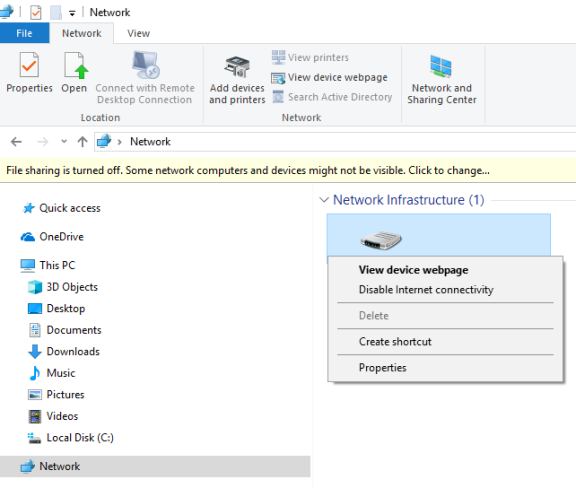
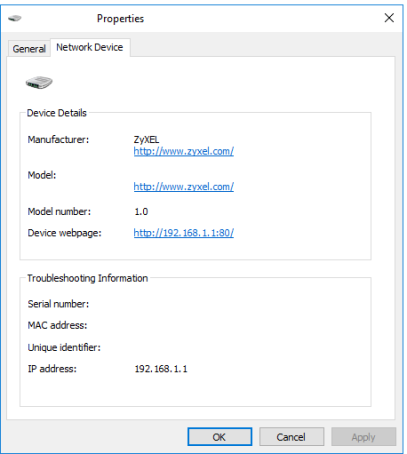
5 Right-click the icon for your Zyxel Device and select Properties. Click the Network Device tab. A window displays information about the Zyxel Device.
Network Connections: Network Infrastructure: Properties: Example