Dashboard
Dashboard Overview
Use the Dashboard screens to check status information about the Zyxel Device.
The System Screen
The System screen displays general device information, system resource usage, and interface status in widgets that you can re-arrange to suit your needs. You can also click the refresh icon ( ) to refresh individual widgets.
) to refresh individual widgets.System Information Screen
The System Information screen displays Zyxel Device’s system and model name, serial number, MAC address and firmware version shown in the below screen.
The table describes the fields in this screen.
label | description |
|---|---|
Host Name | This field displays the name used to identify the Zyxel Device on any network. Click the link and open the Host Name screen where you can edit and make changes to the system and domain name. |
Serial Number | This field displays the serial number of this Zyxel Device. The serial number is used for device tracking and control. |
MAC Address | This field displays the MAC addresses used by the Zyxel Device. Each physical port has one MAC address. The first MAC address is assigned to physical port 1, the second MAC address is assigned to physical port 2, and so on. |
Firmware | This field displays the version number and date of the firmware the Zyxel Device is currently running. Click the link to open the File Manager screen where you can upload firmware. |
Uptime | This field displays how long the Zyxel Device has been running since it last restarted or was turned on. |
System Time | This field displays the current date and time in the Zyxel Device. The format is yyyy-mm-dd hh:mm:ss. |
Boot Status | This field displays details about the Zyxel Device’s startup state. OK - Boot success: The Zyxel Device has started up successfully. OK - Firmware update at yyyy/mm/dd hh:mm: This displays the date and time when the Zyxel Device last updated the firmware successfully. OK - Factory default at yyyy/mm/dd hh:mm: This displays the date and time when the Zyxel Device was last reset to the factory default settings and rebooted successfully. OK - User reboot at yyyy/mm/dd hh:mm: This displays the date and time when the Zyxel Device last rebooted successfully. OK - Reset default configuration at yyyy/mm/dd hh:mm: This occurs when the Zyxel Device starts for the first time or you reset the Zyxel Device to the factory default settings. OK - System recovery at yyyy/mm/dd hh:mm: This displays the date and time when the Zyxel Device last underwent system recovery and rebooted successfully. OK - Apply configuration xxxx.conf at at yyyy/mm/dd hh:mm: This displays the date and time when the Zyxel Device last applied the configuration file and rebooted successfully. OK - Switch to (1st|2nd) partition at yyyy/mm/dd hh:mm: This displays the date and time when the Zyxel Device last rebooted using firmware in the backup partition. OK - Reset admin password at yyyy/mm/dd hh:mm: This displays the date and time when the Zyxel Device reset the admin password using the “atkz-g” command and rebooted successfully. WARN - Fallback to lastgood configuration: The Zyxel Device was unable to apply the startup-config.conf configuration file and fell back to the lastgood.conf configuration file. See Configuration File Flow at Restart for more information on configuration file flow at restart. WARN - Fallback to lastgood configuration after firmware update at yyyy/mm/dd hh:mm: This displays the date and time when the Zyxel Device was last unable to apply the startup-config.conf configuration file after firmware update and fell back to the lastgood.conf configuration file. See Configuration File Flow at Restart for more information on configuration file flow at restart. ERROR - Fallback to system default configuration: The Zyxel Device was unable to apply the lastgood.conf configuration file and fell back to the system default configuration file (system-default.conf). See Configuration File Flow at Restart for more information on configuration file flow at restart. ERROR - Fallback to system default configuration after firmware update at yyyy/mm/dd hh:mm: This displays the date and time when the Zyxel Device was unable to apply the lastgood.conf configuration file after the firmware update and fell back to the system default configuration file (system-default.conf). See Configuration File Flow at Restart for more information on configuration file flow at restart. |
Nebula Status | The field displays the connection status between the Zyxel Device and the Nebula Control Center (NCC). Connected - The Zyxel Device has an Internet connection with the NCC. Disconnected - The Zyxel Device does not have an Internet connection with the NCC. Unknown - The Zyxel Device was unable to receive a timely response from the Nebula server when checking the Internet connection with the NCC. Go to Maintenance > Diagnostics > Network Tool, select Nebula Status, and click Test to verify if the Zyxel Device can properly connect to the NCC over the Internet. No Site Assignment - The Zyxel Device is registered with the NCC, but is not assigned to a site. Disabled - The Internet connection from the Zyxel Device to the NCC was disabled using the Command Line Interface (CLI).  To transfer your Zyxel Device management to the NCC, first make sure your Zyxel Device is connected to the Internet. To transfer your Zyxel Device management to the NCC, first make sure your Zyxel Device is connected to the Internet. |
Port Status Screen
The Port Status screen displays Zyxel Device’s ports and connections status.
The following table describes the labels in this screen.
Label | Description |
|---|---|
Port Status | This field displays details about the status of the Zyxel Device’s ports and connections. An unconnected interface or slot appears grayed out. Hover your cursor over a connected interface or slot to display status details. 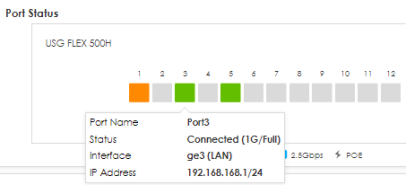 |
The following labels display when you hover your cursor over a connected interface or slot. | |
Name | This field displays the name of each interface. |
Status | This field displays the current status of each interface or device installed in a slot. The possible values depend on what type of interface it is. Inactive - The Ethernet interface is disabled. Down - The Ethernet interface does not have any physical ports associated with it or the Ethernet interface is enabled but not connected. Speed / Duplex - The Ethernet interface is enabled and connected. This field displays the port speed and duplex setting (Full or Half). |
Interface | This field displays the zone to which the interface is currently assigned. |
IP Address/Mask | This field displays the current IP address and subnet mask assigned to the interface. If the interface is a member of an active virtual router, this field displays the IP address it is currently using. This is either the static IP address of the interface (if it is the master) or the management IP address (if it is a backup). |
Power Reset | Click Power Reset to power off the PD (powered device) connected to the port, by temporarily disabling then re-enabling PoE. This button only appears when the PoE port is connected to a PD. |
Resource Usage Screen
The table describes the fields in the screen.
label | description |
|---|---|
CPU | This field displays what percentage of the Zyxel Device’s processing capability is currently being used. It is an average of all core usage. Click this field to display a chart of the Zyxel Device’s recent CPU usage for each core within a specified time period. CPU usage may appear temporarily high when creating graphic-intensive statistics and reports. You may ignore it, and observe the long-term usage. |
Memory | This field displays what percentage of the Zyxel Device’s RAM is currently being used. Click this field to display a chart of the Zyxel Device’s recent total, system and fastpath memory usage. |
Sessions | This field shows how many sessions, established and non-established, that pass through/from/to/within the Zyxel Device. Click this field to display a chart of Zyxel Device’s session usage within a specified time period. |
Storage | This field displays the percentage of storage currently being used on the Zyxel Device. Click this field to view more information about the Zyxel Device’s storage and the connected USB storage device. See Storage Information for more details. |
Storage Information
The Storage Information screen displays information of the Zyxel Device’s storage and the connected USB storage device.
The table describes the fields in the screen.
label | description |
|---|---|
Local Storage | |
Usage | This field displays the used space (in MB or GB), available space (in MB or GB), and the percentage of used space on the Zyxel Device. Local storage refers to the permanent (flash) memory, where data is retained after rebooting. It stores database files, including actual data, logs, backups, packet capture files, and configuration files. New logs and files are not saved when storage is full. You can try manually deleting logs. See My Zyxel Device’s local storage is full. for details. |
USB Storage | |
USB Device | This field displays the name of the USB storage device. See Log & Report > Log Settings for more information on USB storage. |
Usage | This field displays the used space (in MB or GB), available space (in MB or GB), and the percentage of used space on the USB storage device. |
File System | This field displays what file system the USB storage device is formatted with. The supported formats for the Zyxel Device are FAT16, FAT32, EXT3, and EXT4. See the troubleshooting My USB storage device is not compatible with the Zyxel Device. for how to change the format of your USB storage device. |
Interface and Speed | This field displays the USB standard and the connection speed the USB storage device supports. |
Status | This field displays the connecting status of the USB storage device. • Connected - you can have the Zyxel Device use the USB storage device. • Connecting - the Zyxel Device is mounting the USB storage device. • Disconnected - the connected USB storage device was manually unmounted by using the Disconnect button or for some reason the Zyxel Device cannot mount it. Click the Disconnect button to stop the Zyxel Device from using the USB storage device. If you disconnect the USB storage device from the Zyxel Device, you can then use click Connect to reconnect the USB storage device. |
Bandwidth
This screen displays a line graph of packet statistics for each interface.This table describes the fields in the above screen.
label | description |
|---|---|
Mbps | The y-axis represents the speed of transmission or reception. |
Time | The x-axis shows the time period over which the transmission or reception occurred. |
Client Usage Screen
This screen displays the number of users logged into the Zyxel Device and a summary of the DHCP settings status. Click the links to go to the Login Users or the DHCP Table screen.
This table describes the fields in the above screen.
label | description |
|---|---|
Login Users | This field displays the number of users that are currently logged into the Zyxel Device. |
DHCP Lease | This field displays the number of IP addresses that are leased for clients. |
Reservation | This field displays the number of IP addresses that are reserved for the MAC addresses. |
DHCP Server | This field displays the number of interface that the DHCP server is enabled on the Zyxel Device. |
The Latest Logs Screen
In this screen click The Latest Logs to go to Log & Report > Log / Events.
The table describes the fields in the screen.
label | description |
|---|---|
# | This is the entry’s rank in the list of alert logs. |
Time | This field displays the date and time the log was created. |
Category | This field displays the type of log generated. |
Message | This field displays the actual log message. |
Source | This field displays the source address (if any) in the packet that generated the log. |
Destination | This field displays the destination address (if any) in the packet that generated the log. |
Priority | This field displays the severity of the log. |
The Security Screen
Use the Security screen to check security status information about the Zyxel Device. If a license has expired, you will see a reminder in this screen. You need to renew the license in order to keep using the feature. Click Buy Now to go to Marketplace to purchase a new license. Click See Details to go to the Zyxel web page to find more information on licenses for your Zyxel Device.
This screen gives the following information:
• The amount of scanned traffic
• The number of scanned connections for URL threat filtering
• The number of scanned files for anti-malware
• The number of scanned connections for IPS
• The number of scanned files for sandbox.
• Top 5 applications that are used the most
• Top 5 Categories that are detected the most
Click the Refresh icon to update the information in the window right away.