Troubleshooting
Overview
This chapter offers some suggestions to solve problems you might encounter. The potential problems are divided into the following categories.
Power, Hardware Connections, and LEDs
The Root (Plus) does not turn on. None of the LEDs turn on.
If you are using a power adapter to power the Root (Plus):
1 Make sure you are using a compatible power adapter.
2 Make sure the power adapter is securely connected to the Root (Plus) and plugged into an appropriate power source.
3 Make sure the power adapter is functional.
4 If the problem persists, contact Zyxel technical support.
If you are using a PSE or PoE injector to power the Root (Plus):
1 Make sure you are using the correct PoE port on the PSE or PoE injector.
2 Make sure the PSE or PoE injector is functional.
• Check whether the PSE or PoE injector is malfunctioning. See your PSE or PoE injector user’s guide for more information.
• If the connected PSE or PoE injector does not fully comply with the Root (Plus)’s supported PoE standard, replace it with compliant PSE or PoE injector. See PoE for the Root (Plus)’s supported PoE standards. Certain PSEs can adjust the power delivered to each PD based on the PoE standard supported by the PD. For detailed instructions, refer to your PSE User’s Guide.
3 Make sure the Ethernet cable connected to the PSE or PoE injector is functional.
• Check whether the Ethernet cable is malfunctioning.
• Use the correct type of Ethernet cable for the PoE standard supported by the Root (Plus). See PoE for the Root (Plus)’s supported PoE standards and see Root (Plus) PoE Standards for the compliant Ethernet cables.
4 If the problem persists, contact Zyxel technical support.
The LED does not behave as expected.
1 Make sure you understand the normal behavior of the LED. See Root (Plus) LED.
2 Check the hardware connections. See the Quick Start Guide.
3 Inspect your cables for damage. Contact the vendor to replace any damaged cables.
4 Disconnect and re-connect the power adapter or PoE power injector to the Root (Plus).
5 If the problem continues, contact the vendor.
Local GUI Access and Login
I forgot the IP address for the Root (Plus).
1 The default in-band IP address for the local GUI Web Configurator in Nebula Cloud-managed mode is https://DHCP-assigned IP (when connecting to a DHCP server) or 192.168.1.2.
2 If you changed the IP address and have forgotten it, you have to reset the Root (Plus) to its factory defaults. See Getting More Troubleshooting Help.
3 If your Root (Plus) is a DHCP client, you can find your IP address from the DHCP server. This information is only available from the DHCP server which allocates IP addresses on your network. Find this information directly from the DHCP server or contact your system administrator for more information.
4 If the NCC has managed the Root (Plus), you can also check the NCC's Site-wide > Devices > Access points screen for the Root (Plus)'s current LAN IP address.
I cannot see or access the Login screen in the local GUI.
1 Make sure you are using the correct IP address.
• The default IP address for the local GUI is 192.168.1.2.
• If you changed the IP address, use the new IP address.
• If you changed the IP address and have forgotten it, see the troubleshooting suggestions for I forgot the IP address for the Root (Plus).
2 Check the hardware connections, and make sure the LED is behaving as expected. See the Quick Start Guide and Root (Plus) LED.
3 Make sure your Internet browser does not block pop-up windows and has JavaScripts and Java enabled.
4 Make sure your computer is in the same subnet as the Root (Plus). (If you know that there are routers between your computer and the Root (Plus), skip this step.)
• If there is a DHCP server on your network, make sure your computer is using a dynamic IP address. Check the DHCP IP address assigned to your Root (Plus) on the connected router.
• If there is no DHCP server on your network, make sure your computer’s IP address is in the same subnet as the Root (Plus).
5 Reset the Root (Plus) to its factory defaults, and try to access the Root (Plus) with the default IP address. See Getting More Troubleshooting Help.
6 If the problem continues, contact the network administrator or vendor, or try one of the advanced suggestions.
Advanced Suggestions
• Try to access the Root (Plus) using another service, such as SSH. If you can access the Root (Plus), check the remote management settings to find out why the Root (Plus) does not respond to HTTP.
• If your computer is connected wirelessly, use a computer that is connected to the Ethernet PoE port.
I forgot the local GUI password.
1 The default password is unique to each Root (Plus) and shown on the label. If the Root (Plus) is connected to the NCC and registered, check the NCC for the password.
2 If this does not work, you have to reset the Root (Plus) to its factory defaults. See Getting More Troubleshooting Help.
I can see the Login screen, but I cannot log into the Root (Plus).
1 Clear your browser’s cache.
2 Check the Root (Plus)’s management mode.
• The default password is unique to each Root (Plus) and shown on the label. If you have changed the username and password, use the ones you configured to log in.
• If the Root (Plus) is in cloud managed mode, use the Nebula Local credentials Password to log into the cloud managed mode local GUI. The Local credentials Password can be found in Site-wide > Configure > Site settings > Device configuration: Local credentials: Password in the NCC portal.
• If the Root (Plus) is managed by an APC such as the ZyWALL, then use the APC to manage the Root (Plus).
3 Depending on your Root (Plus)’s management mode, make sure you have entered the correct user name and password. These fields are case-sensitive, so check if [Caps Lock] is on or off.
 Steps 1 and 2 are applicable if you get an “Invalid password” error message when using some functions in the ZON utility.
4 Disconnect and re-connect the power adapter or PoE power injector to restart the Root (Plus).
5 If this does not work, you have to reset the Root (Plus) to its factory defaults. See Getting More Troubleshooting Help.
NCC is managing the Root (Plus), but the NCC cannot access the Root (Plus).
Connect to the Root (Plus) directly and log into the local GUI with the credentials configured in NCC. See Accessing the Local GUI for more information.
I cannot register the Root (Plus) in NCC because it is already registered by the previous owner.
• If the previous owner has registered the Root (Plus) in NCC and has disabled the NCC Override device ownership feature in the Organization-wide > Organization-wide manage > Organization settings screen, use the Nebula Mobile app to scan the NCC QR code on the back label of the Root (Plus) to register with NCC.
• If the previous owner has registered it in NCC and has locked the Root (Plus) with the NCC Override device ownership feature in the Organization-wide > Organization-wide manage > Organization settings screen, inform the previous owner to unregister the Root (Plus) or contact Zyxel technical support.
The Root (Plus) is already registered with NCC, but it cannot connect to the NCC.
1 Check the Root (Plus) LED and make sure the Root (Plus) is on and ready for use.
2 Check your network’s firewall/security settings. Make sure the following ports are allowed:
• TCP: 443, 4335, and 6667
• UDP: 123 is allowed.
3 Make sure your Root (Plus) has obtained an IP address and can access the Internet. Check the Cloud Control Status on the Dashboard screen for your Internet connection.
4 You may have to change the Management VLAN settings of the Root (Plus) to allow it to connect to the Internet and access the NCC.
Changing the management VLAN and IP address settings on the Root (Plus) also pushes these changes to the NCC. Do this only if your device cannot otherwise connect to the NCC.5 Make sure your Root (Plus) does not have to go through network authentication such as a captive portal. If your network uses a captive portal, the network administrator may have to create a new VLAN without this requirement. Change your Root (Plus)’s management VLAN settings as necessary.
6 Make sure your DNS server can resolve d.nebula.zyxel.com. Open the Command Prompt on your computer, enter nslookup d.nebula.zyxel.com, see if the DNS server can return the resolved IP address. If not, you can try set your gateway to use the Google Public DNS server 8.8.8.8.
Some features I set using the NCC do not work as expected.
1 Make sure your Root (Plus) can access the Internet.
2 Make sure the NCC can access the Root (Plus). Check your network’s firewall/security settings. Make sure the following ports are allowed:
• TCP: 443, 4335, and 6667
• UDP: 123
3 After changing your Root (Plus) settings using the NCC, wait 1 to 2 minutes for the changes to take effect.
I can only see newer logs. Older logs are missing.
When a log reaches the maximum number of log messages, new log messages automatically overwrite the oldest log messages.
The commands in my configuration file or shell script are not working properly.
• In a configuration file or shell script, use “#” or “!” as the first character of a command line to have the Root (Plus) treat the line as a comment.
• Your configuration files or shell scripts can use “exit” or a command line consisting of a single “!” to have the Root (Plus) exit sub command mode.
• Include write commands in your scripts. Otherwise the changes will be lost when the Root (Plus) restarts. You could use multiple write commands in a long script.
“exit” or “!” must follow sub commands if it is to make the Root (Plus) exit sub command mode.My Root (Plus) cannot display properly in the NCC map.
If the Root (Plus) GPS signal is unavailable or weak, it may not display properly in the NCC map (Site-wide > Devices > Access Points).
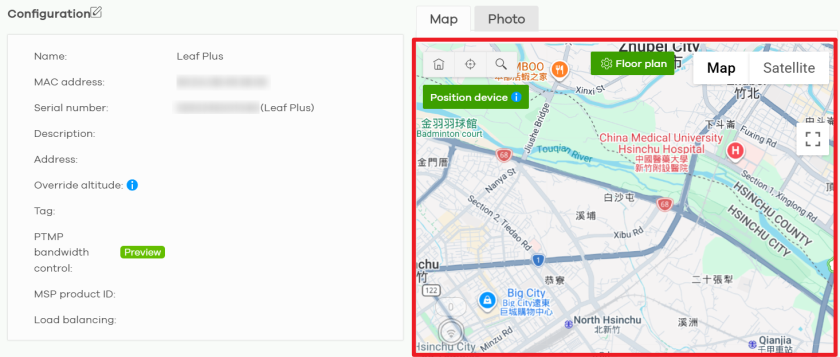
To obtain a stronger GPS signal, try the following:
• Avoid nearby buildings, walls, trees, or other objects that may block GPS signals.
• Wait a few minutes after power-on for the Root (Plus) to obtain GPS information.
Internet Access
Clients cannot access the Internet through the Root (Plus).
1 Check the Root (Plus)’s hardware connections, and make sure the LEDs are behaving as expected (refer to Root (Plus) LED). See the Quick Start Guide.
2 Make sure the Root (Plus) is connected to a broadband modem or router with Internet access and your computer is set to obtain an dynamic IP address.
3 If clients are trying to access the Internet wirelessly, make sure the WiFi settings on the WiFi clients are the same as the settings on the Root (Plus).
4 Make sure the Root (Plus) has the same VLAN settings configured as the gateway connected to the Root (Plus). Traffic tagged with a specific VLAN ID tag can only go to the WiFi clients of the WiFi network that uses the same VLAN ID. Devices connected to the Root (Plus) need to have the same VLAN ID configured to receive traffic from the Root (Plus).
5 Disconnect all the cables from your Root (Plus), and follow the directions in the Quick Start Guide again.
6 Reboot the client and reconnect to the Root (Plus).
7 If the problem continues, contact your ISP.
The Internet connection is slow or intermittent.
1 There might be a lot of traffic on the network. Look at the LEDs, and check Root (Plus) LED. If the Root (Plus) is sending or receiving a lot of information, try closing some programs that use the Internet, especially peer-to-peer applications.
2 Check the signal strength using the NCC, AC, or the Root (Plus) Web Configurator, or the client device itself. If the signal is weak, try moving the client closer to the Root (Plus) (if possible), and look around to see if there are any devices that might be interfering with the wireless network (microwaves, other wireless networks, and so on).
3 Reboot the Root (Plus) using the Web Configurator/CLI or the NCC or APC.
4 Check the settings for QoS. If it is disabled, activate it. When enabled, raise or lower the priority for some applications.
5 If the problem continues, contact the network administrator or vendor.
The wireless bridge link is down.
If the wireless bridge link is down or unstable, do the following:
1 Check the Root (Plus)’s Status in NCC. Verify that the Root (Plus) is online, and that the Configuration status is Up to date.
2 Check for recent changes in the installation environment. For example, device relocation.
3 Ensure a clear line of sight. Verify that there are no obstacles between the devices, such as scaffolds, billboards, or tree branches.
4 Verify device alignment. Verify that the devices are aligned correctly. Strong winds may cause pole-mounted devices to shift slightly over time.
WiFi Network
The WiFi connection is slow or intermittent.
The following factors may cause interference:
• Obstacles: walls, ceilings, furniture, and so on.
• Building Materials: metal doors, aluminum studs.
• Electrical devices: microwaves, monitors, electric motors, cordless phones, and other wireless devices.
To optimize the speed and quality of your WiFi connection, you can:
• Move your WiFi device closer to the Root (Plus) if the signal strength is low.
• Reduce wireless interference that may be caused by other wireless networks or surrounding wireless electronics such as cordless phones.
• Place the Root (Plus) where there are minimum obstacles (such as walls and ceilings) between the Root (Plus) and the wireless client. Avoid placing the Root (Plus) inside any type of box that might block WiFi signals.
The wireless security is not following the re-authentication timer setting I specified.
If a RADIUS server authenticates wireless stations, the re-authentication timer on the RADIUS server has priority over the setting in the Root (Plus). Change the RADIUS server’s configuration if you need to use a different re-authentication timer setting.
Getting More Troubleshooting Help
Search for support information for your model at www.zyxel.com for more troubleshooting suggestions.