AP Management
Management Mode
The Zyxel Device is a unified AP and can be managed by NCC or an APC, or work as a standalone device. We recommend you use NCC to manage multiple APs (see the NCC User’s Guide). You can use an APC (see the APC User’s Guide), such as the ZyWALL ATP, or USG FLEX to manage multiple APs in different locations.
 Not all models can be managed by NCC or an APC. See Zyxel Device Product Feature Comparison to check whether your product supports these.
The following table shows the default IP addresses and firmware upload methods for different management modes.
Management Mode | Default IP Address | Update Firmware Through |
|---|---|---|
Nebula Control Center | Dynamic | NCC Portal / Built-in Web Configurator |
AP Controller | Dynamic | APC using CAPWAP / Built-in Web Configurator |
Standalone | Dynamic or Static (192.168.1.2) | Built-in Web Configurator |
When the Zyxel Device is in standalone mode and connects to a DHCP server, it uses the IP address assigned by the DHCP server. Otherwise, the Zyxel Device uses the default static management IP address (192.168.1.2).
When the Zyxel Device is managed by the NCC or an APC, it acts as a DHCP client and obtains an IP address from NCC or the APC. You can configure the Zyxel Device using the web configurator when the Zyxel Device is not connected to NCC or the APC. Refer to Switching Management Modes if you need to change the Zyxel Device’s management mode.
Standalone
When working in standalone mode, the Zyxel Device is configured with its built-in Web Configurator (preferred) or CLI. You can only connect to and set up one Zyxel Device at a time in this mode.
See Standalone Configuration for detailed information about the standalone Web Configurator screens.
Nebula Control Center
In this mode, which is also called cloud managed mode, you can manage and monitor the Zyxel Device through the Zyxel Nebula cloud-based network management system. This means you can manage devices remotely without the need of connecting to each device directly. It offers many features to better manage and monitor not just the Zyxel Device, but your network as a whole, including supported switches and gateways. Your network can also be managed through your smartphone using the Nebula Mobile app. See Cloud Managed Mode for an example NCC managed network topology.
NCC Dashboard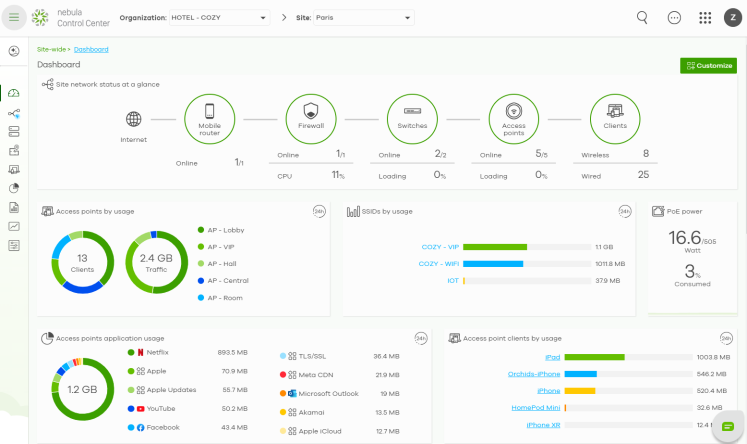
Each Zyxel Device must belong to a site which must be in an organization. You can configure each Zyxel Device on its own or configure a set of Zyxel Devices together in a site. You can also monitor groups of sites in organizations.
Organization | |||
Site A | Site B | ||
Device A-1 | Device A-2 | Device B-1 | Device B-2 |
You can use the Topology in NCC which graphically presents your device and network statistics. It shows an overview of your network topology, as shown in the following figure. See the NCC User’s Guide for how to configure Nebula managed devices.
NCC Topology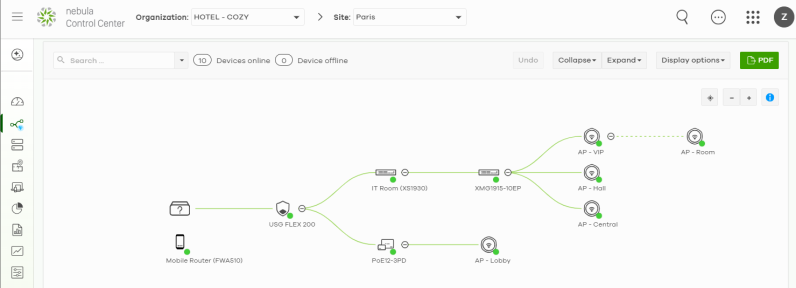
Make sure your network firewall allows TCP ports 443, 4335, and 6667 as well as UDP port 123 so the Zyxel Device can connect to and sync with the NCC.AP Controller (APC)
If the Zyxel Device supports management using an APC such as the ZyWALL ATP,or the USG FLEX series, and you have this APC in the same subnet, it can be managed by the APC automatically. To set the Zyxel Device to be managed by an APC in a different subnet or change between management modes, use the APC Discovery screen (see APC Discovery).
The following figure illustrates a wireless network managed by an APC. You (U) configure the APC (C), which then automatically updates the configurations of the managed APs (M1-M4).
Controller Managed AP Application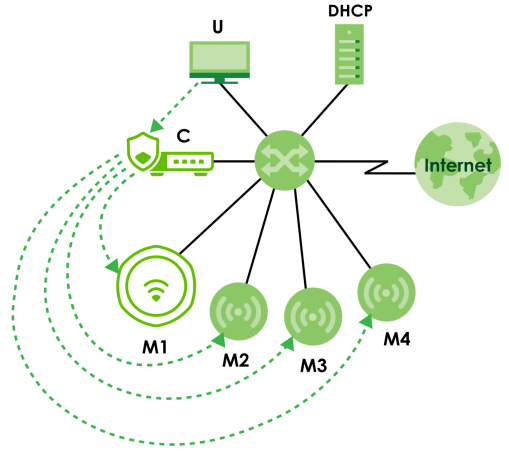
Not all models support APC management. See Zyxel Device Product Feature Comparison for more information.If the Zyxel Device is already registered to NCC, the APC will be unable to manage it.APC Discovery and Management
The link between APC Discovery-enabled access points proceeds as follows:
1 A Zyxel Device in controller managed mode joins a wired network (receives a dynamic IP address).
2 The Zyxel Device sends out a discovery request, looking for an APC.
3 If there is an APC on the network, it receives the discovery request. If the APC, for example, a ZyWALL ATP, is in Manual mode, it adds the details of the Zyxel Device to its Unmanaged Access Points list, and you decide which available APs to manage. If the APC is in Always Accept mode, it automatically adds the Zyxel Device to its managed access points list (Mgnt. AP List) and provides the managed Zyxel Device with default configuration information, as well as securely transmitting the DTLS pre-shared key. The managed Zyxel Device is ready for association with WiFi clients.
Managed AP Finds the Controller
A managed Zyxel Device can find the controller in one of the following ways:
• Manually specify the controller’s IP address in the Web Configurator’s APC Discovery screen under controller managed mode.
• Get the controller’s IP address from a DHCP server with the controller’s IP address configured as option 138.
• Get the controller’s IP address from a DNS server SRV (Service) record.
• Broadcasting to discover the controller within the broadcast domain.
The APC needs to have a static IP address. If it is a DHCP client, set the DHCP server to reserve static IP address for the APC.APC management and IP Subnets
An APC uses Control And Provisioning of Wireless Access Points (CAPWAP, see RFC 5415) to discover and configure multiple managed APs. By default, CAPWAP works only between Zyxel Devices with IP addresses in the same subnet.
However, you can configure the Zyxel Device and the APC to use CAPWAP with IP addresses in different subnets by doing the following.
• Activate DHCP. Your network’s DHCP server must support option 138 defined in RFC 5415.
• Configure DHCP option 138 with the IP address of the APC on your network.
DHCP Option 138 allows the management request (from the Zyxel Device) to reach the APC in a different subnet, as shown in the following figure.
CAPWAP and DHCP Option 138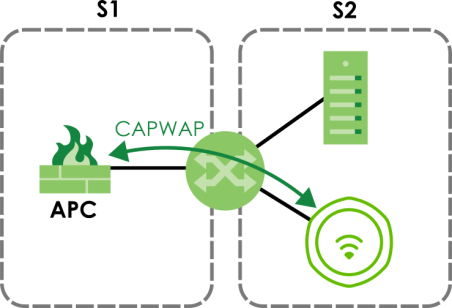
Notes on APC Management
This section lists some additional features of Zyxel’s implementation of the CAPWAP protocol.
• When the APC uses its internal Remote Authentication Dial In User Service (RADIUS) server, managed Zyxel Devices also use the APC’s authentication server to authenticate WiFi clients.
• If a Zyxel Device’s link to the APC is broken, the Zyxel Device continues to use the WiFi settings with which it was last provided.
Switching Management Modes
This section shows you how to switch the Zyxel Device’s management mode between standalone, cloud managed mode and controller managed mode.
To change the Zyxel Device management mode, use the Reset button to restore the default configuration (see Resetting the Zyxel Device). Alternatively, you need to check NCC or the APC for the Zyxel Device’s IP address and use FTP to upload the default configuration file at conf/system-default.conf to the Zyxel Device and reboot it.
Standalone-to-NCC
Register the Zyxel Device on the NCC website and then turn on the Zyxel Device. The NCC manages the Zyxel Device automatically when it is discovered. Settings on the Zyxel Device will be overwritten with what you have configured on the NCC website.
Standalone-to-APC
By default, the Zyxel Device must be in the same subnet as the APC. The APC manages the Zyxel Device automatically when it is discovered. See AP Controller (APC) for setting it up in a different subnet.
APC-to-NCC
Remove the Zyxel Device from the APC. For example, if you use a ZyWALL ATP as the APC, remove the Zyxel Device from the managed AP list in the APC Web Configurator. Register the Zyxel Device on the NCC website. In the APC Web Configurator, select the Zyxel Device and press the Nebula button. The NCC manages the Zyxel Device automatically when it is discovered.
NCC-to-APC
Unregister the Zyxel Device on the NCC portal. By default, the Zyxel Device must be in the same subnet as the APC. See AP Controller (APC) for setting it up in a different subnet. The APC manages the Zyxel Device automatically when it is discovered.
NCC-to-Standalone
Back up your configurations first, then unregister the Zyxel Device from NCC. Press the Reset button. The Zyxel Device will reset to factory defaults. See Accessing the Web Configurator to log in to the Web Configurator and select standalone mode.
APC-to-Standalone
Remove the Zyxel Device from the APC. For example, if you use a ZyWALL ATP as the APC, remove the Zyxel Device from the managed AP list in the APC Web Configurator. Press the Reset button. The Zyxel Device will reset to factory defaults. See Accessing the Web Configurator to log in to the Web Configurator and select standalone mode.
Zyxel One Network (ZON) Utility
ZON Utility is a program designed to help you deploy and manage a network more efficiently. It detects devices automatically and allows you to do basic settings on devices in the network without having to be near it.
The ZON Utility issues requests though Zyxel Discovery Protocol (ZDP) and in response to the query, the device responds back with basic information including IP address, firmware version, location, system and model name in the same broadcast domain. The information is then displayed in the ZON Utility screen and you can perform tasks like basic configuration of the devices and batch firmware upgrade in it. You can download the ZON Utility at www.zyxel.com and install it on your computer (Windows operating system).
Requirements
Before installing the ZON Utility on your computer, please make sure it meets the requirements listed below.
Operating System
At the time of writing, the ZON Utility is compatible with:
• Windows 7 (both 32-bit / 64-bit versions)
• Windows 8 (both 32-bit / 64-bit versions)
• Windows 8.1 (both 32-bit / 64-bit versions)
• Windows 10 (both 32-bit / 64-bit versions)
• Windows 11 (64-bit version)
To check for your Windows operating system version, right-click on My Computer > Properties on your computer. You should see this information in the General tab.It is suggested that you install Npcap, the packet capture library for Windows operating systems, and remove WinPcap or any other installed packet capture tools before you install the ZON utility.Hardware
Here are the minimum hardware requirements to use the ZON Utility on your computer.
• Core i3 processor
• 2 GB RAM
• 100 MB free hard disk
• WXGA (Wide XGA 1280x800)
Run the ZON Utility
1 Double-click the ZON Utility to run it.
2 The first time you run the ZON Utility, you will see if your device and firmware version support the ZON Utility. Click the OK button to close this screen.
If you want to check the supported models and firmware versions later, you can click the Show information about ZON icon in the upper right hand corner of the screen. Then select the Supported model and firmware version link. If your device is not listed here, see the device release notes for ZON Utility support. The release notes are in the firmware zip file on the Zyxel web site.
3 Select a network adapter to which your supported devices are connected.
4 Click the Go button for the ZON Utility to discover all supported devices in your network.
5 The ZON Utility screen shows the devices discovered.
6 Select a device and then use the icons to perform actions. Some functions may not be available for your devices.
You must know the selected device admin password before taking actions on the device using the ZON Utility icons. If the selected device is being managed or has been managed by the NCC, check Local credentials in the NCC's Site-wide > Configure > Site settings screen for the selected device's current password.The following table describes the icons numbered from left to right in the ZON Utility screen.
icon | DESCRIPTION |
|---|---|
1 IP Configuration | Change the selected device’s IP address. |
2 Renew IP Address | Update a DHCP-assigned dynamic IP address. |
3 Reboot Device | Use this icon to restart the selected device(s). This may be useful when troubleshooting or upgrading new firmware. |
4 Reset Configuration to Default | Use this icon to reload the factory-default configuration file. This means that you will lose all previous configurations. |
5 Locator LED | Use this icon to locate the selected device by causing its Locator LED to blink. |
6 Web GUI | Use this to access the selected device Web Configurator from your browser. You will need a username and password to log in. |
7 Firmware Upgrade | Use this icon to upgrade new firmware to selected device(s) of the same model. Make sure you have downloaded the firmware from the Zyxel website to your computer and unzipped it in advance. The ZON only supports a standalone mode AP for the firmware upgrade, it does not support to upgrade the firmware for a managed mode AP. |
8 Change Password | Use this icon to change the admin password of the selected device. You must know the current admin password before changing to a new one. |
9 Configure Controller Discovery and NCC Discovery | The option is available if the selected device supports AP controller (APC) discovery or Nebula Control Center (NCC) discovery. You must have Internet access to use this feature. Use this icon on the selected device to enable or disable the: • AP controller (APC) discovery feature • Nebula Control Center (NCC) discovery feature If the feature is enabled, the selected device will try to connect to the APC or NCC. If the selected device has successfully connected to an APC, it will change to the controller managed mode. If the selected device has successfully connected to the NCC and is registered on the NCC, it will change to the cloud managed mode. |
10 ZAC | Use this icon to run the Zyxel AP Configurator of the selected AP. |
11 Clear and Rescan | Use this icon to clear the list and discover all devices on the connected network again. |
12 Save Configuration | Use this icon to save configuration changes to permanent memory on a selected device. |
13 Settings | Use this icon to select a network adapter for the computer on which the ZON utility is installed, and the utility language. |
The following table describes the fields in the ZON Utility main screen.
label | description |
|---|---|
Type | This field displays an icon of the kind of device discovered. |
Model | This field displays the model name of the discovered device. |
Firmware Version | This field displays the firmware version of the discovered device. |
MAC Address | This field displays the MAC address of the discovered device. |
IP Address | This field displays the IP address of an internal interface on the discovered device that first received an ZDP discovery request from the ZON utility. |
System Name | This field displays the system name of the discovered device. |
Location | This field displays where the discovered device is. |
Status | This field displays whether changes to the discovered device have been done successfully. As the Zyxel Device does not support IP Configuration, Renew IP address and Flash Locator LED, this field displays “Update failed”, “Not support Renew IP address” and “Not support Flash Locator LED” respectively. |
Controller Discovery | This field displays if the discovered device supports the: • AP controller (APC) discovery feature. • Nebula Control Center (NCC) discovery feature. If the feature is enabled, the selected device will try to connect to the APC or NCC. If the selected device has successfully connected to an AP controller, it will change to the AP controller managed mode. If the selected device has successfully connected to the NCC and is registered on the NCC, it will change to the cloud managed mode.  means NCC discovery is enabled. means NCC discovery is enabled. means controller discovery is enabled. means controller discovery is enabled. means discovery is disabled. means discovery is disabled. |
Serial Number | Enter the admin password of the discovered device to display its serial number. |
Hardware Version | This field displays the hardware version of the discovered device. |
IPv6 Address | This field displays the IPv6 address of an internal interface on the discovered device that first received an ZDP discovery request from the ZON utility. |
Ways to Access the Zyxel Device
You can use the following ways to configure the Zyxel Device.
Web Configurator
The Web Configurator allows easy Zyxel Device setup and management using an Internet browser. If your Zyxel Device is managed by the NCC or an APC, use this only for troubleshooting if you cannot connect to the Internet. This User’s Guide provides information about the Web Configurator.
NCC
This is the primary means by which you manage the Zyxel Device in cloud managed mode (NCC). With the NCC, you can remotely manage and monitor the Zyxel Device through a cloud-based network management system. See the NCC User’s Guide for more information.
AP Controller (APC)
An APC lets you configure multiple APs through a single device. See the ZyWALL ATP, or USG FLEX Series User’s Guide for more information.
ZON Utility
Zyxel One Network (ZON) Utility is a utility tool that assists you to set up and maintain network devices in a simple and efficient way. You can download the ZON Utility at www.zyxel.com and install it on your computer (Windows operating system). For more information on ZON Utility see Zyxel One Network (ZON) Utility.
Command-Line Interface (CLI)
The CLI allows you to use text-based commands to configure the Zyxel Device. You can access it using remote management (SSH) or through the console port. See the Command Reference Guide for more information.
File Transfer Protocol (FTP)
This protocol can be used for firmware upgrades and configuration backup and restore.
Good Habits for Managing the Zyxel Device
Do the following things regularly to make the Zyxel Device more secure and to manage it more effectively.
• Change the password often. Use a password that is not easy to guess and that consists of different types of characters, such as numbers and letters.
• Write down the password and put it in a safe place.
• Back up the configuration (and make sure you know how to restore it). Restoring an earlier working configuration may be useful if the Zyxel Device becomes unstable or even crashes. If you forget your password, you will have to reset the Zyxel Device to its factory default settings. If you backed up an earlier configuration file, you will not have to totally re-configure the Zyxel Device; you can simply restore your last configuration.