Hardware
See the Quick Start Guide for hardware installation and connections.
Grounding
Earth grounding helps protect against lightning and interference.
 The power installation must be performed by qualified service personnel and should conform to the National Electrical Code.
The Zyxel Device must be connected to earth ground to adequately ground the Zyxel Device and protect the operator from electrical hazards.
Qualified service personnel must confirm that the protective earthing terminal of the building is a valid terminal.
Before connecting the ground, ensure that a qualified service personnel has attached an appropriate ground lug to the ground cable.
1 Remove one of the ground screws from the Zyxel Device’s rear panel.
2 Secure a green/yellow ground cable (18 AWG or smaller) to the Zyxel Device’s rear panel using the ground screw.
3 Attach the other end of the cable to the ground, either to the same ground electrode as the pole you installed the Zyxel Device on or to the main grounding electrode of the building.
Follow your country's regulations and safety instructions to electrically ground the Zyxel Device properly. If you are uncertain that suitable grounding is available, contact the appropriate electrical inspection authority or an electrician.Warning! Connect the ground cable before you connect any other cables or wiring.
Zyxel Device Models With Single LEDs
The LEDs of some Zyxel Device models can be controlled by using the suppression feature such that the LEDs stay lit (ON) or OFF after the Zyxel Device is ready. Some Zyxel Device models also have Locator LED which allows you to see the actual location of the Zyxel Device among several devices in the network. See Zyxel Device Product Feature Comparison to check which models support these features. Refer to Overview for the LED Suppression and Locator menus in standalone mode.
Zyxel Device LED
802.11ax (Wi-Fi 6) Dual-Radio PoE Access Point
802.11ax (Wi-Fi 6) Dual-Radio Unified Access Point
• WAX510D
802.11ax (Wi-Fi 6) Dual-Radio Unified Pro Access Point
802.11ax (WiFi 6) Wall-Plate Unified Access Point
• WAX300H
802.11ax (Wi-Fi 6E) Dual-Radio PoE Access Point
802.11ax (Wi-Fi 6E) Dual-Radio Unified Pro Access Point
802.11ax (Wi-Fi 6E) Tri-Radio Unified Pro Access Point
802.11be (WiFi 7) Dual- Radio Industrial PoE Access Point
• IAP500BE
802.11be (Wi-Fi 7) Tri-Radio Unified Pro Access Point
• WBE660S
802.11be (Wi-Fi 7) Triple-Radio PoE Access Point
• NWA130BE
802.11be (Wi-Fi 7) Triple-Radio Unified Access Point
• WBE530
802.11be (Wi-Fi 7) Dual-Radio Unified Pro Access Point
• WBE630S
802.11be (Wi-Fi 7) Dual-Radio Unified Access Point
• WBE510D
802.11be (Wi-Fi 7) Dual-Radio PoE Access Point
NWA110AX and NWA210AX
The following are the LED descriptions for your Zyxel Device.
Color | status | description | |
|---|---|---|---|
 | Amber | Blinks between amber and green alternately (300 milliseconds interval). | The Zyxel Device is booting up. |
Green | |||
| Amber | Blinks between amber and green alternately (1 second interval). | The Zyxel Device is discovering the NCC. |
Green | |||
| Amber | Blinks between amber and green alternately 3 times and then turns solid green for 3 seconds. | The Zyxel Device is discovering an AC, or is managed by NCC but fails to connect with NCC, and is reconnecting with the NCC. |
Green | |||
| Amber | Blinks between amber and green alternately 2 times and then turns solid green for 3 seconds. | The Zyxel Device is managed by an AC but the uplink is disconnected. |
Green | |||
 | Green | Slow Blinking (On for 1 second, Off for 1 second) | The wireless module of the Zyxel Device is disabled or fails, the Zyxel Device is using default WiFi settings, or the Zyxel Device is configured to be managed by NCC but is not yet registered with the NCC. WiFi networks on the WAX650S, NWA220AX-6E and WAX620D-6E are turned off automatically when it is connected to a device that supplies power using IEEE 802.3af PoE. |
 | Green | Steady On | The Zyxel Device is ready for use, the Zyxel Device’s wireless interface is activated, and/or WiFi clients are connected to the Zyxel Device in full power mode (see Dashboard). |
 | Amber | Steady On | The Zyxel Device is ready for use in limited power mode (see Dashboard), the Zyxel Device’s wireless interface is activated, and/or WiFi clients are connected to the Zyxel Device. WiFi networks on the WAX650S, NWA220AX-6E, WAX620D-6E and WAX640S-6E are turned off automatically when it is connected to a device that supplies power using IEEE 802.3af PoE.Not all models support limited power mode. See Zyxel Device Product Feature Comparison for models that only support one PoE standard. |
 | Bright Blue | Steady On | The Zyxel Device’s wireless interface is activated, but there are no WiFi clients connected when it is in full power mode (see Dashboard). |
 | White | Slow Blinking (On for 100 ms per second) | Locator LED is on. It switches off automatically after the configured amount of time (1-60 min). Default duration is 10 minutes. The color of the white LED may have slight differences (for example, very light purple) on different models. |
 | Blue | Slow Blinking (Blink for 1 time, Off for 1 second) | The Zyxel Device is performing a Channel Availability Check (CAC) with Dynamic Frequency Selection (DFS) to monitor a channel for radar signals. |
 | Red | On | The Zyxel Device failed to boot up or is experiencing system failure. |
 | Fast Blinking (On for 50 milliseconds, Off for 50 milliseconds) | The Zyxel Device is undergoing firmware upgrade. | |
 | Slow Blinking (Blink for 3 times, Off for 3 seconds) | The uplink of the Zyxel Device is disconnected. | |
NWA210AXv2
The following are the LED descriptions for your Zyxel Device.
Color | status | description | |
|---|---|---|---|
| Amber | Blinks between amber and green alternately (300 milliseconds interval). | The Zyxel Device is booting up. |
Green | |||
| Amber | Blinks between amber and green alternately (1 second interval). | The Zyxel Device is discovering the NCC. |
Green | |||
| Amber | Blinks between amber and green alternately 3 times and then turns solid green for 3 seconds. | The Zyxel Device is discovering an AC, or is managed by NCC but fails to connect with NCC, and is reconnecting with the NCC. |
Green | |||
| Amber | Blinks between amber and green alternately 2 times and then turns solid green for 3 seconds. | The Zyxel Device is managed by an AC but the uplink is disconnected. |
Green | |||
| Green | Slow Blinking (On for 1 second, Off for 1 second) | The wireless module of the Zyxel Device is disabled or fails, the Zyxel Device is using default WiFi settings, or the Zyxel Device is configured to be managed by NCC but is not yet registered with the NCC. WiFi networks on the WAX650S, NWA220AX-6E and WAX620D-6E are turned off automatically when it is connected to a device that supplies power using IEEE 802.3af PoE. |
| Green | Steady On | The Zyxel Device is ready for use, the Zyxel Device’s wireless interface is activated, and/or WiFi clients are connected to the Zyxel Device in full power mode (see Dashboard). |
| Amber | Steady On | The Zyxel Device is ready for use in limited power mode (see Dashboard), the Zyxel Device’s wireless interface is activated, and/or WiFi clients are connected to the Zyxel Device. WiFi networks on the WAX650S, NWA220AX-6E, WAX620D-6E and WAX640S-6E are turned off automatically when it is connected to a device that supplies power using IEEE 802.3af PoE.Not all models support limited power mode. See Zyxel Device Product Feature Comparison for models that only support one PoE standard. |
| Bright Blue | Steady On | The Zyxel Device’s wireless interface is activated, but there are no WiFi clients connected when it is in full power mode (see Dashboard). |
| White | Slow Blinking (On for 100 ms per second) | Locator LED is on. It switches off automatically after the configured amount of time (1-60 min). Default duration is 10 minutes. The color of the white LED may have slight differences (for example, very light purple) on different models. |
| Blue | Slow Blinking (Blink for 1 time, Off for 1 second) | The Zyxel Device is performing a Channel Availability Check (CAC) with Dynamic Frequency Selection (DFS) to monitor a channel for radar signals. |
| Red | On | The Zyxel Device failed to boot up or is experiencing system failure. |
| Fast Blinking (On for 50 milliseconds, Off for 50 milliseconds) | The Zyxel Device is undergoing firmware upgrade. | |
| Slow Blinking (Blink for 3 times, Off for 3 seconds) | The uplink of the Zyxel Device is disconnected. | |
WAX510D
The following are the LED descriptions for your Zyxel Device.
Color | status | description | |
|---|---|---|---|
| Amber | Blinks between amber and green alternately (300 milliseconds interval). | The Zyxel Device is booting up. |
Green | |||
| Amber | Blinks between amber and green alternately (1 second interval). | The Zyxel Device is discovering the NCC. |
Green | |||
| Amber | Blinks between amber and green alternately 3 times and then turns solid green for 3 seconds. | The Zyxel Device is discovering an AC, or is managed by NCC but fails to connect with NCC, and is reconnecting with the NCC. |
Green | |||
| Amber | Blinks between amber and green alternately 2 times and then turns solid green for 3 seconds. | The Zyxel Device is managed by an AC but the uplink is disconnected. |
Green | |||
| Green | Slow Blinking (On for 1 second, Off for 1 second) | The wireless module of the Zyxel Device is disabled or fails, the Zyxel Device is using default WiFi settings, or the Zyxel Device is configured to be managed by NCC but is not yet registered with the NCC. WiFi networks on the WAX650S, NWA220AX-6E and WAX620D-6E are turned off automatically when it is connected to a device that supplies power using IEEE 802.3af PoE. |
| Green | Steady On | The Zyxel Device is ready for use, the Zyxel Device’s wireless interface is activated, and/or WiFi clients are connected to the Zyxel Device in full power mode (see Dashboard). |
| Amber | Steady On | The Zyxel Device is ready for use in limited power mode (see Dashboard), the Zyxel Device’s wireless interface is activated, and/or WiFi clients are connected to the Zyxel Device. WiFi networks on the WAX650S, NWA220AX-6E, WAX620D-6E and WAX640S-6E are turned off automatically when it is connected to a device that supplies power using IEEE 802.3af PoE.Not all models support limited power mode. See Zyxel Device Product Feature Comparison for models that only support one PoE standard. |
| Bright Blue | Steady On | The Zyxel Device’s wireless interface is activated, but there are no WiFi clients connected when it is in full power mode (see Dashboard). |
| White | Slow Blinking (On for 100 ms per second) | Locator LED is on. It switches off automatically after the configured amount of time (1-60 min). Default duration is 10 minutes. The color of the white LED may have slight differences (for example, very light purple) on different models. |
| Blue | Slow Blinking (Blink for 1 time, Off for 1 second) | The Zyxel Device is performing a Channel Availability Check (CAC) with Dynamic Frequency Selection (DFS) to monitor a channel for radar signals. |
| Red | On | The Zyxel Device failed to boot up or is experiencing system failure. |
| Fast Blinking (On for 50 milliseconds, Off for 50 milliseconds) | The Zyxel Device is undergoing firmware upgrade. | |
| Slow Blinking (Blink for 3 times, Off for 3 seconds) | The uplink of the Zyxel Device is disconnected. | |
WAX610D, WAX630S, and WAX650S
The following are the LED descriptions for your Zyxel Device.
Color | status | description | |
|---|---|---|---|
| Amber | Blinks between amber and green alternately (300 milliseconds interval). | The Zyxel Device is booting up. |
Green | |||
| Amber | Blinks between amber and green alternately (1 second interval). | The Zyxel Device is discovering the NCC. |
Green | |||
| Amber | Blinks between amber and green alternately 3 times and then turns solid green for 3 seconds. | The Zyxel Device is discovering an AC, or is managed by NCC but fails to connect with NCC, and is reconnecting with the NCC. |
Green | |||
| Amber | Blinks between amber and green alternately 2 times and then turns solid green for 3 seconds. | The Zyxel Device is managed by an AC but the uplink is disconnected. |
Green | |||
| Green | Slow Blinking (On for 1 second, Off for 1 second) | The wireless module of the Zyxel Device is disabled or fails, the Zyxel Device is using default WiFi settings, or the Zyxel Device is configured to be managed by NCC but is not yet registered with the NCC. WiFi networks on the WAX650S, NWA220AX-6E and WAX620D-6E are turned off automatically when it is connected to a device that supplies power using IEEE 802.3af PoE. |
| Green | Steady On | The Zyxel Device is ready for use, the Zyxel Device’s wireless interface is activated, and/or WiFi clients are connected to the Zyxel Device in full power mode (see Dashboard). |
| Amber | Steady On | The Zyxel Device is ready for use in limited power mode (see Dashboard), the Zyxel Device’s wireless interface is activated, and/or WiFi clients are connected to the Zyxel Device. WiFi networks on the WAX650S, NWA220AX-6E, WAX620D-6E and WAX640S-6E are turned off automatically when it is connected to a device that supplies power using IEEE 802.3af PoE.Not all models support limited power mode. See Zyxel Device Product Feature Comparison for models that only support one PoE standard. |
| Bright Blue | Steady On | The Zyxel Device’s wireless interface is activated, but there are no WiFi clients connected when it is in full power mode (see Dashboard). |
| White | Slow Blinking (On for 100 ms per second) | Locator LED is on. It switches off automatically after the configured amount of time (1-60 min). Default duration is 10 minutes. The color of the white LED may have slight differences (for example, very light purple) on different models. |
| Blue | Slow Blinking (Blink for 1 time, Off for 1 second) | The Zyxel Device is performing a Channel Availability Check (CAC) with Dynamic Frequency Selection (DFS) to monitor a channel for radar signals. |
| Red | On | The Zyxel Device failed to boot up or is experiencing system failure. |
| Fast Blinking (On for 50 milliseconds, Off for 50 milliseconds) | The Zyxel Device is undergoing firmware upgrade. | |
| Slow Blinking (Blink for 3 times, Off for 3 seconds) | The uplink of the Zyxel Device is disconnected. | |
WAX300H
The following are the LED descriptions for your Zyxel Device.
Color | status | description | |
|---|---|---|---|
| Amber | Blinks between amber and green alternately (300 milliseconds interval). | The Zyxel Device is booting up. |
Green | |||
| Amber | Blinks between amber and green alternately (1 second interval). | The Zyxel Device is discovering the NCC. |
Green | |||
| Amber | Blinks between amber and green alternately 3 times and then turns solid green for 3 seconds. | The Zyxel Device is discovering an AC, or is managed by NCC but fails to connect with NCC, and is reconnecting with the NCC. |
Green | |||
| Amber | Blinks between amber and green alternately 2 times and then turns solid green for 3 seconds. | The Zyxel Device is managed by an AC but the uplink is disconnected. |
Green | |||
| Green | Slow Blinking (On for 1 second, Off for 1 second) | The wireless module of the Zyxel Device is disabled or fails, the Zyxel Device is using default WiFi settings, or the Zyxel Device is configured to be managed by NCC but is not yet registered with the NCC. WiFi networks on the WAX650S, NWA220AX-6E and WAX620D-6E are turned off automatically when it is connected to a device that supplies power using IEEE 802.3af PoE. |
| Green | Steady On | The Zyxel Device is ready for use, the Zyxel Device’s wireless interface is activated, and/or WiFi clients are connected to the Zyxel Device in full power mode (see Dashboard). |
| Amber | Steady On | The Zyxel Device is ready for use in limited power mode (see Dashboard), the Zyxel Device’s wireless interface is activated, and/or WiFi clients are connected to the Zyxel Device. WiFi networks on the WAX650S, NWA220AX-6E, WAX620D-6E and WAX640S-6E are turned off automatically when it is connected to a device that supplies power using IEEE 802.3af PoE.Not all models support limited power mode. See Zyxel Device Product Feature Comparison for models that only support one PoE standard. |
| Bright Blue | Steady On | The Zyxel Device’s wireless interface is activated, but there are no WiFi clients connected when it is in full power mode (see Dashboard). |
| White | Slow Blinking (On for 100 ms per second) | Locator LED is on. It switches off automatically after the configured amount of time (1-60 min). Default duration is 10 minutes. The color of the white LED may have slight differences (for example, very light purple) on different models. |
| Blue | Slow Blinking (Blink for 1 time, Off for 1 second) | The Zyxel Device is performing a Channel Availability Check (CAC) with Dynamic Frequency Selection (DFS) to monitor a channel for radar signals. |
| Red | On | The Zyxel Device failed to boot up or is experiencing system failure. |
| Fast Blinking (On for 50 milliseconds, Off for 50 milliseconds) | The Zyxel Device is undergoing firmware upgrade. | |
| Slow Blinking (Blink for 3 times, Off for 3 seconds) | The uplink of the Zyxel Device is disconnected. | |
NWA220AX-6E
The following are the LED descriptions for your Zyxel Device.
Color | status | description | |
|---|---|---|---|
| Amber | Blinks between amber and green alternately (300 milliseconds interval). | The Zyxel Device is booting up. |
Green | |||
| Amber | Blinks between amber and green alternately (1 second interval). | The Zyxel Device is discovering the NCC. |
Green | |||
| Amber | Blinks between amber and green alternately 3 times and then turns solid green for 3 seconds. | The Zyxel Device is discovering an AC, or is managed by NCC but fails to connect with NCC, and is reconnecting with the NCC. |
Green | |||
| Amber | Blinks between amber and green alternately 2 times and then turns solid green for 3 seconds. | The Zyxel Device is managed by an AC but the uplink is disconnected. |
Green | |||
| Green | Slow Blinking (On for 1 second, Off for 1 second) | The wireless module of the Zyxel Device is disabled or fails, the Zyxel Device is using default WiFi settings, or the Zyxel Device is configured to be managed by NCC but is not yet registered with the NCC. WiFi networks on the WAX650S, NWA220AX-6E and WAX620D-6E are turned off automatically when it is connected to a device that supplies power using IEEE 802.3af PoE. |
| Green | Steady On | The Zyxel Device is ready for use, the Zyxel Device’s wireless interface is activated, and/or WiFi clients are connected to the Zyxel Device in full power mode (see Dashboard). |
| Amber | Steady On | The Zyxel Device is ready for use in limited power mode (see Dashboard), the Zyxel Device’s wireless interface is activated, and/or WiFi clients are connected to the Zyxel Device. WiFi networks on the WAX650S, NWA220AX-6E, WAX620D-6E and WAX640S-6E are turned off automatically when it is connected to a device that supplies power using IEEE 802.3af PoE.Not all models support limited power mode. See Zyxel Device Product Feature Comparison for models that only support one PoE standard. |
| Bright Blue | Steady On | The Zyxel Device’s wireless interface is activated, but there are no WiFi clients connected when it is in full power mode (see Dashboard). |
| White | Slow Blinking (On for 100 ms per second) | Locator LED is on. It switches off automatically after the configured amount of time (1-60 min). Default duration is 10 minutes. The color of the white LED may have slight differences (for example, very light purple) on different models. |
| Blue | Slow Blinking (Blink for 1 time, Off for 1 second) | The Zyxel Device is performing a Channel Availability Check (CAC) with Dynamic Frequency Selection (DFS) to monitor a channel for radar signals. |
| Red | On | The Zyxel Device failed to boot up or is experiencing system failure. |
| Fast Blinking (On for 50 milliseconds, Off for 50 milliseconds) | The Zyxel Device is undergoing firmware upgrade. | |
| Slow Blinking (Blink for 3 times, Off for 3 seconds) | The uplink of the Zyxel Device is disconnected. | |
WAX620D-6E
The following are the LED descriptions for your Zyxel Device.
Color | status | description | |
|---|---|---|---|
| Amber | Blinks between amber and green alternately (300 milliseconds interval). | The Zyxel Device is booting up. |
Green | |||
| Amber | Blinks between amber and green alternately (1 second interval). | The Zyxel Device is discovering the NCC. |
Green | |||
| Amber | Blinks between amber and green alternately 3 times and then turns solid green for 3 seconds. | The Zyxel Device is discovering an AC, or is managed by NCC but fails to connect with NCC, and is reconnecting with the NCC. |
Green | |||
| Amber | Blinks between amber and green alternately 2 times and then turns solid green for 3 seconds. | The Zyxel Device is managed by an AC but the uplink is disconnected. |
Green | |||
| Green | Slow Blinking (On for 1 second, Off for 1 second) | The wireless module of the Zyxel Device is disabled or fails, the Zyxel Device is using default WiFi settings, or the Zyxel Device is configured to be managed by NCC but is not yet registered with the NCC. WiFi networks on the WAX650S, NWA220AX-6E and WAX620D-6E are turned off automatically when it is connected to a device that supplies power using IEEE 802.3af PoE. |
| Green | Steady On | The Zyxel Device is ready for use, the Zyxel Device’s wireless interface is activated, and/or WiFi clients are connected to the Zyxel Device in full power mode (see Dashboard). |
| Amber | Steady On | The Zyxel Device is ready for use in limited power mode (see Dashboard), the Zyxel Device’s wireless interface is activated, and/or WiFi clients are connected to the Zyxel Device. WiFi networks on the WAX650S, NWA220AX-6E, WAX620D-6E and WAX640S-6E are turned off automatically when it is connected to a device that supplies power using IEEE 802.3af PoE.Not all models support limited power mode. See Zyxel Device Product Feature Comparison for models that only support one PoE standard. |
| Bright Blue | Steady On | The Zyxel Device’s wireless interface is activated, but there are no WiFi clients connected when it is in full power mode (see Dashboard). |
| White | Slow Blinking (On for 100 ms per second) | Locator LED is on. It switches off automatically after the configured amount of time (1-60 min). Default duration is 10 minutes. The color of the white LED may have slight differences (for example, very light purple) on different models. |
| Blue | Slow Blinking (Blink for 1 time, Off for 1 second) | The Zyxel Device is performing a Channel Availability Check (CAC) with Dynamic Frequency Selection (DFS) to monitor a channel for radar signals. |
| Red | On | The Zyxel Device failed to boot up or is experiencing system failure. |
| Fast Blinking (On for 50 milliseconds, Off for 50 milliseconds) | The Zyxel Device is undergoing firmware upgrade. | |
| Slow Blinking (Blink for 3 times, Off for 3 seconds) | The uplink of the Zyxel Device is disconnected. | |
WAX640S-6E
The following are the LED descriptions for your Zyxel Device.
Color | status | description | |
|---|---|---|---|
| Amber | Blinks between amber and green alternately (300 milliseconds interval). | The Zyxel Device is booting up. |
Green | |||
| Amber | Blinks between amber and green alternately (1 second interval). | The Zyxel Device is discovering the NCC. |
Green | |||
| Amber | Blinks between amber and green alternately 3 times and then turns solid green for 3 seconds. | The Zyxel Device is discovering an AC, or is managed by NCC but fails to connect with NCC, and is reconnecting with the NCC. |
Green | |||
| Amber | Blinks between amber and green alternately 2 times and then turns solid green for 3 seconds. | The Zyxel Device is managed by an AC but the uplink is disconnected. |
Green | |||
| Green | Slow Blinking (On for 1 second, Off for 1 second) | The wireless module of the Zyxel Device is disabled or fails, the Zyxel Device is using default WiFi settings, or the Zyxel Device is configured to be managed by NCC but is not yet registered with the NCC. WiFi networks on the WAX650S, NWA220AX-6E and WAX620D-6E are turned off automatically when it is connected to a device that supplies power using IEEE 802.3af PoE. |
| Green | Steady On | The Zyxel Device is ready for use, the Zyxel Device’s wireless interface is activated, and/or WiFi clients are connected to the Zyxel Device in full power mode (see Dashboard). |
| Amber | Steady On | The Zyxel Device is ready for use in limited power mode (see Dashboard), the Zyxel Device’s wireless interface is activated, and/or WiFi clients are connected to the Zyxel Device. WiFi networks on the WAX650S, NWA220AX-6E, WAX620D-6E and WAX640S-6E are turned off automatically when it is connected to a device that supplies power using IEEE 802.3af PoE.Not all models support limited power mode. See Zyxel Device Product Feature Comparison for models that only support one PoE standard. |
| Bright Blue | Steady On | The Zyxel Device’s wireless interface is activated, but there are no WiFi clients connected when it is in full power mode (see Dashboard). |
| White | Slow Blinking (On for 100 ms per second) | Locator LED is on. It switches off automatically after the configured amount of time (1-60 min). Default duration is 10 minutes. The color of the white LED may have slight differences (for example, very light purple) on different models. |
| Blue | Slow Blinking (Blink for 1 time, Off for 1 second) | The Zyxel Device is performing a Channel Availability Check (CAC) with Dynamic Frequency Selection (DFS) to monitor a channel for radar signals. |
| Red | On | The Zyxel Device failed to boot up or is experiencing system failure. |
| Fast Blinking (On for 50 milliseconds, Off for 50 milliseconds) | The Zyxel Device is undergoing firmware upgrade. | |
| Slow Blinking (Blink for 3 times, Off for 3 seconds) | The uplink of the Zyxel Device is disconnected. | |
IAP500BE
The System LED is located on the rear panel of the Zyxel Device. The Signal LED is on the Ethernet port of the Zyxel Device.
The following are the system LED indicator descriptions for the Zyxel Device.
Color | status | description | |
|---|---|---|---|
| Amber | Blinks between amber and green alternately (300 milliseconds interval). | The Zyxel Device is booting up. |
Green | |||
| Amber | Blinks between amber and green alternately (1 second interval). | The Zyxel Device is discovering the NCC. |
Green | |||
| Amber | Blinks between amber and green alternately 3 times and then turns solid green for 3 seconds. | The Zyxel Device is managed by the NCC but fails to connect with NCC, and is reconnecting with the NCC. |
Green | |||
| Green | Slow Blinking (On for 1 second, Off for 1 second) | The wireless module of the Zyxel Device is disabled or fails, the Zyxel Device is using default WiFi settings, and/or the Zyxel Device is configured to be managed by the NCC but is not yet registered with the NCC. |
| Green | Steady On | The Zyxel Device is ready for use, the Zyxel Device’s wireless interface is activated, and WiFi clients are connected to the Zyxel Device. |
| Bright Blue | Steady On | The Zyxel Device’s wireless interface is activated, but there are no WiFi clients connected. |
| White | Slow Blinking (On for 100 ms per second) | Locator LED is on. It switches off automatically after the configured amount of time (1-60 min). Default duration is 10 minutes. The color of the white LED may have slight differences (for example, very light purple) on different models. |
| Blue | Slow Blinking (Blink for 1 time, Off for 1 second) | The Zyxel Device is performing a Channel Availability Check (CAC) with Dynamic Frequency Selection (DFS) to monitor a channel for radar signals. |
| Red | On | The Zyxel Device failed to boot up or is experiencing system failure. |
| Fast Blinking (On for 50 milliseconds, Off for 50 milliseconds) | The Zyxel Device is undergoing firmware upgrade. | |
| Slow Blinking (Blink for 3 times, Off for 3 seconds) | The uplink of the Zyxel Device is disconnected. | |
The following are the signal LED indicator descriptions for the Zyxel Device.
Color | status | description | |
|---|---|---|---|
Repeater Mode | |||
| Green | Steady On | The WiFi signal strength between the Zyxel Device and the mesh AP is good. The signal strength is greater than -67 dBm. |
| Amber | Steady On | The WiFi signal strength between the Zyxel Device and the mesh AP is fair. The signal strength is between -80 and -67 dBm. |
| Red | Steady On | The WiFi signal strength between the Zyxel Device and the mesh AP is weak. The signal strength is below -80 dBm. |
AP/Root Mode | |||
Off | When the Zyxel Device is in AP/Root mode, the LEDs are off. | ||
WBE660S
The following are the LED descriptions for your Zyxel Device.
Color | status | description | |
|---|---|---|---|
| Amber | Blinks between amber and green alternately (300 milliseconds interval). | The Zyxel Device is booting up. |
Green | |||
| Amber | Blinks between amber and green alternately (1 second interval). | The Zyxel Device is discovering the NCC. |
Green | |||
| Amber | Blinks between amber and green alternately 3 times and then turns solid green for 3 seconds. | The Zyxel Device is discovering an AC, or is managed by NCC but fails to connect with NCC, and is reconnecting with the NCC. |
Green | |||
| Amber | Blinks between amber and green alternately 2 times and then turns solid green for 3 seconds. | The Zyxel Device is managed by an AC but the uplink is disconnected. |
Green | |||
| Green | Slow Blinking (On for 1 second, Off for 1 second) | The wireless module of the Zyxel Device is disabled or fails, the Zyxel Device is using default WiFi settings, or the Zyxel Device is configured to be managed by NCC but is not yet registered with the NCC. WiFi networks on the WAX650S, NWA220AX-6E and WAX620D-6E are turned off automatically when it is connected to a device that supplies power using IEEE 802.3af PoE. |
| Green | Steady On | The Zyxel Device is ready for use, the Zyxel Device’s wireless interface is activated, and/or WiFi clients are connected to the Zyxel Device in full power mode (see Dashboard). |
| Amber | Steady On | The Zyxel Device is ready for use in limited power mode (see Dashboard), the Zyxel Device’s wireless interface is activated, and/or WiFi clients are connected to the Zyxel Device. WiFi networks on the WAX650S, NWA220AX-6E, WAX620D-6E and WAX640S-6E are turned off automatically when it is connected to a device that supplies power using IEEE 802.3af PoE.Not all models support limited power mode. See Zyxel Device Product Feature Comparison for models that only support one PoE standard. |
| Bright Blue | Steady On | The Zyxel Device’s wireless interface is activated, but there are no WiFi clients connected when it is in full power mode (see Dashboard). |
| White | Slow Blinking (On for 100 ms per second) | Locator LED is on. It switches off automatically after the configured amount of time (1-60 min). Default duration is 10 minutes. The color of the white LED may have slight differences (for example, very light purple) on different models. |
| Blue | Slow Blinking (Blink for 1 time, Off for 1 second) | The Zyxel Device is performing a Channel Availability Check (CAC) with Dynamic Frequency Selection (DFS) to monitor a channel for radar signals. |
| Red | On | The Zyxel Device failed to boot up or is experiencing system failure. |
| Fast Blinking (On for 50 milliseconds, Off for 50 milliseconds) | The Zyxel Device is undergoing firmware upgrade. | |
| Slow Blinking (Blink for 3 times, Off for 3 seconds) | The uplink of the Zyxel Device is disconnected. | |
NWA130BE
The following are the LED descriptions for your Zyxel Device.
Color | status | description | |
|---|---|---|---|
| Amber | Blinks between amber and green alternately (300 milliseconds interval). | The Zyxel Device is booting up. |
Green | |||
| Amber | Blinks between amber and green alternately (1 second interval). | The Zyxel Device is discovering the NCC. |
Green | |||
| Amber | Blinks between amber and green alternately 3 times and then turns solid green for 3 seconds. | The Zyxel Device is discovering an AC, or is managed by NCC but fails to connect with NCC, and is reconnecting with the NCC. |
Green | |||
| Amber | Blinks between amber and green alternately 2 times and then turns solid green for 3 seconds. | The Zyxel Device is managed by an AC but the uplink is disconnected. |
Green | |||
| Green | Slow Blinking (On for 1 second, Off for 1 second) | The wireless module of the Zyxel Device is disabled or fails, the Zyxel Device is using default WiFi settings, or the Zyxel Device is configured to be managed by NCC but is not yet registered with the NCC. WiFi networks on the WAX650S, NWA220AX-6E and WAX620D-6E are turned off automatically when it is connected to a device that supplies power using IEEE 802.3af PoE. |
| Green | Steady On | The Zyxel Device is ready for use, the Zyxel Device’s wireless interface is activated, and/or WiFi clients are connected to the Zyxel Device in full power mode (see Dashboard). |
| Amber | Steady On | The Zyxel Device is ready for use in limited power mode (see Dashboard), the Zyxel Device’s wireless interface is activated, and/or WiFi clients are connected to the Zyxel Device. WiFi networks on the WAX650S, NWA220AX-6E, WAX620D-6E and WAX640S-6E are turned off automatically when it is connected to a device that supplies power using IEEE 802.3af PoE.Not all models support limited power mode. See Zyxel Device Product Feature Comparison for models that only support one PoE standard. |
| Bright Blue | Steady On | The Zyxel Device’s wireless interface is activated, but there are no WiFi clients connected when it is in full power mode (see Dashboard). |
| White | Slow Blinking (On for 100 ms per second) | Locator LED is on. It switches off automatically after the configured amount of time (1-60 min). Default duration is 10 minutes. The color of the white LED may have slight differences (for example, very light purple) on different models. |
| Blue | Slow Blinking (Blink for 1 time, Off for 1 second) | The Zyxel Device is performing a Channel Availability Check (CAC) with Dynamic Frequency Selection (DFS) to monitor a channel for radar signals. |
| Red | On | The Zyxel Device failed to boot up or is experiencing system failure. |
| Fast Blinking (On for 50 milliseconds, Off for 50 milliseconds) | The Zyxel Device is undergoing firmware upgrade. | |
| Slow Blinking (Blink for 3 times, Off for 3 seconds) | The uplink of the Zyxel Device is disconnected. | |
WBE530
The following are the LED descriptions for your Zyxel Device.
Color | status | description | |
|---|---|---|---|
| Amber | Blinks between amber and green alternately (300 milliseconds interval). | The Zyxel Device is booting up. |
Green | |||
| Amber | Blinks between amber and green alternately (1 second interval). | The Zyxel Device is discovering the NCC. |
Green | |||
| Amber | Blinks between amber and green alternately 3 times and then turns solid green for 3 seconds. | The Zyxel Device is discovering an AC, or is managed by NCC but fails to connect with NCC, and is reconnecting with the NCC. |
Green | |||
| Amber | Blinks between amber and green alternately 2 times and then turns solid green for 3 seconds. | The Zyxel Device is managed by an AC but the uplink is disconnected. |
Green | |||
| Green | Slow Blinking (On for 1 second, Off for 1 second) | The wireless module of the Zyxel Device is disabled or fails, the Zyxel Device is using default WiFi settings, or the Zyxel Device is configured to be managed by NCC but is not yet registered with the NCC. WiFi networks on the WAX650S, NWA220AX-6E and WAX620D-6E are turned off automatically when it is connected to a device that supplies power using IEEE 802.3af PoE. |
| Green | Steady On | The Zyxel Device is ready for use, the Zyxel Device’s wireless interface is activated, and/or WiFi clients are connected to the Zyxel Device in full power mode (see Dashboard). |
| Amber | Steady On | The Zyxel Device is ready for use in limited power mode (see Dashboard), the Zyxel Device’s wireless interface is activated, and/or WiFi clients are connected to the Zyxel Device. WiFi networks on the WAX650S, NWA220AX-6E, WAX620D-6E and WAX640S-6E are turned off automatically when it is connected to a device that supplies power using IEEE 802.3af PoE.Not all models support limited power mode. See Zyxel Device Product Feature Comparison for models that only support one PoE standard. |
| Bright Blue | Steady On | The Zyxel Device’s wireless interface is activated, but there are no WiFi clients connected when it is in full power mode (see Dashboard). |
| White | Slow Blinking (On for 100 ms per second) | Locator LED is on. It switches off automatically after the configured amount of time (1-60 min). Default duration is 10 minutes. The color of the white LED may have slight differences (for example, very light purple) on different models. |
| Blue | Slow Blinking (Blink for 1 time, Off for 1 second) | The Zyxel Device is performing a Channel Availability Check (CAC) with Dynamic Frequency Selection (DFS) to monitor a channel for radar signals. |
| Red | On | The Zyxel Device failed to boot up or is experiencing system failure. |
| Fast Blinking (On for 50 milliseconds, Off for 50 milliseconds) | The Zyxel Device is undergoing firmware upgrade. | |
| Slow Blinking (Blink for 3 times, Off for 3 seconds) | The uplink of the Zyxel Device is disconnected. | |
WBE630S
The following are the LED descriptions for your Zyxel Device.
Color | status | description | |
|---|---|---|---|
| Amber | Blinks between amber and green alternately (300 milliseconds interval). | The Zyxel Device is booting up. |
Green | |||
| Amber | Blinks between amber and green alternately (1 second interval). | The Zyxel Device is discovering the NCC. |
Green | |||
| Amber | Blinks between amber and green alternately 3 times and then turns solid green for 3 seconds. | The Zyxel Device is discovering an AC, or is managed by NCC but fails to connect with NCC, and is reconnecting with the NCC. |
Green | |||
| Amber | Blinks between amber and green alternately 2 times and then turns solid green for 3 seconds. | The Zyxel Device is managed by an AC but the uplink is disconnected. |
Green | |||
| Green | Slow Blinking (On for 1 second, Off for 1 second) | The wireless module of the Zyxel Device is disabled or fails, the Zyxel Device is using default WiFi settings, or the Zyxel Device is configured to be managed by NCC but is not yet registered with the NCC. WiFi networks on the WAX650S, NWA220AX-6E and WAX620D-6E are turned off automatically when it is connected to a device that supplies power using IEEE 802.3af PoE. |
| Green | Steady On | The Zyxel Device is ready for use, the Zyxel Device’s wireless interface is activated, and/or WiFi clients are connected to the Zyxel Device in full power mode (see Dashboard). |
| Amber | Steady On | The Zyxel Device is ready for use in limited power mode (see Dashboard), the Zyxel Device’s wireless interface is activated, and/or WiFi clients are connected to the Zyxel Device. WiFi networks on the WAX650S, NWA220AX-6E, WAX620D-6E and WAX640S-6E are turned off automatically when it is connected to a device that supplies power using IEEE 802.3af PoE.Not all models support limited power mode. See Zyxel Device Product Feature Comparison for models that only support one PoE standard. |
| Bright Blue | Steady On | The Zyxel Device’s wireless interface is activated, but there are no WiFi clients connected when it is in full power mode (see Dashboard). |
| White | Slow Blinking (On for 100 ms per second) | Locator LED is on. It switches off automatically after the configured amount of time (1-60 min). Default duration is 10 minutes. The color of the white LED may have slight differences (for example, very light purple) on different models. |
| Blue | Slow Blinking (Blink for 1 time, Off for 1 second) | The Zyxel Device is performing a Channel Availability Check (CAC) with Dynamic Frequency Selection (DFS) to monitor a channel for radar signals. |
| Red | On | The Zyxel Device failed to boot up or is experiencing system failure. |
| Fast Blinking (On for 50 milliseconds, Off for 50 milliseconds) | The Zyxel Device is undergoing firmware upgrade. | |
| Slow Blinking (Blink for 3 times, Off for 3 seconds) | The uplink of the Zyxel Device is disconnected. | |
WBE510D
The following are the LED descriptions for your Zyxel Device.
Color | status | description | |
|---|---|---|---|
| Amber | Blinks between amber and green alternately (300 milliseconds interval). | The Zyxel Device is booting up. |
Green | |||
| Amber | Blinks between amber and green alternately (1 second interval). | The Zyxel Device is discovering the NCC. |
Green | |||
| Amber | Blinks between amber and green alternately 3 times and then turns solid green for 3 seconds. | The Zyxel Device is discovering an AC, or is managed by NCC but fails to connect with NCC, and is reconnecting with the NCC. |
Green | |||
| Amber | Blinks between amber and green alternately 2 times and then turns solid green for 3 seconds. | The Zyxel Device is managed by an AC but the uplink is disconnected. |
Green | |||
| Green | Slow Blinking (On for 1 second, Off for 1 second) | The wireless module of the Zyxel Device is disabled or fails, the Zyxel Device is using default WiFi settings, or the Zyxel Device is configured to be managed by NCC but is not yet registered with the NCC. WiFi networks on the WAX650S, NWA220AX-6E and WAX620D-6E are turned off automatically when it is connected to a device that supplies power using IEEE 802.3af PoE. |
| Green | Steady On | The Zyxel Device is ready for use, the Zyxel Device’s wireless interface is activated, and/or WiFi clients are connected to the Zyxel Device in full power mode (see Dashboard). |
| Amber | Steady On | The Zyxel Device is ready for use in limited power mode (see Dashboard), the Zyxel Device’s wireless interface is activated, and/or WiFi clients are connected to the Zyxel Device. WiFi networks on the WAX650S, NWA220AX-6E, WAX620D-6E and WAX640S-6E are turned off automatically when it is connected to a device that supplies power using IEEE 802.3af PoE.Not all models support limited power mode. See Zyxel Device Product Feature Comparison for models that only support one PoE standard. |
| Bright Blue | Steady On | The Zyxel Device’s wireless interface is activated, but there are no WiFi clients connected when it is in full power mode (see Dashboard). |
| White | Slow Blinking (On for 100 ms per second) | Locator LED is on. It switches off automatically after the configured amount of time (1-60 min). Default duration is 10 minutes. The color of the white LED may have slight differences (for example, very light purple) on different models. |
| Blue | Slow Blinking (Blink for 1 time, Off for 1 second) | The Zyxel Device is performing a Channel Availability Check (CAC) with Dynamic Frequency Selection (DFS) to monitor a channel for radar signals. |
| Red | On | The Zyxel Device failed to boot up or is experiencing system failure. |
| Fast Blinking (On for 50 milliseconds, Off for 50 milliseconds) | The Zyxel Device is undergoing firmware upgrade. | |
| Slow Blinking (Blink for 3 times, Off for 3 seconds) | The uplink of the Zyxel Device is disconnected. | |
NWA210BE and NWA110BE
The following are the LED descriptions for your Zyxel Device.
Color | status | description | |
|---|---|---|---|
| Amber | Blinks between amber and green alternately (300 milliseconds interval). | The Zyxel Device is booting up. |
Green | |||
| Amber | Blinks between amber and green alternately (1 second interval). | The Zyxel Device is discovering the NCC. |
Green | |||
| Amber | Blinks between amber and green alternately 3 times and then turns solid green for 3 seconds. | The Zyxel Device is discovering an AC, or is managed by NCC but fails to connect with NCC, and is reconnecting with the NCC. |
Green | |||
| Amber | Blinks between amber and green alternately 2 times and then turns solid green for 3 seconds. | The Zyxel Device is managed by an AC but the uplink is disconnected. |
Green | |||
| Green | Slow Blinking (On for 1 second, Off for 1 second) | The wireless module of the Zyxel Device is disabled or fails, the Zyxel Device is using default WiFi settings, or the Zyxel Device is configured to be managed by NCC but is not yet registered with the NCC. WiFi networks on the WAX650S, NWA220AX-6E and WAX620D-6E are turned off automatically when it is connected to a device that supplies power using IEEE 802.3af PoE. |
| Green | Steady On | The Zyxel Device is ready for use, the Zyxel Device’s wireless interface is activated, and/or WiFi clients are connected to the Zyxel Device in full power mode (see Dashboard). |
| Amber | Steady On | The Zyxel Device is ready for use in limited power mode (see Dashboard), the Zyxel Device’s wireless interface is activated, and/or WiFi clients are connected to the Zyxel Device. WiFi networks on the WAX650S, NWA220AX-6E, WAX620D-6E and WAX640S-6E are turned off automatically when it is connected to a device that supplies power using IEEE 802.3af PoE.Not all models support limited power mode. See Zyxel Device Product Feature Comparison for models that only support one PoE standard. |
| Bright Blue | Steady On | The Zyxel Device’s wireless interface is activated, but there are no WiFi clients connected when it is in full power mode (see Dashboard). |
| White | Slow Blinking (On for 100 ms per second) | Locator LED is on. It switches off automatically after the configured amount of time (1-60 min). Default duration is 10 minutes. The color of the white LED may have slight differences (for example, very light purple) on different models. |
| Blue | Slow Blinking (Blink for 1 time, Off for 1 second) | The Zyxel Device is performing a Channel Availability Check (CAC) with Dynamic Frequency Selection (DFS) to monitor a channel for radar signals. |
| Red | On | The Zyxel Device failed to boot up or is experiencing system failure. |
| Fast Blinking (On for 50 milliseconds, Off for 50 milliseconds) | The Zyxel Device is undergoing firmware upgrade. | |
| Slow Blinking (Blink for 3 times, Off for 3 seconds) | The uplink of the Zyxel Device is disconnected. | |
Ports
802.11ax (Wi-Fi 6) Dual-Radio PoE Access Point
802.11ax (Wi-Fi 6) Dual-Radio Unified Access Point
• WAX510D
802.11ax (Wi-Fi 6) Dual-Radio Unified Pro Access Point
802.11ax (WiFi 6) Wall-Plate Unified Access Point
• WAX300H
802.11ax (Wi-Fi 6E) Dual-Radio PoE Access Point
802.11ax (Wi-Fi 6E) Dual-Radio Unified Pro Access Point
802.11ax (Wi-Fi 6E) Tri-Radio Unified Pro Access Point
802.11be (WiFi 7) Dual- Radio Industrial PoE Access Point
• IAP500BE
802.11be (Wi-Fi 7) Tri-Radio Unified Pro Access Point
• WBE660S
802.11be (Wi-Fi 7) Triple-Radio PoE Access Point
• NWA130BE
802.11be (Wi-Fi 7) Triple-Radio Unified Access Point
• WBE530
802.11be (Wi-Fi 7) Dual-Radio Unified Pro Access Point
• WBE630S
802.11be (Wi-Fi 7) Dual-Radio Unified Access Point
• WBE510D
802.11be (Wi-Fi 7) Dual-Radio PoE Access Point
NWA110AX and NWA210AX
Place the Zyxel Device with the ports facing you and the bottom at the top.
The following are the items on the ports panels for your Zyxel Device.
label | description |
|---|---|
UPLINK | Connect the port to a router, a switch, or another access point (AP) to connect the Zyxel Device to the backbone of your network. |
LAN | Connect computers or other Ethernet devices to Ethernet ports for Internet access. |
CONSOLE | You can use the console port to manage the Zyxel Device using CLI commands. You will be prompted to enter your user name and password. See the Command Reference Guide for more information about the CLI. When configuring using the console port, you need a computer equipped with communications software configured to the following parameters: • Speed 115200 bps • Data Bits 8 • Parity None • Stop Bit 1 • Flow Control Off |
RESET | Press the button for more than 5 seconds to return the Zyxel Device to the factory defaults. |
POWER | Connect the power adapter and press the ON/OFF button to start the Zyxel Device |
NWA210AXv2
Place the Zyxel Device with the ports facing you and the bottom at the top.
The following are the items on the ports panels for your Zyxel Device.
label | description |
|---|---|
UPLINK | Connect the port to a router, a switch, or another access point (AP) to connect the Zyxel Device to the backbone of your network. |
LAN | Connect computers or other Ethernet devices to Ethernet ports for Internet access. |
CONSOLE | You can use the console port to manage the Zyxel Device using CLI commands. You will be prompted to enter your user name and password. See the Command Reference Guide for more information about the CLI. When configuring using the console port, you need a computer equipped with communications software configured to the following parameters: • Speed 115200 bps • Data Bits 8 • Parity None • Stop Bit 1 • Flow Control Off |
RESET | Press the button for more than 5 seconds to return the Zyxel Device to the factory defaults. |
POWER | Connect the power adapter and press the ON/OFF button to start the Zyxel Device |
WAX510D
Place the Zyxel Device with the ports facing you and the bottom at the top.
The following are the items on the ports panels for your Zyxel Device.
label | description |
|---|---|
UPLINK | Connect the port to a router, a switch, or another access point (AP) to connect the Zyxel Device to the backbone of your network. |
CONSOLE | You can use the console port to manage the Zyxel Device using CLI commands. You will be prompted to enter your user name and password. See the Command Reference Guide for more information about the CLI. When configuring using the console port, you need a computer equipped with communications software configured to the following parameters: • Speed 115200 bps • Data Bits 8 • Parity None • Stop Bit 1 • Flow Control Off |
RESET | Press the button for more than 5 seconds to return the Zyxel Device to the factory defaults. |
POWER | Connect the power adapter and press the ON/OFF button to start the Zyxel Device |
WAX610D, WAX630S, and WAX650S
Place the Zyxel Device with the ports facing you and the bottom at the top.
The following are the items on the ports panels for your Zyxel Device.
label | description |
|---|---|
UPLINK | Connect the port to a router, a switch, or another access point (AP) to connect the Zyxel Device to the backbone of your network. |
LAN | Connect computers or other Ethernet devices to Ethernet ports for Internet access. |
CONSOLE | You can use the console port to manage the Zyxel Device using CLI commands. You will be prompted to enter your user name and password. See the Command Reference Guide for more information about the CLI. When configuring using the console port, you need a computer equipped with communications software configured to the following parameters: • Speed 115200 bps • Data Bits 8 • Parity None • Stop Bit 1 • Flow Control Off |
RESET | Press the button for more than 5 seconds to return the Zyxel Device to the factory defaults. |
POWER | Connect the power adapter and press the ON/OFF button to start the Zyxel Device |
WAX300H
Place the Zyxel Device with the ports facing you and the bottom at the top.
The following are the items on the ports panels for your Zyxel Device.
label | description |
|---|---|
UPLINK | Connect the port to a router, a switch, or another access point (AP) to connect the Zyxel Device to the backbone of your network. |
LAN | Connect computers or other Ethernet devices to Ethernet ports for Internet access. |
CONSOLE | You can use the console port to manage the Zyxel Device using CLI commands. You will be prompted to enter your user name and password. See the Command Reference Guide for more information about the CLI. When configuring using the console port, you need a computer equipped with communications software configured to the following parameters: • Speed 115200 bps • Data Bits 8 • Parity None • Stop Bit 1 • Flow Control Off |
RESET | Press the button for more than 5 seconds to return the Zyxel Device to the factory defaults. |
POWER | Connect the power adapter and press the ON/OFF button to start the Zyxel Device |
NWA220AX-6E
Place the Zyxel Device with the ports facing you and the bottom at the top.
The following are the items on the ports panels for your Zyxel Device.
label | description |
|---|---|
UPLINK | Connect the port to a router, a switch, or another access point (AP) to connect the Zyxel Device to the backbone of your network. |
LAN | Connect computers or other Ethernet devices to Ethernet ports for Internet access. |
CONSOLE | You can use the console port to manage the Zyxel Device using CLI commands. You will be prompted to enter your user name and password. See the Command Reference Guide for more information about the CLI. When configuring using the console port, you need a computer equipped with communications software configured to the following parameters: • Speed 115200 bps • Data Bits 8 • Parity None • Stop Bit 1 • Flow Control Off |
RESET | Press the button for more than 5 seconds to return the Zyxel Device to the factory defaults. |
POWER | Connect the power adapter and press the ON/OFF button to start the Zyxel Device |
WAX620D-6E
Place the Zyxel Device with the ports facing you and the bottom at the top.
The following are the items on the ports panels for your Zyxel Device.
label | description |
|---|---|
UPLINK | Connect the port to a router, a switch, or another access point (AP) to connect the Zyxel Device to the backbone of your network. |
LAN | Connect computers or other Ethernet devices to Ethernet ports for Internet access. |
CONSOLE | You can use the console port to manage the Zyxel Device using CLI commands. You will be prompted to enter your user name and password. See the Command Reference Guide for more information about the CLI. When configuring using the console port, you need a computer equipped with communications software configured to the following parameters: • Speed 115200 bps • Data Bits 8 • Parity None • Stop Bit 1 • Flow Control Off |
RESET | Press the button for more than 5 seconds to return the Zyxel Device to the factory defaults. |
POWER | Connect the power adapter and press the ON/OFF button to start the Zyxel Device |
WAX640S-6E
Place the Zyxel Device with the ports facing you and the bottom at the top.
The following are the items on the ports panels for your Zyxel Device.
label | description |
|---|---|
UPLINK | Connect the port to a router, a switch, or another access point (AP) to connect the Zyxel Device to the backbone of your network. |
LAN | Connect computers or other Ethernet devices to Ethernet ports for Internet access. |
CONSOLE | You can use the console port to manage the Zyxel Device using CLI commands. You will be prompted to enter your user name and password. See the Command Reference Guide for more information about the CLI. When configuring using the console port, you need a computer equipped with communications software configured to the following parameters: • Speed 115200 bps • Data Bits 8 • Parity None • Stop Bit 1 • Flow Control Off |
RESET | Press the button for more than 5 seconds to return the Zyxel Device to the factory defaults. |
POWER | Connect the power adapter and press the ON/OFF button to start the Zyxel Device |
IAP500BE
Place the Zyxel Device with the ports and antennas facing you.
The following are the items on the ports panels for your Zyxel Device.
label | description |
|---|---|
CONSOLE | You can use the console port to manage the Zyxel Device using CLI commands. You will be prompted to enter your user name and password. See the Command Reference Guide for more information about the CLI. When configuring using the console port, you need a computer equipped with communications software configured to the following parameters: • Speed 115200 bps • Data Bits 8 • Parity None • Stop Bit 1 • Flow Control Off |
UPLINK | Connect the port to a router, a switch, or another access point (AP) to connect the Zyxel Device to the backbone of your network. |
POWER | Connect the power adapter and press the ON/OFF button to start the device. |
RESET | Press the button for more than 5 seconds to return the Zyxel Device to the factory defaults. |
WBE660S
Place the Zyxel Device with the ports facing you and the bottom at the top.
The following are the items on the ports panels for your Zyxel Device.
label | description |
|---|---|
UPLINK | Connect the port to a router, a switch, or another access point (AP) to connect the Zyxel Device to the backbone of your network. |
LAN | Connect computers or other Ethernet devices to Ethernet ports for Internet access. |
CONSOLE | You can use the console port to manage the Zyxel Device using CLI commands. You will be prompted to enter your user name and password. See the Command Reference Guide for more information about the CLI. When configuring using the console port, you need a computer equipped with communications software configured to the following parameters: • Speed 115200 bps • Data Bits 8 • Parity None • Stop Bit 1 • Flow Control Off |
RESET | Press the button for more than 5 seconds to return the Zyxel Device to the factory defaults. |
POWER | Connect the power adapter and press the ON/OFF button to start the Zyxel Device |
NWA130BE
Place the Zyxel Device with the ports facing you and the bottom at the top.
The following are the items on the ports panels for your Zyxel Device.
label | description |
|---|---|
UPLINK | Connect the port to a router, a switch, or another access point (AP) to connect the Zyxel Device to the backbone of your network. |
LAN | Connect computers or other Ethernet devices to Ethernet ports for Internet access. |
CONSOLE | You can use the console port to manage the Zyxel Device using CLI commands. You will be prompted to enter your user name and password. See the Command Reference Guide for more information about the CLI. When configuring using the console port, you need a computer equipped with communications software configured to the following parameters: • Speed 115200 bps • Data Bits 8 • Parity None • Stop Bit 1 • Flow Control Off |
RESET | Press the button for more than 5 seconds to return the Zyxel Device to the factory defaults. |
POWER | Connect the power adapter and press the ON/OFF button to start the Zyxel Device |
WBE530
Place the Zyxel Device with the ports facing you and the bottom at the top.
The following are the items on the ports panels for your Zyxel Device.
label | description |
|---|---|
UPLINK | Connect the port to a router, a switch, or another access point (AP) to connect the Zyxel Device to the backbone of your network. |
LAN | Connect computers or other Ethernet devices to Ethernet ports for Internet access. |
CONSOLE | You can use the console port to manage the Zyxel Device using CLI commands. You will be prompted to enter your user name and password. See the Command Reference Guide for more information about the CLI. When configuring using the console port, you need a computer equipped with communications software configured to the following parameters: • Speed 115200 bps • Data Bits 8 • Parity None • Stop Bit 1 • Flow Control Off |
RESET | Press the button for more than 5 seconds to return the Zyxel Device to the factory defaults. |
POWER | Connect the power adapter and press the ON/OFF button to start the Zyxel Device |
WBE630S
Place the Zyxel Device with the ports facing you and the bottom at the top.
The following are the items on the ports panels for your Zyxel Device.
label | description |
|---|---|
UPLINK | Connect the port to a router, a switch, or another access point (AP) to connect the Zyxel Device to the backbone of your network. |
LAN | Connect computers or other Ethernet devices to Ethernet ports for Internet access. |
CONSOLE | You can use the console port to manage the Zyxel Device using CLI commands. You will be prompted to enter your user name and password. See the Command Reference Guide for more information about the CLI. When configuring using the console port, you need a computer equipped with communications software configured to the following parameters: • Speed 115200 bps • Data Bits 8 • Parity None • Stop Bit 1 • Flow Control Off |
RESET | Press the button for more than 5 seconds to return the Zyxel Device to the factory defaults. |
POWER | Connect the power adapter and press the ON/OFF button to start the Zyxel Device |
WBE510D
Place the Zyxel Device with the ports facing you and the bottom at the top.
The following are the items on the ports panels for your Zyxel Device.
label | description |
|---|---|
UPLINK | Connect the port to a router, a switch, or another access point (AP) to connect the Zyxel Device to the backbone of your network. |
LAN | Connect computers or other Ethernet devices to Ethernet ports for Internet access. |
CONSOLE | You can use the console port to manage the Zyxel Device using CLI commands. You will be prompted to enter your user name and password. See the Command Reference Guide for more information about the CLI. When configuring using the console port, you need a computer equipped with communications software configured to the following parameters: • Speed 115200 bps • Data Bits 8 • Parity None • Stop Bit 1 • Flow Control Off |
RESET | Press the button for more than 5 seconds to return the Zyxel Device to the factory defaults. |
POWER | Connect the power adapter and press the ON/OFF button to start the Zyxel Device |
NWA210BE and NWA110BE
Place the Zyxel Device with the ports facing you and the bottom at the top.
The following are the items on the ports panels for your Zyxel Device.
label | description |
|---|---|
UPLINK | Connect the port to a router, a switch, or another access point (AP) to connect the Zyxel Device to the backbone of your network. |
LAN | Connect computers or other Ethernet devices to Ethernet ports for Internet access. |
CONSOLE | You can use the console port to manage the Zyxel Device using CLI commands. You will be prompted to enter your user name and password. See the Command Reference Guide for more information about the CLI. When configuring using the console port, you need a computer equipped with communications software configured to the following parameters: • Speed 115200 bps • Data Bits 8 • Parity None • Stop Bit 1 • Flow Control Off |
RESET | Press the button for more than 5 seconds to return the Zyxel Device to the factory defaults. |
POWER | Connect the power adapter and press the ON/OFF button to start the Zyxel Device |
Ways to Reset a Zyxel Device without a Reset Button
You can use the following ways to reset a Zyxel Device without a reset button to its factory default settings.
ZON Utility
1 Open the ZON Utility and click the Clear and rescan icon to scan for the Zyxel Device you want to reset.
2 Select the device and click the Reset Configuration to Default icon.
3 Enter the administrator password in the Password field on the pop-up screen and click OK to start the reset.
Web Configurator of the Zyxel Device Gateway
You can use this method if the Zyxel Device is connected to a Zyxel Switch with a Neighbor Reset function.
1 Log into the Zyxel switch’s Web Configurator. Go to Monitor > Neighbor, and then click the Restore button to reset the Zyxel Device to its factory default settings.
2 A pop-up window asks you to confirm that you want to reset the Zyxel Device to factory default. Click OK to proceed with reset. A count down starts.
Nebula Control Center
If your Zyxel Device is registered with NCC, you can unregister it to reset it to its factory default settings.
1 Go to Organization-wide > License & inventory > Devices tab in the NCC portal.
2 Select the Zyxel Device you want to remove, then click Actions > Remove from organization.
3 Click the Yes button to confirm.
PoE
Power Over Ethernet (PoE) is a technology that allows Ethernet cables to supply power and transmit data simultaneously through a single Ethernet cable. You can use PoE when the Zyxel Device is hard to reach a power outlet or to simplify cabling.
The following example shows a Power Sourcing Equipment (PSE) supplying power and transmitting data to the Zyxel Device, along with other Powered Devices (PDs) such as an IP camera and an IP telephone.
PoE Example Application - PSE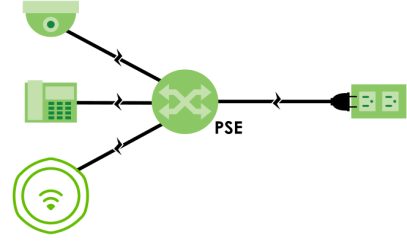
The following example shows a PSE using a PoE Extender (PoEE) to supply power and transmit data to the Zyxel Device, along with other PDs such as an IP camera and an IP telephone.
PoE Example Application - PSE with PoE Extender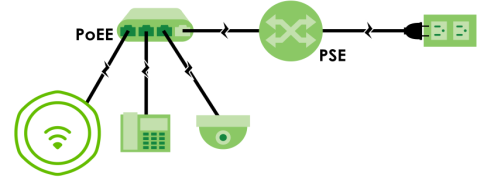
The following example shows the PoE Injector (PoEI) delivering power from the power outlet and transmitting data from the non-PoE (NPoE) device to the Zyxel Device.
PoE Example Application - PoE Injector 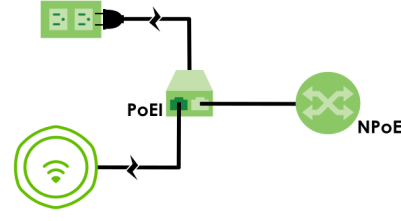
To view the Zyxel Device’s supported PoE standards, see Zyxel Device Product Feature Comparison. Use Ethernet cables that correspond to the PoE standard your Zyxel Device supports (see PoE Standards).
PoE standards are:
• IEEE 802.3af Power over Ethernet (PoE)
• IEEE 802.3at Power over Ethernet + (PoE+)
• IEEE 802.3bt Power over Ethernet ++ (PoE++)
The following table describes the PoE standards.
PoE FEATURES | PoE | PoE+ | PoE++ |
|---|---|---|---|
IEEE Standard | IEEE 802.3af | IEEE 802.3at | IEEE 802.3bt |
PoE Type | Type 1 | Type 2 | Type 3 |
PSE Port Power | |||
IEEE Power Classification | Class 0, 1, 2, 3 | Class 4 | Class 5, 6 |
Maximum Power Per Port | 15.4 W | 30 W | 60 W |
Port Voltage Range | 44 – 57 V | 50 – 57 V | 50 – 57 V |
Cables | |||
Twisted Pairs Used | 2-pair | 2-pair | 4-pair |
Supported Cables | Cat3 or better | Cat5 or better | Cat5 or better |