Troubleshooting
This chapter offers some suggestions for solving problems you may encounter with NCC and Nebula Devices.
• For instructions on using NCC, go to the Tutorials section.
• For information about managing Nebula Broadband Routers in NCC, go to Configuration.
• For information about monitoring Security Appliances in NCC, go to Monitor (Nebula Firewalls) or Monitor (Nebula Security Gateways).
• For information about configuring Security Appliances in NCC, go to Configure (Nebula Firewalls) or Configure (Nebula Security Gateways).
• For information about monitoring Nebula Switches in NCC, go to Monitor.
• For information about configuring Nebula Switches in NCC, go to Configure.
• For information about monitoring Nebula APs in NCC, go to Monitor.
• For information about configuring Nebula APs in NCC, go to Configure.
I cannot register the Zyxel Device in NCC.
Check whether your Zyxel Device supports Nebula. Look for the Nebula QR code on the Zyxel Device label or package box.
I cannot access the NCC portal.
• Check that you are using the correct URL:
• NCC: https://nebula.zyxel.com/
• Make sure your computer’s Ethernet adapter is installed and working properly.
• Check that you have Internet access. On your computer, click Start > (All) Programs > Accessories > Command Prompt. In the Command Prompt window, type ‘ping’ followed by a website such as ‘zyxel.com’. If you get a reply, try to ping ‘nebula.zyxel.com’.
• Make sure you use a web browser that supports HTML5. View the browser in full screen mode to display the NCC portal properly. Browsers supported are:
• Google Chrome
• Microsoft Edge
• Mozilla Firefox
I cannot log in to the NCC portal.
Open your web browser and go to https://nebula.zyxel.com. Sign in with your correct email address and password. Click Sign Up if you do not have a Zyxel Account and create an account.
I cannot access a Nebula Device that I have registered in NCC or the Nebula Device appears offline in NCC.
• If the LEDs do not turn on, you may have a hardware problem. In this case, you should contact your local customer support.
• Make sure your Nebula Device can connect to the NCC by checking your network’s firewall or security settings. Check whether your network firewall or ISP blocks the TCP/UDP port. A firewall or router may block port 4335. Configure your firewall to allow traffic on this port. In the Nebula Device, check that a security policy is not blocking the following ports:
• TCP: 22, 443, 4335 and 6667
 Go to Help > Support tools > Firewall information to find the latest port information required for firewall rules to allow management traffic between NCC and Nebula Devices on your sites.
• Make sure your Nebula Device is connected to power and turned on.
• Check your Nebula Device’s hardware connections and LED status. See the Nebula Device Quick Start Guide.
• Make sure your Nebula Device is connected to the Internet.
• Check if you can access the Nebula Device directly using the Web Configurator. If the IP address does not work, the WAN IPv4 address is incorrectly configured. Restart the Nebula Device.
• For Nebula Broadband Routers, make sure a valid SIM card is inserted in the SIM card slot.
• Make sure your Nebula Broadband Router is located where the cellular signal is strong.
• For ZyWALL USG FLEX / ATP / USG20(W)-VPN Series devices with Nebula native mode as the deployment method, make sure you perform the steps for Nebula native mode on the Nebula Device; see Nebula Native Mode for information.
If you select Zero Touch Provision mode as the deployment method, perform the required steps on the Nebula Device. See Zero Touch Provision Mode for information.
If you select Zero Touch Provision mode as the deployment method, perform the required steps on the Nebula Device. See Zero Touch Provision Mode for information.
• Connect to the console port on the Nebula Device and use SSH to log in. Enter the command ‘nslookup d.nebula.zyxel.com’. If the Nebula Device shows ‘unknown host’, check your DNS server setting or use ‘8.8.8.8’ as the DNS server on the Nebula Device.
• Nebula Devices will apply a default site-wide password after getting online on NCC. Check the login credential by going to Site-wide > Configure > Site settings: Local credentials.
• Specify the Port number and click Establish using Remote Access in the following screens to obtain real-time logs and data from the Nebula Device.
• Site-wide > Devices > Access point
• Site-wide > Devices > Security router
• Site-wide > Devices > Firewall
• Site-wide > Devices > Security gateway
Remote Access to Nebula APs is available to the organization owner, organization administrators with full privileges, and site administrators with full privileges in Nebula Pro Pack license only.Remote Access to Nebula Firewalls and Nebula Security Gateways is available to the organization owner in Nebula Pro Pack license only.
Make sure you have the Nebula Pro Pack license.
• Make sure your Nebula Device can synchronize with NTP (Network Time Protocol) through the following port. The 'Network Time Protocol' service is a required component of the firewall rules to allow management traffic between NCC and Nebula Devices on your sites. See Firewall Information for more information.
• UDP: 123
• Make sure your Nebula Device can resolve the Nebula Cloud Management (NETCONF) domain name d2.nebula.zyxel.com by using the CLI (cmd diagnostics nslookup domain-name-or-ip domain-name d2.nebula.zyxel.com). Or, use the nslookup tool through the Web Configurator (path: Maintenance > Diagnostics > Network Tool NSLOOKUP IPv4).
• A small MTU (Maximum Transmission Unit) size may cause the Nebula Switches to appear offline. Make sure the MTU size is bigger than 1500 bytes in Site-wide > Configure > Firewall > Interface > WAN/LAN interface configuration.
I cannot see my Nebula Devices in the NCC Dashboard.
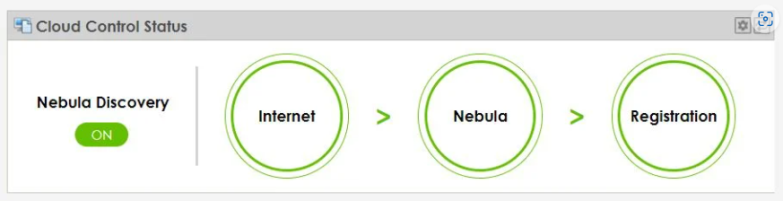
• Check the Nebula Device’s Web Configurator’s Dashboard. The Cloud Control Status displays the status of the Nebula Device’s Internet and NCC connection and registration status. Make sure your Nebula Device has NCC Discovery enabled.
• If the Nebula Device cannot connect to the Internet or NCC, hover the mouse over the Internet circle to check the error message. Check your local network settings.

• Make sure your Nebula Device can connect to the NCC by checking your network’s firewall/security settings. The following ports must be allowed:
• TCP: 22, 443, 4335 and 6667
• UDP: 123
Go to Help > Support tools > Firewall information to find the latest port information.• Make sure you have registered your Nebula Devices with the NCC. See License & Inventory Overview Screen.
• Make sure you have created an organization and site and added the Nebula Devices to the site. See Create Organization.
• When the Nebula Device is online in NCC, all circles are green.
I made the mistake of assigning a license to a Nebula Device and the license is in Active/Queued status. Can I Undo assign?
No. You can Undo assign only for an Inactive license. Select Transfer license to transfer the license to the correct Nebula Device.
I have already transferred a license to a Nebula Device. Why is the organization still in the grace period or Base tier?
Not all Nebula Devices in the organization have been assigned a license. Check if you have assigned a valid Plus or Professional license to all unlicensed Nebula Devices in the organization.
• In Organization-wide > License & inventory > Overview, click Upgrade Now to upgrade the organization to Plus or Professional tier.
• Alternatively, remove the unlicensed Nebula Device(s) from the organization.
My organization is now in Cloud-saving mode; how can I disable it?
There are two ways to disable Cloud-saving mode.
• Click the Cloud-saving mode switch in the Welcome back pop-up window.
Then click Close to turn off Cloud-saving mode for the organization.
Then click Close to turn off Cloud-saving mode for the organization.
• A banner displays when NCC is in Cloud-saving mode.
Click the You could change mode here link in the NCC banner.
Click the Cloud-saving mode switch in the Cloud-saving mode pop-up window.
Then click Close to turn off Cloud-saving mode for the organization.
Click the You could change mode here link in the NCC banner.
Click the Cloud-saving mode switch in the Cloud-saving mode pop-up window.
Then click Close to turn off Cloud-saving mode for the organization.
I want to place my Nebula Device on the right location on Google maps.
If your Nebula Device has a public IPv4 address, Google Maps can use Geo IP to approximately locate your Nebula Device. If your Nebula Device has an IPv6 address or a private IPv4 address or you want to locate the Nebula Device more precisely, use one of the following methods.
• Select Use the following address or coordinates to enter the complete address or coordinates of the Nebula Device in Site-wide > Devices > Firewall / Security gateway / Switch / Access point: details: Map: Position device.
• Select Get my location from web browser to use the public IP address of the computer accessing the NCC portal.
• Drag-and-drop your Nebula Device directly on the Google map.
I cannot set up Secure WiFi in NCC.
• Make sure the Nebula Firewall and Nebula APs are in the same NCC site.
• Make sure a Secure WiFi license is assigned to the Nebula Firewall.
• Make sure to configure the Remote AP Setting of each Remote Access Point before starting the Remote Access Point at the remote site. See Site-wide > Devices > Access point: Details.
• The maximum number of Remote Access points depends on the Nebula Firewall.
capacity | usg flex 50 / USG20-VPN / USG20W-VPN | usg flex 100 / usg flex 100w / atp100 / atp100w | usg flex 200 / ATP200 | usg flex 500 / ATP500 | ATP700 | usg flex 700 / ATP800 |
|---|---|---|---|---|---|---|
Maximum IPSec Tunnel | 10 | 40 | 90 | 250 | 450 | 450 |
Maximum Remote AP | No support | 6 | 10 | 18 | 66 | 130 |
The mesh extender does not appear online under Status in Site-wide > Devices > Access point.
• Click Reconnect in Site-wide > Devices > Access point: Uplink AP to re-establish connection.
• Make sure your Nebula Device supports smart mesh. To view the list of Nebula Devices that support smart mesh, go to Help > Device function table.
After you add a mesh extender to a site, it cannot connect to a mesh controller.
• Make sure you enable AP Smart Mesh in Site-wide > Configure > Access point > AP & port settings. See AP & Port Settings for more information.
For more information about smart mesh, see Nebula Smart Mesh.The mesh extender does not broadcast the mesh controller SSID.
• Make sure you enable Downlink in Site-wide > Devices > Access point: Details. See Access Point Details for more information.
• To enhance your mesh extender’s connectivity, maintain an Uplink signal strength above -65 dBm. You can check this in Site-wide > Devices > Access point.
None of the Nebula Device LEDs turn on.
• Make sure the power cord is connected to the Nebula Device and plugged in to an appropriate power source. Make sure the Nebula Device is turned on.
• Check all cable connections. See the related Quick Start Guide.
• If the LEDs still do not turn on, you may have a hardware problem. In this case, you should contact your local customer support.
The Nebula Device PWR LED is red.
• The Nebula Device has a power-related error. Disconnect and reconnect the power cord. Make sure you are using the included power cord for the Nebula Device and it is plugged into an appropriate power source. See the related Quick Start Guide.
• If the LED is still red, you may have a hardware problem. In this case, you should contact your local customer support.
I need to replace a defective Nebula Device in my stacking system. I want to keep the NCC configurations.
• Contact your vendor about the faulty Nebula Device.
• Do NOT remove or swap the faulty Nebula Device in NCC.
• Contact Zyxel Customer Support to keep the faulty Nebula Device’s port configuration and apply it to the new Nebula Device.
The automatic configuration recovery function of my Nebula Switch is not working.
The Auto configuration recovery allows connectivity check to NCC 5 minutes after a Nebula Switch configuration change. If NCC detects a connection problem, the Nebula Switch will return to its last saved custom default configuration.
• Make sure you have enable Auto configuration recovery in Site-wide > Configure > Switch. See Switch Settings for more information.
• Make sure your Nebula Switch appears online in NCC. The Auto configuration recovery feature requires at least 5 minutes of a stable connection to the Nebula Switch. See I cannot see my Nebula Devices in the NCC Dashboard. if your Nebula Switch appears offline in NCC.
When I click Upgrade now in the Site-wide > Configure > Firmware management or Organization-wide > Organization-wide manage > Firmware management screens, I get an Upgrade system firmware failed message.
• Make sure the DNS server used by your Nebula Device resolves the domain name ‘firmware.nebula.zyxel.com’.
• Make sure there are no firewall policies restricting access to ‘firmware.nebula.zyxel.com’ and that the firewall allows connection to TCP port 443.
• If no firewall policy restricts access, log in to the Nebula Device Web Configurator to get the technical support log from the following location:
• For a Nebula AP, go to MAINTENANCE > Diagnostics > Diagnostic > Collect now.
• For a Nebula Switch, go to MAINTENANCE > Tech-Support > All.
• For a Nebula Security Router, there is no technical support log.
• For a Nebula Firewall, go to MAINTENANCE > Diagnostics Info > Collect now.
• For a Nebula Security Gateway, go to MAINTENANCE > Diagnostics > Collect > Collect now > Files.
• For a Nebula Broadband Router, there is no technical support log.
• Contact Zyxel Customer Support for help.
The Upgrade now option is available only when the selected Nebula Devices have a new firmware available.The smartphone app cannot find and communicate with the IoT (Internet of Thing) device over WiFi.
• Go to Site-wide > Configure > WiFi SSID settings to configure a separate WiFi network for the IoT device(s).
• Go to Site-wide > Configure > Access point > SSID advanced settings and select the separate WiFi network in the previous step. Select WPA Personal With WPA2 in Security options.
• Select the 2.4GHz band in Band mode. The smartphone with IoT app and IoT device must connect to an SSID on the 2.4 GHz band. This improves IoT device connectivity and performance.
• Disable 802.11k/v/r in Assisted roaming and 802.11r. This prevents the Nebula Device from steering IoT devices to the 5 GHz band.
• Disable Layer 2 isolation in Advanced settings. When layer-2 isolation is enabled, an IoT device cannot communicate with other devices when its MAC address is not in the Layer 2 isolation table.
When layer-2 isolation is enabled, click Add to enter a MAC address of a IoT device you want to allow access to other devices in the same WiFi network.• Disable Intra-BSS traffic blocking in Advanced settings. This allows direct communication between IoT devices from within the same WiFi network.
• Go to Site-wide > Configure > WiFi SSID settings. Configure the same Tagging for the same WiFi network and the Tag for the Nebula Device in Site-wide > Devices > Access point. For example, tagging Nebula Device A with "Lobby" in Site-wide > Devices > Access point and assigning the "Lobby" tag to "SSID_lobby" in Site-wide > Configure > WiFi SSID settings means that Nebula Device A will broadcast "SSID_lobby."
• Go to Site-wide > Configure > Radio settings and disable Allow 802.11ax/ac/n stations only. This allows the IEEE 802.11a/b/g IoT devices to connect.
A WiFi client device cannot connect to a Nebula Device WiFi.
• Check the WiFi LED status to make sure the Nebula Device WiFi is on.
• Make sure the WiFi client is within transmission range of a Nebula Device.
• Make sure the WiFi client uses the correct SSID (Service Set IDentifier) and pre-shared key (PSK). Go to Site-wide > Configure > WiFi SSID settings for the correct SSID and PSK.
• Make sure your WiFi client uses the same WiFi security type (PSK or open) as the Nebula Device.
• Make sure the WiFi adapter on your WiFi client is working. Right-click your WiFi client computer's network adapter and then select Properties to check the network adapter status.
• Make sure the WiFi adapter on your WiFi client is IEEE 802.11-compatible. Make sure it supports the same WiFi standard as the Nebula Device 2.4G/5G radio.
• Select MAC authentication fallback in Site-wide > Configure > Access point > SSID advanced settings: Sign-in method. If MAC authentication fails, the WiFi client will use web authentication with a user name and password.
Example Scenario: When MAC authentication fails.
A WiFi client tries to connect to a WiFi network using MAC authentication (RADIUS server). If MAC authentication fails, the WiFi client will fall back to web authentication. The WiFi client must provide a user name and password for web authentication.
A WiFi client tries to connect to a WiFi network using MAC authentication (RADIUS server). If MAC authentication fails, the WiFi client will fall back to web authentication. The WiFi client must provide a user name and password for web authentication.
A client device’s WiFi connection is slow and intermittent.
The following factors may cause interference:
• Obstacles: walls, ceilings, furniture, and so on.
• Building Materials: metal doors, aluminum studs.
• Electrical devices: microwaves, monitors, electric motors, cordless phones, and other WiFi devices.
To optimize the speed and quality of a WiFi connection, you can:
• Move the client WiFi device closer to a Nebula Device if the signal strength is low.
• Reduce WiFi interference caused by other WiFi networks or surrounding wireless electronics such as cordless phones.
• Reduce the number of WiFi clients connecting to the same Nebula Device simultaneously, or add additional Nebula Devices if necessary.
• Close programs that use the Internet on the WiFi client, especially peer-to-peer applications. If a WiFi client sends or receives a lot of data, too many programs may be open.
• Place a Nebula Device where there are minimum obstacles (such as walls and ceilings) between a Nebula Device and a WiFi client. Avoid placing a Nebula Device inside any box that might block WiFi signals. See How to Position Multiple Nebula APs for more tips on selecting the best position to minimize signal interference for multiple Nebula Devices (access points).
• Go to Site-wide > Configure > Access point > SSID advanced settings: Advanced settings and turn on IEEE 802.11r fast roaming on the Nebula Device. 802.11r fast roaming reduces the delay when the clients switch from one Nebula Device to another by storing the security keys on all Nebula Devices in a network. Information from an original association is passed to the new Nebula Device when the clients roam. The clients do not need to perform the 802.1x authentication process again.
The ‘click-to-continue’ for Captive Portal sign-in method for the Guest SSID does not work.
The ‘click-to-continue’ for Captive Portal sign-in method authenticates the user through a login page before allowing network access.
• Make sure your Nebula AP supports captive portal. Go to Help > Support tools > Device function table to view a list of Nebula APs that support captive portal. See SSID Advanced Settings for more information about captive portal.
If you enable captive portal on a WiFi network (SSID), Nebula APs that do not support this feature stop broadcasting that SSID. If your Nebula AP does not support captive portal, do the following:
• Go to Site-wide > Configure > Access point > SSID advanced settings. Make sure that Disabled is selected for Sign-in method.
I enabled AP traffic log in Site-wide > Configure > Site settings: Reporting, and I want to restrict the type of logs from my Nebula Device (for example, no debug logs).
• At the time of writing, Nebula Devices log all events. You will not be able to restrict the type of logs written.
• You can choose the type of logs to generate only in Standalone mode by doing the following:
• Log in to the Nebula AP’s Web Configurator.
If NCC is managing or has managed a Nebula Device, check Local credentials in Site-wide > Configure > Site settings for the Nebula Device’s current password.• Go to Configuration > Log & Report > Log Setting > Active Log Summary.
• Select what information to include in the system log.
My Mac OS computer does not display the captive portal login page.
• Enter “http://neverssl.com” in the Location or Address field of your browser. This allows you to access the NCC login page by bypassing SSL (Secure Sockets Layer). SSL creates an encrypted link between a web server and a web browser.
I cannot access a Nebula Device in Standalone mode after removing (unregistering) the Nebula Device from NCC.
• Make sure the Nebula Device has been removed from your organization. Go to Organization-wide > License & inventory > Devices. Select the Nebula Device, click Actions, then click Remove from organization. Click Yes to confirm, or click the delete icon to remove the Nebula Device.
• Make sure to reset the Zyxel Device to its factory-default settings. This removes the current configuration.
You should now be able to access the Zyxel Device’s Web Configurator in Standalone mode.
I am the organization owner. I cannot deactivate, delete, or change the organization access privileges of a delegated administrator.
You cannot deactivate, delete, or downgrade a delegated administrator responsible for PAYG management and payment of a PAYG organization. In this case, you or another delegated administrator must first take over PAYG management and billing on the Zyxel Circle website. See the Circle User's Guide for more information about account registration, sign-in, and billing when the PAYG payer changes.
1 Log in to Circle and go to My Devices > On-cloud > Pay As You Go.
2 Hover over your PAYG organization to see the current PAYG payer. If the delegated administrator is the current PAYG payer, click Switch Payer to take over PAYG management and billing.

Once the payer has been changed, you can deactivate, delete, or downgrade the delegated admin Organization-wide > Administrators in Nebula.
Accessibility and Compatibility Problems
Screen reader not reading content
• Make sure you have the latest screen reader version installed.
• Make sure the screen reader’s accessibility settings are enabled.
Web browser not displaying correctly
• Clear your web browser cache.
• Make sure JavaScript is enabled.
• Try using a different supported web browser.
Getting More Troubleshooting Help
Go to support.zyxel.com at the Zyxel website for more technical information about NCC.
NCC Live Chat
Click Ask Question at the bottom of the NCC window. NCC then prompts you to search for a solution on the Zyxel forum, and connects you to a Zyxel technical support agent. If no technical support agent is available, fill in the form to email your question to Zyxel.
 This is an NCC Professional Pack feature.
Live chat might be limited to a certain number of hours per day. The time that live chat is available varies depending on your country.