Troubleshooting
Troubleshooting Overview
This chapter offers some suggestions to solve problems you might encounter. The potential problems are divided into the following categories.
Accessibility and Compatibility Problems
Screen reader not reading content.
• Ensure the latest version of the screen reader is installed.
• Check if the screen reader’s accessibility settings are enabled.
Web browser not displaying correctly.
• Clear your web browser cache.
• Ensure that JavaScript is enabled.
• Try using a different supported web browser.
Power and Hardware Problems
The Zyxel Device does not turn on.
Non-PoE Devices
1 Make sure you are using the power adapter included with the Zyxel Device.
2 Make sure the power adapter is connected to the Zyxel Device and plugged in to an appropriate power source. Make sure the power source is turned on.
3 Disconnect and re-connect the power adapter to the Zyxel Device.
4 Make sure you have pressed the POWER button to turn on the Zyxel Device.
5 If the problem continues, contact the vendor.
PoE Devices
1 Make sure you are using the power adapter included with the Zyxel Device.
2 Make sure the PoE is connected to the Zyxel Device and plugged in to an appropriate power source.
3 Make sure the power source is turned on.
4 Turn the Zyxel Device off and on.
5 If the problem continues, contact the vendor.
The LED does not behave as expected.
1 Make sure you understand the normal behavior of the LED.
2 Check the hardware connections.
3 Inspect your cables for damage. Contact the vendor to replace any damaged cables.
4 Turn the Zyxel Device off and on.
5 If the problem continues, contact the vendor.
Device Access Problems
I do not know the IP address of the Zyxel Device.
1 The default IP address is 192.168.1.1.
2 If you changed the IP address, you might be able to find the IP address of the Zyxel Device by looking up the IP address of your computer’s default gateway. To do this in Microsoft Windows, click Start > Run, enter cmd, and then enter ipconfig. The IP address of the Default Gateway might be the IP address of the Zyxel Device, depending on your network environment.
3 If this does not work, reset the Zyxel Device to its factory defaults.
• Locate a small hole labeled RESET on the Zyxel Device.
• Use a paperclip or a similar tool to press and hold the RESET button for more than 5 seconds.
• Release the button, and the Zyxel Device will reset to its default settings, including the default IP address, user name, and password.
 Resetting the Zyxel Device will erase all your custom settings, so you need to reconfigure it.
I forgot the admin password.
1 See the Zyxel Device label or this document’s cover page for the default admin password.
2 If you changed the password from default and cannot remember the new one, you have to reset the Zyxel Device to its factory default settings.
I cannot access the Web Configurator login screen.
1 Make sure you are using the correct IP address.
• The default IP address is 192.168.1.1.
• If you changed the IP address, use the new IP address.
• If you changed the IP address and have forgotten the new address, see the troubleshooting suggestions for I do not know the IP address of the Zyxel Device.
2 Check the hardware connections, and make sure the LEDs are behaving as expected.
3 Make sure your Internet browser does not block pop-up windows and has JavaScript and Java enabled.
4 Clear the Internet browser cache and try accessing the Web Configurator login screen again. Outdated browser data can cause login issues. If the problem persists, try logging into the Web Configurator using a different browser. (For example, Chrome, Firefox, Edge.)
5 If it is possible to log in from another interface, check the service control settings for HTTP and HTTPS (Maintenance > Remote Management).
6 Reset the Zyxel Device to its factory default, and try to access the Zyxel Device with the default IP address.
7 If the problem continues, contact the network administrator or vendor, or try one of the advanced suggestions.
Advanced Suggestions
• Make sure you have logged out of any earlier management sessions using the same user account even if they were through a different interface or using a different browser.
• Try to access the Zyxel Device using another service, such as Telnet. If you can access the Zyxel Device, check the remote management settings and firewall rules to find out why the Zyxel Device does not respond to HTTP.
I cannot log into the Zyxel Device.
1 For first-time Zyxel Device logins, after using the label password to access the Web Configurator, ensure your new password meets the requirements on the screen. For example, some models require the new password to be at least 8 characters long and include at least one uppercase letter, one lowercase letter, one number, and one special character.
2 Make sure you have entered the user name and password correctly. The default user name is admin. These both user name and password are case-sensitive, so make sure [Caps Lock] is not on.
3 You cannot log in to the Web Configurator while someone is using Telnet to access the Zyxel Device. Log out of the Zyxel Device in the other session, or ask the person who is logged in to log out.
4 Turn the Zyxel Device off and on.
5 If this does not work, you have to reset the Zyxel Device to its factory default. To reset the Zyxel Device, press the RESET button until the POWER LED begins to blink and then release it.
I cannot log into the Zyxel Device using DDNS.
If you connect your Zyxel Device to the Internet and it uses a dynamic WAN IP address, it is inconvenient for you to manage the Zyxel Device from the Internet. The Zyxel Device’s WAN IP address changes dynamically. Dynamic DNS (DDNS) allows you to access the Zyxel Device using a domain name.
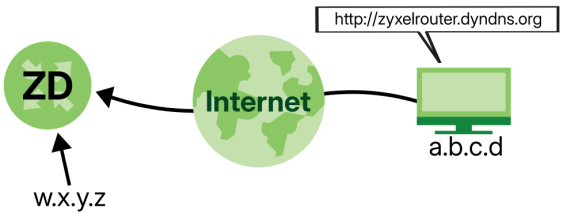
To use this feature, you have to apply for DDNS service at www.dyndns.org.
If you have a private WAN IP address, then you cannot use DDNS.Here are the three steps to use a domain name to log in the Web Configurator:
Step 1 Register for a DDNS Account on www.dyndns.org
1 Open a browser and enter http://www.dyndns.org.
2 Apply for a user account. This tutorial uses UserName1 and 12345 as the username and password.
3 Log into www.dyndns.org using your account.
4 Add a new DDNS host name. This tutorial uses the following settings as an example.
• Hostname: zyxelrouter.dyndns.org
• Service Type: Host with IP address
• IP Address: Enter the WAN IP address that your Zyxel Device is currently using. You can find the IP address on the Zyxel Device’s Web Configurator Status page.
Then you will need to configure the same account and host name on the Zyxel Device later.
Step 2 Configure DDNS on Your Zyxel Device
Configure the following settings in the Network Setting > DNS > Dynamic DNS screen.
• Select Enable Dynamic DNS.
• Select www.DynDNS.com as the service provider.
• Enter zyxelrouter.dyndns.org in the Host Name field.
• Enter the user name (UserName1) and password (12345). Click Apply.
Step 3 Test the DDNS Setting
Now you should be able to access the Zyxel Device from the Internet. To test this:
1 Open a web browser on the computer (using the IP address a.b.c.d) that is connected to the Internet.
2 Enter http://zyxelrouter.dyndns.org and press [Enter].
3 The Zyxel Device’s login page should appear. You can then log into the Zyxel Device and manage it.
I cannot connect to the Zyxel Device using Telnet, SSH, or Ping.
1 See the Remote Management section for details on allowing web services (such as HTTPS, Telnet, SSH and Ping) to access the Zyxel Device.
2 Check the server Port number field for the web service in the Maintenance > Remote Management screen. You must use the same port number in order to use that web service for remote management.
3 Try the troubleshooting suggestions for I cannot access the Web Configurator login screen. Ignore the suggestions about your browser.
I cannot access the Zyxel Device from outside the network (WAN).
To test if this is due to CGNAT, follow these steps:
1 Log in to your Zyxel Device’s Web Configurator using the default IPv4 address (for example, 192.168.1.1).
2 Locate the WAN IP address on the Dashboard screen. You can find this information in the Network or WAN settings.
3 Go to a website that can show you the public IP address of your network (for example, https://whatsmyip.com). When you access this site, it will display your public IP address.

4 Compare the WAN IP address displayed on the Dashboard screen with the public IP address shown on the https://whatsmyip.com website.
• If both IP addresses are the same, your ISP is not using Carrier-Grade NAT, and you should be able to access your Zyxel Device from the WAN (outside).
• If the IP addresses are different, it indicates that your ISP is using Carrier-Grade NAT, and your Zyxel Device has a shared public IP address. As a result, remote access to your Zyxel Device from the WAN will not be possible.
If you discover that your Zyxel Device is behind a Carrier-Grade NAT and you need remote access, you must contact your ISP and request a public IP address for your SIM card or Zyxel Device.
I cannot use my Zyxel Device to assign IP addresses.
There are two modes you can select for the Zyxel Device: Router Mode and IP Passthrough Mode. In Router Mode, the Zyxel Device can assign IP addresses to LAN clients. In IP Passthrough Mode, the Zyxel Device passes the public IP address assigned by the ISP directly to LAN clients.
If you want the Zyxel Device to assign IP addresses, you need to set the Zyxel Device to Router Mode and enable DHCP.
1 Checking Router Mode
To check if your Zyxel Device is in Router Mode, go to the Home screen. In the Cellular Info section, check if the Mode field displays Router Mode. If the Mode field displays IP Passthrough Mode, follow the steps below to change to Router Mode:
• Click the menu icon ( ) and go to Network Setting > Broadband > Cellular APN.
) and go to Network Setting > Broadband > Cellular APN. • Click the Modify icon in the row of the APN that is enabled and currently active. The Edit APN screen will appear.
• Click the IP Passthrough switch to the left to turn off IP Passthrough Mode. Click OK.
• Go to the Home screen and check the Cellular Info section. The Mode field should now display Router Mode.
2 Enabling DHCP
DHCP (Dynamic Host Configuration Protocol) is a protocol that automatically assigns IP addresses to LAN clients. To enable DHCP on your Zyxel Device:
• Go to Network Setting > Home Networking > LAN Setup.
• Select Enable in the DHCP Server State. Click Apply.
Your Zyxel Device should now be able to assign IP addresses to LAN clients on your network.
I cannot assign a public IP address to my client devices.
Use IP Passthrough mode when you want the Zyxel Device to pass the public IP address from your ISP directly to another device behind the Zyxel Device. This device can be a firewall behind the Zyxel Device, which will handle NAT and routing functions. You want to avoid double NAT (on both the Zyxel Device and the firewall), which can cause issues with VPNs, VoIP, and online gaming. The device behind the Zyxel Device may need a public IP address directly for:
• IPSec (IP Security Protocol) VPNs - to establish a secure tunnel directly to a public IP address.
• Remote access - to make the device directly accessible from the Internet.
• Hosting services (e.g., web or mail servers) - to ensure the servers are reachable from the Internet on a fixed public IP address.
1 Outdoor Zyxel Device: IP Passthrough Mode
To set an outdoor Zyxel Device to IP Passthrough mode, follow the steps below:
• Log into the Web Configurator.
• Go to Network Setting > Broadband > Cellular APN. In APN Settings, select the client device that you want to receive the public IP address assigned by the ISP. Click the Modify icon 
• The Edit APN screen appears. Click the IP Passthrough switch  to the right to enable IP Passthrough mode on the Zyxel Device for the selected client device.
to the right to enable IP Passthrough mode on the Zyxel Device for the selected client device. • In the Passthrough Mode drop-down list, you have two options:
Dynamic: This option forwards traffic to any LAN computer on the Zyxel Device’s local network.
Fixed: This option forwards traffic to a specific computer by entering its MAC address. When you select Fixed, the Passthrough to fixed MAC field appears. This allows you to enter the MAC address of the specific computer.
• Click OK to save the settings.
2 Indoor Zyxel Device: IP Passthrough Mode
To set an indoor Zyxel Device to IP Passthrough mode, follow the steps below:
• Log into the Web Configurator.
• Go to Network Setting > Broadband > Cellular IP Passthrough.
• In IP Passthrough Management, click the IP Passthrough switch  to the right to enable IP Passthrough on the Zyxel Device.
to the right to enable IP Passthrough on the Zyxel Device. • In Passthrough Mode, you have two options: Dynamic and Fixed.
Dynamic: This option forwards traffic to any LAN computer on the Zyxel Device’s local network.
Fixed: This option forwards traffic to a specific computer by entering its MAC address. When you select Fixed, the Passthrough to fixed MAC field appears. This allows you to enter the MAC address of the specific computer.
• Click Apply to save the settings.
I need more than one account on my Zyxel Device.
To let multiple users access the Web Configurator, you can create more than one Administrator or User account. A total of eight users can log in to the Zyxel Device at the same time.
The total number of accounts you can create for each group type:
Administrator Account | 4 |
User Account | 4 |
Follow the steps below to create Administrator or User accounts:
1 Log in to the Web Configurator. Go to Maintenance > User Account. Click the  icon on the right to Add New Account.
icon on the right to Add New Account.2 Enter the information for the new account in the appropriate fields. In the Group drop-down list, select Administrator or User to assign different privileges to the account. For more details about the privileges of Administrator and User accounts, please refer to User Account. Click OK.
3 In the Maintenance > User Account screen, the newly created account will be displayed. Click Apply to save the new accounts.
Cellular Problems
The SIM card cannot be detected.
1 Disconnect the Zyxel Device from the power supply.
2 Remove the SIM card from its slot.
3 Clean the SIM card slot of any loose debris using compressed air.
4 Clean the gold connectors on the SIM card with a clean lint-free cloth.
5 Insert the SIM card into its slot and connect the Zyxel Device to the power supply to restart it.
I get an Invalid SIM card alert.
1 Make sure you have an active plan with your ISP.
2 Make sure that the Zyxel Device is in the coverage area of a cellular network.
3 Enable Data Roaming in Network Setting > Broadband > Cellular WAN to keep the Zyxel Device connected to the Internet when you are traveling outside the geographical coverage area of the network to which you are registered, such as a different country. Then, restart the Zyxel Device.
I get a weak cellular signal.
1 Check the signal strength. Look at the LEDs, and check the LED section for more information. If the signal strength is low, try moving the Zyxel Device closer to the ISP’s base station if possible, and look around to see if there are any devices that might be interfering with the wireless network (such as microwaves, other wireless networks).
2 Select Auto in Network Setting > Broadband > Cellular Band: Preferred Access Technology and slide the switch to the right to enable Band Auto Selection.
3 Find the location of your nearest cellular base stations, then install the Zyxel Device towards the direction of those sites. The nearest site or site with a direct line-of-sight is usually preferred.
It is best to test towards more than one cellular site, as the nearest site / line-of-sight is not always the best due to the terrain, interference, density of usage, and so on. All of these factors influence the stability, availability and throughput of the link to the Zyxel Device.4 Conduct test measurements using the Web Configurator’s System Monitor > Cellular WAN Status screen to obtain a report of the cellular network signal strength and quality at various test positions.
It is best to reboot the Zyxel Device before each test measurement is taken to ensure that it is not camping on the previous cellular site. This is because the Zyxel Device can ‘lock’ onto the previous cellular site even when the new cellular site is at a much better signal level and quality.5 Although installing the Zyxel Device as high as possible is the usual rule of thumb, it is sometimes possible that the Zyxel Device is in a weak coverage spot at that specific height. Adjust the height to achieve the best service possible. Use app to determine the best location for your Zyxel Device.
It is possible that the current serving cellular site has become over utilized or is out-of-service. In this case, you may need to reposition the Zyxel Device to the direction with the strongest cellular signal. Use app to determine the best location for your Zyxel Device.
I don’t want to enter the SIM card PIN code every time I reboot the Zyxel Device.
A PIN (Personal Identification Number) code is the key to a SIM card. The PIN code for your SIM card protects against unauthorized users. When the Internet connection is down, users may need to reboot the Zyxel Device. Enabling PIN Protection allows the Zyxel Device to prompt you for the PIN code every time the Zyxel Device reboots. If you don’t want to enter the PIN code every time the Zyxel Device reboots, follow the steps below:
1 Click the menu icon ( ) and go to Broadband > Cellular SIM > PIN Management.
) and go to Broadband > Cellular SIM > PIN Management. 2 Click the Auto Unlock PIN switch to the right to enable Auto Unlock PIN. Enter the PIN code and click Apply. For more details about Auto Unlock PIN, please refer to Cellular SIM Configuration.
Now, you don’t need to enter the PIN code every time you reboot the Zyxel Device.
Internet Problems
I cannot access the Internet.
1 Check the hardware connections and make sure the LEDs are behaving as expected. See the Quick Start Guide.
2 Check the SIM card. Maybe it has wrong settings, the account has expired, it needs to be removed and reinserted (refer to the Quick Start Guide), or it is missing. See USB Problems for possible SIM card problems.
3 Make sure you entered your ISP account information correctly on the Network Setting > Broadband screen. Fields on this screen are case-sensitive, so check if [Caps Lock] is on of off.
4 Check that the WAN interface you are connected to is in the same interface group as the Ethernet connection (Network Setting > Interface Group).
5 Make sure you have the Ethernet WAN port connected to a Modem or Router.
6 If you set up a WAN connection using bridging service, make sure you turn off the DHCP feature in the Network Setting > Home Networking > LAN Setup screen to have the clients get WAN IP addresses directly from your ISP’s DHCP server.
7 For models that have optional dual LAN/WAN ports, make sure you converted the LAN port to a WAN port by clicking Enable on the Network Setting > Broadband > Ethernet WAN screen. Then make sure you have the Ethernet WAN port connected to a modem or router.
8 If you are trying to access the Internet wirelessly, make sure that you enabled the Wi-Fi in the Zyxel Device and your Wi-Fi client and that the Wi-Fi settings in the Wi-Fi client are the same as the settings in the Zyxel Device.
9 Disconnect all the cables from your Zyxel Device and reconnect them.
10 Check that the network monitoring feature of the Zyxel Device is enabled. Network monitoring helps identify issues with Internet connection and allows the Zyxel Device to attempt reconnection to the base station if the cellular connection is lost. To enable Network Monitoring, Go to Network Settings > Broadband > Cellular WAN. See Cellular WAN for more information about network monitoring.
11 If you want to use the 5 Ghz Wi-Fi network, check with your ISP for the 5G bands supported in your area. Go to Networking > Broadband > Cellular Band > Band Management, switch Band Auto Selection to the left to manually select the cellular bands. Choose the specific 5G bands provided by your ISP for a stable Internet connection, and click Apply. For example, you might select n77, n78, and n79 for 5G. Note that cellular bands vary by country.
12 If the problem continues, contact your ISP.
How to verify if my WAN connection is active?
1 Check the WAN LED indicator on the Zyxel Device to see if the WAN connection is active.
2 Log into the Web Configurator. In Connection Status, if the WAN connection is down, the WAN Status field displays Connection down. If there is an active WAN connection, the WAN Status field shows the type and speed of the connection. For example, Ethernet WAN 1000/Full means the Zyxel Device’s Ethernet WAN link speed is 1000 megabits per second (1 Gbps) in full duplex mode. Full duplex means the Zyxel Device can transmit and receive data at the same time.
I cannot connect to the Internet using an Ethernet connection.
1 Make sure you have the Ethernet WAN port connected to a Modem or Router.
2 Make sure you configured a proper Ethernet WAN interface (Network Setting > Broadband screen) with the Internet account information provided by your ISP and that it is enabled.
3 Check that the WAN interface you are connected to is in the same interface group as the Ethernet connection (Network Setting > Interface Group).
4 If you set up a WAN connection using bridging service, make sure you turn off the DHCP feature in the Network Setting > Home Networking > LAN Setup screen to have the clients get WAN IP addresses directly from your ISP’s DHCP server.
The Internet connection is slow or intermittent.
1 There might be a lot of traffic on the network. If the Zyxel Device is sending or receiving a lot of information, try closing some programs that use the Internet, especially peer-to-peer applications.
2 For models that support external antennas, see Feature Differences. Connect two external antennas to improve the cellular WAN signal strength. Then, set the INT / EXT / INT EXT / EXT INT switch to EXT. Point the antennas to the base stations directions if you know where they are, or try pointing the antennas in different directions and check which provides the strongest signal to the Zyxel Device. Use app to determine the best location for your Zyxel Device.
3 If your Zyxel Device keeps alternating between ISPs, then choose a fixed ISP. Go to the Network Setting > Cellular PLMN screen, disable PLMN Auto Selection and then choose your preferred ISP.
4 Turn the Zyxel Device off and on.
5 If the problem continues, contact the network administrator or vendor, or try the advanced suggestions in I cannot access the Web Configurator login screen.
If your Zyxel Device is an outdoor-type, inclement weather like rain and hot weather may affect cellular signals.What should I do if my Zyxel Device is under attack?
A slow Internet speed, a web browser that keeps redirecting you, suspicious activity alerts from your ISP, and increased pop-ups on the Zyxel Device; could be signs that your Zyxel Device is under attack. If you suspect that your Zyxel Device is under attack, do the following:
1 Create an ACL (Access Control List) rule to block the ports being targeted. See Access Control (Rules) for more information on using ACL. See also Configure a Firewall Rule for more information on configuring a firewall rule. Go to System Monitor > Log > Security Log to view the security-related logs to determine which ports are being targeted. See Security Log for more information on security logs.
2 Contact your ISP to report the attack and seek assistance.
3 When possible, turn off the Zyxel Device for 24 hours, then turn it on again.
4 Request the ISP to change your IP address.
My 5G connection is not available.
1 Check with your ISP to see if your SIM card supports 5G service.
2 Check the local 5G signal using the nPerf website by selecting your country, choosing your carrier, and entering your address. You can also ask your ISP about the availability of 5G signals in your area.
3 Go to Networking > Broadband > Cellular Band > Access Technology. Make sure that the Preferred Access Technology includes the 5G option. For example, choose NR5G. See Cellular Band Configuration for more information about cellular band configuration.
4 Go to Networking > Broadband > Cellular Band > Band Management. Switch the Band Auto Selection to the right to enable automatic band selection. If you want to manually select specific 5G bands provided by your ISP, switch the Band Auto Selection to the left. For example, you might select n77, n78, and n79 for 5G. Note that cellular bands vary by country. See Cellular Band Configuration for more information about cellular band configuration.
Wi-Fi Problems
I cannot connect to the Zyxel Device Wi-Fi.
1 Check the Wi-Fi LED status to make sure the Zyxel Device Wi-Fi is on.
2 Make sure your Wi-Fi client is within transmission range of the Zyxel Device.
3 Make sure you entered the correct SSID and password. See the Zyxel Device back label for the default SSID and password.
4 Make sure your Wi-Fi client is using the same Wi-Fi security type (WPA2-PSK, WPA3-SAE, or none) as the Zyxel Device.
5 Make sure the Wi-Fi adapter on your Wi-Fi client is working properly. Right-click your computer's network adapter then select Properties to check your network adapter status.
6 Make sure the Wi-Fi adapter on your Wi-Fi client is IEEE 802.11-compatible and supports the same Wi-Fi standard as the Zyxel Device radio.
7 Make sure your computer’s Wi-Fi adapter has the latest drivers installed. Outdated drivers may cause Wi-Fi connection issues. Go to your Wi-Fi adapter manufacturer’s website to download the latest drivers.
To check if it is your Zyxel Device that is causing the problem and not your Wi-Fi connection, try using a wired connection.The Wi-Fi connection is slow and intermittent.
The following factors may cause interference:
• Obstacles: walls, ceilings, furniture, and so on.
• Building Materials: metal doors, aluminum studs.
• Electrical devices: microwaves, monitors, electric motors, cordless phones, and other wireless devices.
To optimize the speed and quality of your Wi-Fi connection, you can:
• Move your wireless device closer to the AP if the signal strength is low.
• Reduce wireless interference that may be caused by other Wi-Fi networks or surrounding wireless electronics such as cordless phones.
• Place the AP where there are minimum obstacles (such as walls and ceilings) between the AP and the Wi-Fi client.
• Reduce the number of Wi-Fi clients connecting to the same AP simultaneously, or add additional APs if necessary.
• Try closing some programs that use the Internet, especially peer-to-peer applications. If the Wi-Fi client is sending or receiving a lot of information, it may have too many programs open that use the Internet.
• Place the Zyxel Device where there are minimum obstacles (such as walls and ceilings) between the Zyxel Device and the Wi-Fi client. Avoid placing the Zyxel Device inside any type of box that might block Wi-Fi signals.
I can’t find my Zyxel Device’s Wi-Fi network name (SSID).
To easily identify your Zyxel Device’s Wi-Fi network among the available networks, you can change the default Wi-Fi network name.
To modify the Wi-Fi network name:
• Log into the Web Configurator.
• Go to Network Setting > Wireless > General.
• In Wireless Network Settings, enter the new Wi-Fi network name in the Wireless Network Name field. You can use up to 32 printable characters, including spaces.
• When finished, scroll down and click Apply.
Your new Wi-Fi network name is now set.
I blocked a smartphone using the MAC Authentication screen, but it can still access the Zyxel Device’s Wi-Fi network. Why?
Nowadays, many smartphones use a private (randomized) MAC address for each Wi-Fi network instead of the device’s actual MAC address.
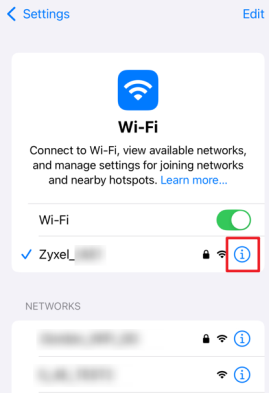
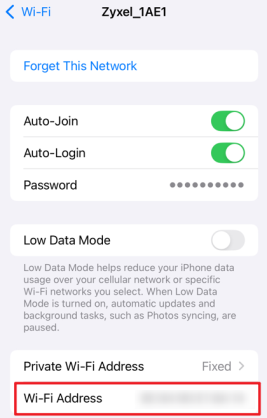
To block a smartphone effectively, you need to find the private MAC address it uses for the specific Wi-Fi network. Follow the steps below to locate it:
1 For iOS devices, go to Settings > Wi-Fi, click the information icon next to the Wi-Fi network you want to block.
2 Look for the Wi-Fi Address. This is the private MAC address that the smartphone is using to connect to that Wi-Fi network. Add this address to the MAC Authentication deny list to block the device.
USB Problems
The Zyxel Device fails to detect my USB device.
1 Disconnect the USB device.
2 Reboot the Zyxel Device.
3 If you are connecting a USB hard drive that comes with an external power supply, make sure it is connected to an appropriate power source that is on.
4 Reconnect your USB device to the Zyxel Device.
UPnP Problems
My computer cannot detect UPnP settings from the Zyxel Device.
1 Make sure that UPnP is enabled in your computer.
2 On the Zyxel Device, make sure that UPnP is enabled on the Network Settings > Home Networking > UPnP screen.
3 Disconnect the Ethernet cable from the Zyxel Device’s Ethernet port or from your computer.
4 Reconnect the Ethernet cable.
5 Restart your computer.
Getting More Troubleshooting Help
Search for support information for your model at support.zyxel.com and community.zyxel.com for more troubleshooting suggestions.